Tabs Studio Blog (organizing Visual Studio document tabs)

June 19, 2009

Corresponding Files in different folders

Filed under: Uncategorized — Sergey Vlasov @ 6:03 pm

Now that documents from different folders can be grouped together, OpenCorrespondingFile command and Open context menu command have been augmented to find corresponding files in other folders (other than current folder for active document). Currently opened solution is scanned for files and those files that match grouping options are displayed in context menu.

Opening corresponding file from different folder

Opening corresponding file from different folder

June 17, 2009

Document path grouping

Filed under: Uncategorized — Sergey Vlasov @ 6:14 am

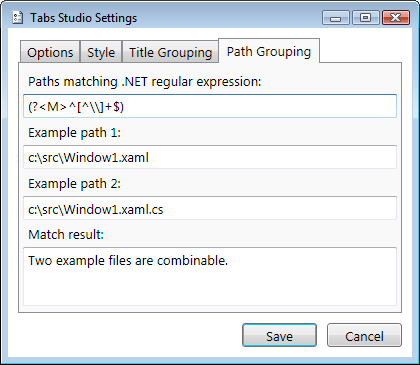
Currently, tabs are combined only if their associated documents are in the same folder. This is a good default as you don’t want Window1 .xaml .xaml.cs from Project1 to be combined with Window1 .xaml .xaml.cs from Project2. But sometimes files that are really relevant can reside in different folders. For example, it would be nice to combine c:\Projects\4\4\Scripts\1033\default.js and c:\Projects\4\4\HTML\1033\default.htm files. It will be possible in the next version.

Path grouping settings

Path grouping settings

Paths matching is somewhat convoluted as I wanted to achieve maximal customizability. Having two files c:\src\Window1.xaml and c:\src\Window1.xaml.cs matching algorithm removes common path from two files, appends ‘$’ symbol to the end of both files and concatenates them. Resulting Window1.xaml$Window1.xaml.cs$ string is matched with paths matching regex. If M named group matches the string then two files are combinable. If not, two full paths with ‘$’ symbol are concatenated (resulting in c:\src\Window1.xaml$c:\src\Window1.xaml.cs$ string) and again matched with paths matching regex. If M named group matches the string then two files are combinable. If not, then files are not combinable. If files are combinable then additional tab title grouping rules are checked.

Default paths matching regex (?<M>^[^\\]+$) checks that there are no back slashes in first paths concatenation and thus allows files only from the same directory. If we try c:\Project1\Window1.xaml and c:\Project2\Window1.xaml.cs files, then first concatenation would be Project1\Window1.xaml$Project2\Window1.xaml.cs$ – it has two back slashes and would not match default regex. Two file names are lexicographically “sorted”, it is guaranteed that concatenation would be Project1\Window1.xaml$Project2\Window1.xaml.cs$ and not Project2\Window1.xaml.cs$Project1\Window1.xaml$.

Let’s create rule that allows htm files from HTML folder to be combinable with js files in Scripts folder. For c:\Projects\4\4\Scripts\1033\default.js and c:\Projects\4\4\HTML\1033\default.htm first concatenation would be HTML\1033\default.htm$Scripts\1033\default.js$ and simple matching regex would be (?<M>^HTML.+?htm\$Scripts.+?js\$). As for other cases we want that default same folder restriction apply, we add our new rule before default one using OR symbol. The result is (?<M>^HTML.+?htm\$Scripts.+?js\$)|(?<M>^[^\\]+$).

We can solve htm files combining problem differently if there is only one project with htm files. In this case htm files can’t clash with htm files in other folders and simply allowing htm extension to be combinable with everything else would suffice – (?<M>htm\$)|(?<M>^[^\\]+$). Using absolute path in regex would achieve the same –
(?<M>c:\\Projects\\4\\4\\HTML)|(?<M>^[^\\]+$).

When one of two files is in a subfolder (for example, c:\Projects\4\default.htm and c:\Projects\4\code\default.js), regex matching single back slash would allow files to be combinable – (?<M>^[^\\]+\\[^\\]+$)|(?<M>^[^\\]+$).

It’s possible to create a rule that denies files combining. Use matching regex without M group for it. E.g., to deny files with .Designer.cs extension to be combinable and deny their appearance in corresponding files list use (.+Designer\.cs\$)|(?<M>^[^\\]+$) regex.

June 15, 2009

Tab Title Grouping

Filed under: Uncategorized — Sergey Vlasov @ 8:15 am

I’m working on better tab grouping. Currently, there is a hardcoded list of combinable extensions and I gradually add more and more extensions to it. Right now the list is: aspx.designer.cs, aspx.vb, xaml.vb, aspx.cs, Designer.cs, xaml.cs, svc.cs, ascx.cs, master.cs, c, cpp, h, hpp, h [Design], inl, vb [Design], vb, cs [Design], cs, aspx, xaml, xml, resX, settings, js, svc, ascx, master. I was afraid that allowing all extensions to be combinable could lead to some unforeseen consequences. Still, I couldn’t find a single case when combining arbitrary extensions is bad. So, I’m making all extensions combinable now by default and I have a mechanism to block undesired extensions from combining if needed.
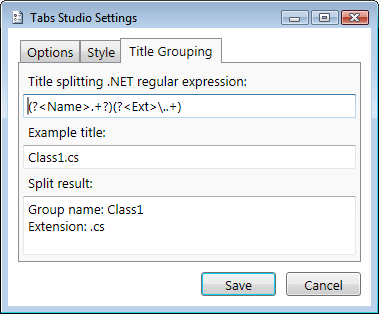
Title grouping settings

Title grouping settings


Each tab title is now matched with title splitting regular expression. Tabs that have the same group name are combined. Default title splitting regex matches Name as all symbols before first dot and matches Ext as first dot and all subsequent symbols. Customizing splitting regex allows different grouping options. Let’s see some examples:

1. Grouping all extensions (default):

(?<Name>.+?)(?<Ext>\..+)

(?<Name>.+?)(?<Ext>\..+)

2. Explicit list of combinable extensions (xaml and xaml.cs):

(?<Name>.+?)(?<Ext>\.(xaml|xaml.cs))$

(?<Name>.+?)(?<Ext>\.(xaml|xaml.cs))$

3. Additional grouping by part of a name and an extension (_i.h and _c.h):

Additional grouping by part of a name and an extension

Additional grouping by part of a name and an extension

(?<Name>.+?)(?<Ext>(_i\.h|_c\.h))$|(?<Name>.+?)(?<Ext>\..+)

4. Exclude extension (cs) from grouping:

Exclude extension from grouping

Exclude extension from grouping

[^.]+\.(cs)$|(?<Name>.+?)(?<Ext>\..+)

5. Additional grouping by (xaml) extension:

(?<Ext>.+?)(?<Name>\.xaml)$|(?<Name>.+?)(?<Ext>\..+)

(?<Ext>.+?)(?<Name>\.xaml)$|(?<Name>.+?)(?<Ext>\..+)


6. Hide dot from extensions:
(?<Name>.+?)\.(?<Ext>.+)

(?<Name>.+?)\.(?<Ext>.+)


7. Additional grouping by title prefix (Window):
(?<Name>Window)(?<Ext>.+?\..+)|(?<Name>.+?)(?<Ext>\..+)

(?<Name>Window)(?<Ext>.+?\..+)|(?<Name>.+?)(?<Ext>\..+)


Opening corresponding file follows rules of customized title grouping.

May 31, 2009

Open Corresponding File command

Filed under: Uncategorized — Sergey Vlasov @ 9:31 am

I’ve added the ability to conveniently open corresponding files. For example, having stdafx.h opened you can now quickly open stdafx.cpp and vice versa. It works for all combinable extensions that Tabs Studio supports.

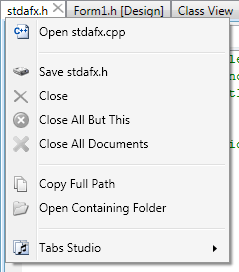
Open corresponding file command was added to the top of the tab’s context menu:

Open corresponding file command in context menu

Open corresponding file command in context menu

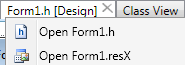
There could be multiple corresponding files to select from:

Multiple corresponding files

Multiple corresponding files

TabsStudio.Connect.OpenCorrespondingFile Visual Studio command was also added to be available for keyboard binding. This command looks for all available corresponding files relevant to the currently selected tab and opens first one from the list. If all corresponding files are already opened, OpenCorrespondingFile activates next extension as NextTabExtension command does. Having standard h/cpp pair this behavior allows you to hit OpenCorrespondingFile shortcut and get to a corresponding file no matter if it is currently opened or not.

May 29, 2009

IE downloading fixed

Filed under: Uncategorized — Sergey Vlasov @ 2:06 pm

There was a problem downloading Tabs Studio installer using Internet Explorer – IE changed vsi extension to zip. It is fixed now.

Horizontal and vertical tab groups

Filed under: Uncategorized — Sergey Vlasov @ 4:24 am

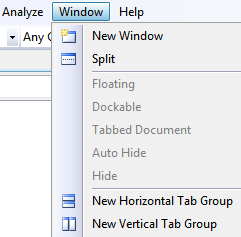
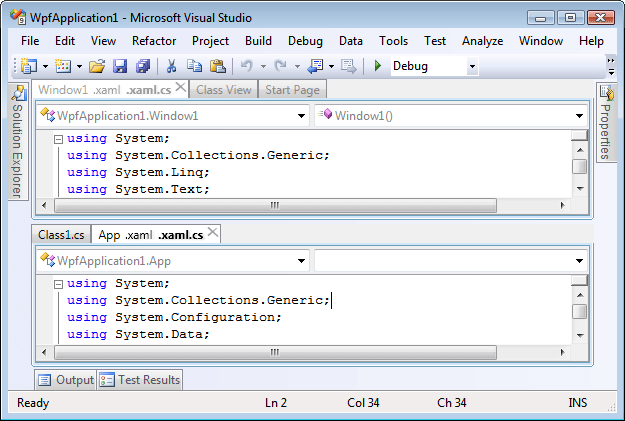
Visual Studio supports horizontal and vertical tab groups and Tabs Studio now backs it up too. When you have two or more tabs open, use Visual Studio’s Window menu to create a new group:

New Horizontal/Vertical Tab Group commands

New Horizontal/Vertical Tab Group commands

You can have as much groups as you want, but you can’t mix horizontal and vertical groups:

Three vertical tab groups

Three vertical tab groups

Two horizontal tab groups

Two horizontal tab groups

IsGroupSelected property is added to all Tabs Studio controls to style inactive group. Default style sets text opacity for not selected group to 60%.

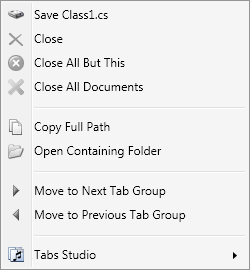
To move tabs between groups use Move to Next/Previous Tab Group tab context menu commands:

Move to Next/Previous Tab Group context menu commands

Move to Next/Previous Tab Group context menu commands

May 21, 2009

Window tabs in Visual Studio 2010 Beta 1

Filed under: Uncategorized — Tags: — Sergey Vlasov @ 4:19 pm

Let’s see what’s new in Visual Studio 2010 Beta 1 for tabs management comparing to Visual Studio 2008:

Visual Studio 2008 tabs

Visual Studio 2008 tabs


Visual Studio 2010 tabs

Visual Studio 2010 tabs

Close tab button is now on the selected tab. Close button is also become visible when mouse is over a non selected tab:

Tab background on mouse over

Tab background on mouse over

Notice that not showing close tab button on non selected tabs doesn’t save horizontal space as place for close tab button is always reserved.

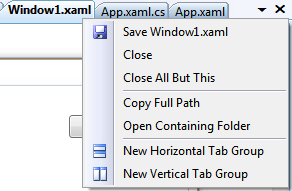
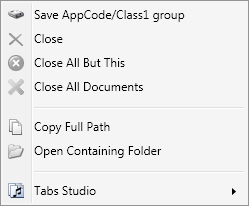
Context menu for document tab now has a Float command that allows document window to leave bounds of Visual Studio 2010 workspace:

VS08 context menu for document tab

VS08 context menu for document tab


VS10 context menu for document tab

VS10 context menu for document tab


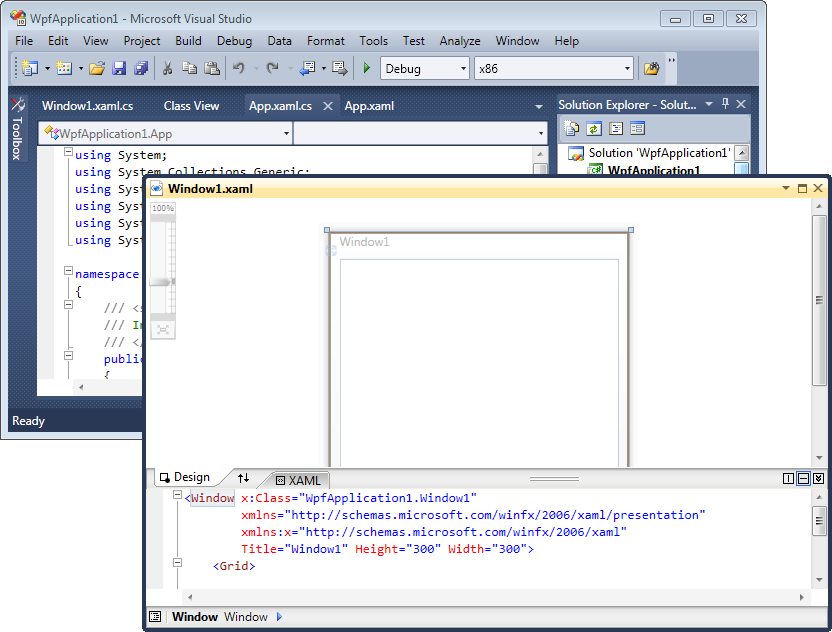
The same floating as it was allowed for non document windows in Visual Studio 2008 (open link in new tab to enlarge):

Floating Window1.xaml out of Visual Studio 2010 main window

Floating Window1.xaml out of Visual Studio 2010 main window


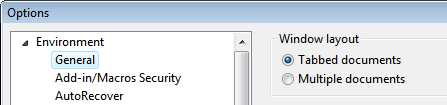
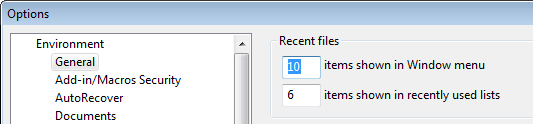
Visual Studio 2010 doesn’t have Multiple documents Window layout option (aka MDI) any more:
VS08 general options

VS08 general options

VS10 general options

VS10 general options

Everything else is the same in VS10: there is only one row of tabs, new tabs are opened on the left, when tabs don’t fit the available space they are hidden, when hidden tab is selected it goes to the left corner, tab names for ASP.NET projects contain full path.

UpdateNoah Coad has blogged about a registry setting to open tabs to the right in VS 2010:

[HKEY_CURRENT_USER\Software\Microsoft\VisualStudio\10.0\General] 
"DocumentDockPreference"=dword:00000001

Finally, some words about Tabs Studio support for VS10. Underlying tabs and windows implementation in Visual Studio 2010 is now WPF based, no more Win32 windows. Tabs Studio’s injection subsystem need to be rewritten to accommodate for this changes.


Organize Visual Studio tabs with Tabs Studio add-in

May 20, 2009

Additional context menu commands

Filed under: Uncategorized — Sergey Vlasov @ 4:33 am

I’ve added Save command to document tab’s context menu, Floating and Dockable commands to non document tab’s context menu, Close All Documents command to both context menus.

Document context menu

Document context menu


Non document context menu

Non document context menu


Notice that I used hard drive icon for Save command instead of traditional floppy disk icon.

May 18, 2009

Document and non document tabs

Filed under: Uncategorized — Tags: — Sergey Vlasov @ 3:43 pm

One way to differentiate tabs is by document/non document property. Document tabs are source files, designers and resources. Non document tabs are Start Page, Class View, Object Browser etc. I’ve added IsDocument property to all tab controls reflecting this dichotomy. Default style doesn’t use this property.

Custom style that sets different color for non document tabs should also take into account conditions when non document tab is selected and when non document tab was previously selected. It is possible to set different color for each case. It is also possible to use custom color for non document tab only if it is not selected and was not previously selected, as demonstrated in the following example:

<Style TargetType="TabsStudio:Tab" BasedOn="{StaticResource DefaultTabStyle}">
    <Style.Triggers>
        <MultiTrigger>
            <MultiTrigger.Conditions>
                <Condition Property="IsDocument" Value="False"/>
                <Condition Property="IsTabSelected" Value="False"/>
                <Condition Property="IsPreviouslySelectedTab" Value="False"/>
            </MultiTrigger.Conditions>
            <Setter Property="Background">
                <Setter.Value>
                     <LinearGradientBrush StartPoint="0,0" EndPoint="0,1">
                         <GradientStop Color="#F5F5F5" Offset="0"/>
                         <GradientStop Color="#B0D0B0" Offset="1"/>
                     </LinearGradientBrush>
                </Setter.Value>
            </Setter>  
        </MultiTrigger>
    </Style.Triggers>
</Style>
Custom color for non document tab

Custom color for non document tab

Previously Selected Tab Command

Filed under: Uncategorized — Sergey Vlasov @ 5:16 am

After I wrote that Ctrl+Tab not always switches to previously selected tab it became obvious that I need to add special command for this functionality. I called it TabsStudio.Connect.PreviouslySelectedTab. Recommended shortcut – Ctrl+’ (if your keyboard layout has ‘ key above Tab key like mine does).

« Newer PostsOlder Posts »

Blog at WordPress.com.