Tabs Studio Blog (organizing Visual Studio document tabs)

February 27, 2011

No default SSMS tab grouping

Filed under: Uncategorized — Tags: — Sergey Vlasov @ 9:17 pm

The most frequent support question I receive is how to work with tabs in SQL Server Management Studio. To improve the first impression for Tabs Studio in SSMS, I’ve decided to disable default SSMS tab grouping:

No tab grouping in SSMS by default

No tab grouping in SSMS by default


If you want tab grouping, two sample expressions equal to the default regex in previous releases are readily available:
SSMS tab grouping snippets

SSMS tab grouping snippets

March 15, 2010

Special tab titles in SSMS

Filed under: Uncategorized — Tags: — Sergey Vlasov @ 1:11 pm

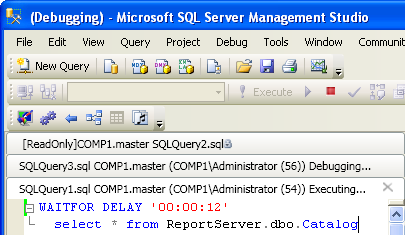
SQL Server Management Studio adds the [ReadOnly] prefix to the window title for read only scripts. It also adds Debugging… and Executing… suffixes when SQL scripts are debugged and executed:

Read only, debugging and executing tabs in SSMS 2008

Read only, debugging and executing tabs in SSMS 2008


I’ve added additional processing for such titles that removes excessive text and adds appropriate status icons:
Updated tabs view

Updated tabs view

January 2, 2010

Tab text options in SSMS

Filed under: Uncategorized — Tags: — Sergey Vlasov @ 11:50 am

Microsoft SQL Server Management Studio 2008 has several built in tab text options:

Tab text options in SSMS 2008

Tab text options in SSMS 2008


You can shorten tabs by omitting parts like server name or login name – SQLQuery1.sql was created with default settings, SQLQuery3.sql was created with database, login and server names off. These options don’t exist in SSMS 2005.

December 24, 2009

SSMS tab grouping

Filed under: Uncategorized — Tags: — Sergey Vlasov @ 10:00 pm

SQL Server Management Studio uses quite different scheme for tab names from Visual Studio. Here is the screenshot of default tab names (I temporarily configured Tabs Studio to not group tabs):

No tab grouping

No tab grouping

I’ve significantly improved SSMS support in the next Tabs Studio version:

1. Separate settings for SSMS.

Now SSMS 2005/2008, VS 2005/2008 and VS 2010 have separate settings. You can customize each of the three product lines independently.

2. Remove path from tab name works for SSMS.

Turning on the Remove path from tab name option strips parentheses and removes path from tab names in SSMS now:

Remove path from tab name in action

Remove path from tab name in action

3. Special title grouping rules for SSMS out of the box.

Tabs Studio now uses new default title grouping rules when running in SSMS that both group tabs and strip parentheses:

Tab grouping (default)

Tab grouping (default)

4. Support for SSMS table paths.

Documents representing tables in SSMS have document paths like “Server[@Name=’COMP1′]/Database[@Name=’ReportServer’]/Table[@Name=’ActiveSubscriptions’ and @Schema=’dbo’]”. Tabs Studio now applies path grouping rules to these paths as well.

Update: Tabs Studio v1.7.9 with these changes is ready for download.

October 14, 2009

Automatic SSMS registration

Filed under: Uncategorized — Tags: — Sergey Vlasov @ 9:26 am

I’ve added Tabs Studio registration with SQL Server Management Studio 2008 to the Tabs Studio installer. There will be no need to manually setup and run the .reg file any more.

October 8, 2009

Tabs Studio for Microsoft SQL Server Management Studio

Filed under: Uncategorized — Tags: — Sergey Vlasov @ 7:29 am

“SQL Server Management Studio is an integrated environment for accessing, configuring, managing, administering, and developing all components of SQL Server.” It uses the same Visual Studio shell as Visual Studio and after making some small changes I was able to use Tabs Studio tabs in SSMS IDE. I verified that Tabs Studio integration with SSMS works on the computer with SQL Server 2008 Enterprise or Developer edition:

1. Install Tabs Studio v1.6.4

If Tabs Studio installer fails to find Visual Studio, create the Visual Studio 2008 folder in your Documents folder.

2. Register Tabs Studio for SSMS

  • Download the TabsStudioSSMS_100.reg file.
  • Modify path to TabsStudio.dll in this file in two places according to your settings. E.g. change C:\\Documents and Settings\\Administrator\\My Documents\\Visual Studio 2008\\Addins\\TabsStudio.dll to C:\\Users\\me\\Documents\\Visual Studio 2008\\Addins\\TabsStudio.dll.
  • Run modified TabsStudioSSMS_100.reg (admin rights are not required, all settings are for the current user).

3. Run SQL Server Management Studio

Tabs Studio tabs in Microsoft SQL Server Management Studio

Tabs Studio tabs in Microsoft SQL Server Management Studio


To disable Tabs Studio in SSMS change LoadBehavior to 0 in the reg file or directly in the registry.

I’m not a regular SSMS user. Please let me know if Tabs Studio behaves not as expected in SSMS IDE.

« Newer Posts

Blog at WordPress.com.