Tabs Studio Blog (organizing Visual Studio document tabs)

June 23, 2010

Running add-ins from a network location in Visual Studio 2010

Filed under: Uncategorized — Tags: , — Sergey Vlasov @ 11:07 am

.NET runtime traditionally has strict rules against running managed code from a network. In Visual Studio 2008 (CLR v2) to run Tabs Studio from a network share you had to add special “Code Access Security Policy”.

In Visual Studio 2010 (CLR v4) if you try to run Tabs Studio v2.0.5 from a network share you get error number 80131515:

Tabs Studio add-in failed to load with error 80131515 in VS 2010

Tabs Studio add-in failed to load with error 80131515 in VS 2010


To allow Tabs Studio to run you have to add the loadFromRemoteSources element (see the MSDN reference) to the “C:\Program Files\Microsoft Visual Studio 10.0\Common7\IDE\devenv.exe.config” (note, you need to run your editor with admin rights for correct devenv.exe.config modification):

<configuration>
   <runtime>
      <loadFromRemoteSources enabled="true"/>
   </runtime>
</configuration>

Plus you have to upgrade to Tabs Studio v2.0.6 that workarounds Assembly.Location throws ArgumentException.

Another potential problem is when you download Tabs Studio add-ins to your computer for Visual Studio 2010 from the Internet they may end up blocked by Windows (it is not a problem for Visual Studio 2008):

Saver add-in marked as a file from another computer

Saver add-in marked as a file from another computer


Loading such add-in for VS 2010 silently fails in Tabs Studio v2.0.5 and gives the following error in Tabs Studio v2.0.6:
Blocked Saver add-in loading error in VS 2010

Blocked Saver add-in loading error in VS 2010


To solve this problem you can either unblock Saver.dll in Windows Explorer or enable the loadFromRemoteSources switch in devenv.exe.config the same way as for running Tabs Studio from a network share.


Organize Visual Studio tabs with Tabs Studio add-in

May 9, 2010

Troubleshooter add-in

Filed under: Uncategorized — Tags: — Sergey Vlasov @ 10:34 pm

Troubleshooter doesn’t extend Tabs Studio with new features, it just logs as much as possible about Visual Studio execution.

The following information is logged: OS version, VS version, loaded dlls (updated every 10 seconds), VS command/document/solution/window events, Tabs Studio events, WPF warnings. I try to collect as little personal data as possible. For example, instead of file names only extensions are logged and instead of project names only project types are logged.

Each Visual Studio session is logged in a separate file. Log file names look like “Troubleshooter January 24, 21_20_01 Part 0.txt” where “January 24, 21_20_01” is the time of Visual Studio start. If log file size exceeds 50 MB, a file for the next log part is created. Log files are created in the “LocalApplicationData\Sergey Vlasov\Tabs Studio” folder.

Troubleshooter installer installs the add-in for VS 2008 and creates a desktop shortcut to the logs folder.

Troubleshooter v1.0.1 and source code (including WiX based installer) are available. I think Visual Studio events subscription is the most interesting part of the source code for those interested in extending Visual Studio functionality.

February 18, 2010

Localizer add-in

Filed under: Uncategorized — Tags: — Sergey Vlasov @ 9:05 am

I’ve prepared two tab context menu translations for German and Spanish localized Visual Studio editions:

Localized context menu in German Visual Studio 2008

Localized context menu in German Visual Studio 2008


Feel free to correct my translation and update it with other languages. To add a new language just copy an existing .resx and provide translated string values:
Localizer project

Localizer project


Download Localizer v1.0.0

February 7, 2010

Decorator update

Filed under: Uncategorized — Tags: — Sergey Vlasov @ 8:48 pm

Decorator add-in v1.0.0 was found guilty in disrupting Visual Studio operations, even causing a crash. It too often looked for a project associated with a window, particularly disrupting when the window was already closed.

I’ve added a dictionary to store a project for a tab. Now the project is searched in Visual Studio only once when the tab is created. You may also notice in source code how I use tab.TabItem for tab identity – this is because TabsStudioExt.Tab objects are created at will and only WPF controls and DTE objects are stable enough for identity purposes.

Download Decorator v1.0.1.

September 15, 2009

Color Icons add-in

Filed under: Uncategorized — Tags: — Sergey Vlasov @ 9:38 am

I use less distractive “gray theme” icons in Tabs Studio context menu. Now that context menu is completely customizable, I’ve created an alternative color icons pack:

Custom icons in tab context menu

Custom icons in tab context menu


Color Icons add-in monitors two tab context menu events and replaces default icons in context menu with icons from its own resources. Color Icons’ icons are stored in Icons folder with Build Action set to Resource in file properties. Each image has resolution 96 dpi and size 16*16 pixels.

You can also replace default close tab button image with the one from ColorIcons.dll using following style:

<Style TargetType="TabsStudio:CloseTabButton" BasedOn="{StaticResource DefaultCloseTabButtonStyle}">
    <Setter Property="Source" Value="pack://application:,,,/ColorIcons;component/icons/close_tab.png"/>
</Style>

Custom close tab button image

Custom close tab button image


You can also use file path (or even website URL) to describe where the custom image is located:

<Style TargetType="TabsStudio:CloseTabButton" BasedOn="{StaticResource DefaultCloseTabButtonStyle}">
    <Setter Property="Source" Value="file://c:/close.png"/>
</Style>

Download Color Icons v1.0.0 for Tabs Studio v1.6.2.

Sync add-in

Filed under: Uncategorized — Tags: — Sergey Vlasov @ 8:31 am

Occasionally, I need to find one of the currently opened documents in Solution Explorer. To fulfill this necessity and to demonstrate Tabs Studio context menu extensibility I’ve created Sync add-in.

Visual Studio has the Track Active Item in Solution Explorer option that constantly syncs Solution Explorer with the currently opened document:

Track Active Item Viusal Studio option

Track Active Item Viusal Studio option


Visual Studio also has the View.TrackActivityinSolutionExplorer command that acts as a toggle for this option. With Track Active Item in Solution Explorer option turned off you can call View.TrackActivityinSolutionExplorer command twice to locate currently opened document in Solution Explorer window (if Solution Explorer window is opened).

Alternatively, Sync add-in adds the new Sync with Solution Explorer command to tab and tab extension context menus. It allows locating any opened document (not only current) and activates Solution Explorer window if it is not opened:
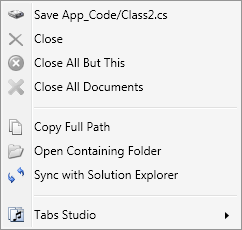
Sync with Solution Explorer tab extension context menu command

Sync with Solution Explorer tab extension context menu command


Sync monitors both OpeningTabExtensionContextMenu and OpeningTabContextMenu events:

engine.OpeningTabExtensionContextMenu += OpeningTabExtensionContextMenu;
engine.OpeningTabContextMenu += OpeningTabContextMenu;

In OpeningTabExtensionContextMenu it checks that TabExtension has Document and ProjectItem associated with it (to show Sync command only for document windows), stores TabExtension for later processing (if user chooses Sync command from the menu) and places the new Sync menu item after the Open Containing Folder item:

private void OpeningTabExtensionContextMenu(object sender, 
    TabsStudioExt.OpeningTabExtensionContextMenuEventArgs e)
{
    try
    {
        if (e.TabExtension.Window.Document == null || e.TabExtension.Window.Document.ProjectItem == null)
            return;
    }
    catch (System.Exception)
    {
        return;
    }
    storedTabExtension = e.TabExtension;
    PlaceMenuItem(syncTabExtensionMenuItem, e.ContextMenu);
}

To exactly place the new menu item, Sync scans all context menu items looking for the control with the OpenContainingFolder name and inserts the new item after it:

private void PlaceMenuItem(System.Windows.Controls.MenuItem menuItem,
    System.Windows.Controls.ContextMenu menu)
{
    foreach (object item in menu.Items)
    {
        if (item is System.Windows.Controls.Control)
        {
            if ((item as System.Windows.Controls.Control).Name.Equals("OpenContainingFolder"))
            {
                menu.Items.Insert(menu.Items.IndexOf(item) + 1, menuItem);
                break;
            }
        }
    }
}

When user chooses the Sync menu command, Solution Explorer window is activated, associated project item is made visible using the ExpandView method and associated element in the Solution Explorer tree is selected:

private void SyncTabExtension(object sender, System.Windows.RoutedEventArgs e)
{
    try
    {
        EnvDTE.UIHierarchy solutionExplorer = dte.ToolWindows.SolutionExplorer;
        solutionExplorer.Parent.Activate();
        EnvDTE.ProjectItem projectItem = storedTabExtension.Window.Document.ProjectItem;
        projectItem.ExpandView();

        EnvDTE.UIHierarchyItem hierarchyItem = 
            FindHierarchyItem(solutionExplorer.UIHierarchyItems, projectItem);
        if (hierarchyItem != null)
            hierarchyItem.Select(EnvDTE.vsUISelectionType.vsUISelectionTypeSelect);
    }
    catch (System.Exception)
    {
    }
}

When Sync command is invoked for a tab, all extensions in this tab are selected in the Solution Explorer tree.

Download Sync v1.0.0 for Tabs Studio v1.6.2.

September 14, 2009

Customizing tab context menu from an add-in

Filed under: Uncategorized — Tags: — Sergey Vlasov @ 9:43 pm

In the next Tabs Studio version I’ve added two new events that occur just before tab context menu is opened:

namespace TabsStudioExt
{
    public interface ITabsStudioEngine
    {
        ...
        event OpeningTabContextMenuEventHandler OpeningTabContextMenu;
        event OpeningTabExtensionContextMenuEventHandler OpeningTabExtensionContextMenu;
    }
}

OpeningTabContextMenuEventArgs contains the System.Windows.Controls.ContextMenu ContextMenu property, Tab and Tabs properties. OpeningTabExtensionContextMenuEventArgs contains the ContextMenu, TabExtension, Tab and Tabs properties. An add-in can add, remove and modify menu items in the context menu based on TabExtension or Tab it was opened for. Right click on a tab with a single extension generates the OpeningTabExtensionContextMenu event.

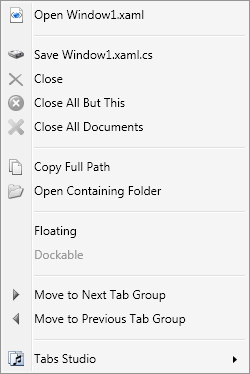
To simplify customization from an add-in, each menu item and separator in the default context menu was given a Name. For document tab context menu the names are: Open, OpenSeparator, Save, Close, CloseAllButThis, CloseAllDocuments, FileSeparator, CopyFullPath, OpenContainingFolder, VS2010DocumentSeparator, VS2010Floating, VS2010Dockable, TabGroupsSeparator, MoveToNextTabGroup, MoveToPreviousTabGroup, TabsStudioSeparator and TabsStudio:

Document tab context menu

Document tab context menu


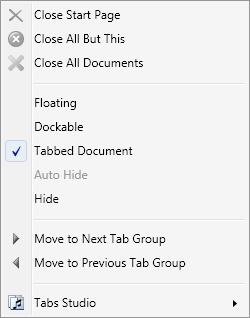
For non document tab context menu additional names are: WindowSeparator, Floating, Dockable, TabbedDocument, AutoHide and Hide:
Non document tab context menu

Non document tab context menu

September 11, 2009

Opening add-ins directory

Filed under: Uncategorized — Tags: — Sergey Vlasov @ 12:20 pm

For the next Tabs Studio version I’ve added the Open add-ins directory button to the Add-in Manager dialog:

Open add-ins directory button in the Add-ins Manager dialog

Open add-ins directory button in the Add-ins Manager dialog


This button creates the TabsStudioAddins directory if it doesn’t exist and opens it in Windows Explorer:
TabsStudioAddins directory in Windows Explorer

TabsStudioAddins directory in Windows Explorer


Installing and removing add-ins should be easier now – no need to search for the TabsStudioAddins directory on the disk yourself.

September 2, 2009

Decorator add-in

Filed under: Uncategorized — Tags: , — Sergey Vlasov @ 7:14 pm

Decorator is an example of custom properties usage. It sets distinct color for tabs that belong to the project having the most opened tabs. I.e. if 2 opened tabs are for documents from Project1, 5 tabs from Project2 and 3 tabs from Project3, then tabs from Project2 will be colored blue.

TabsStudioDecorator.Properties class defines custom dependency property IsTopProjectProperty, registers it using the RegisterAttached method and provides two static set and get methods for it.

Main Decorator class recalculates the top project when a tab is created or destroyed. Then it sets IsTopProjectProperty to true for all tabs belonging to the top project (if number of tabs in the top project is greater than 3) and to false for the rest of tabs.

Main Decorator class also implements the TabsStudioExt.IStyler interface and returns definition for the TabsStudioDecorator namespace from the GetNamespacesForResourceDictionary method.

Following style is used to color top project tabs that are not currently selected to white-blue gradient:

<Style TargetType="TabsStudio:Tab" BasedOn="{StaticResource DefaultTabStyle}">
    <Style.Triggers>
        <MultiTrigger>
            <MultiTrigger.Conditions>
                <Condition Property="TabsStudioDecorator:Properties.IsTopProject" Value="True"/>
                <Condition Property="IsTabSelected" Value="False"/>
            </MultiTrigger.Conditions>
            <Setter Property="Background">
                <Setter.Value>
                     <LinearGradientBrush StartPoint="0,0" EndPoint="0,1">
                         <GradientStop Color="#F5F5F5" Offset="0"/>
                         <GradientStop Color="#B0B0F0" Offset="1"/>
                     </LinearGradientBrush>
                </Setter.Value>
            </Setter>  
        </MultiTrigger>
    </Style.Triggers>
</Style>
Four tabs belonging to WebSite2 project are colored blue

Four tabs belonging to WebSite2 project are colored blue

Download Decorator v1.0.0 for Tabs Studio v1.5.7.

Disambiguator add-in

Filed under: Uncategorized — Tags: — Sergey Vlasov @ 12:25 pm

Files in different projects and even files within a project can have the same names. In this case their tabs also have the same titles and one need to hover the mouse over the tabs to distinguish them by tooltip with the full path. Disambiguator add-in detects when two or more tabs have the same title and adds Visual Studio folder or project to titles for these tabs.

Disambiguator monitors TabCreated event, searches if tabs with the same name without extension already exist and adds TitleTransform to tabs found except if tab already has TitleTransform with the [Disambiguator] tag. The TitleTransform prefixes the title with the Visual Studio folder or project name (if document is not within a folder). A web site project has a full path as its name, so Disambiguator uses only last directory name in the title in this case.

Download Disambiguator v1.0.0 for Tabs Studio v1.5.7.

« Newer PostsOlder Posts »

Blog at WordPress.com.