Tabs Studio v2.7.1 released: fixed the installation error code 2753 when Visual Studio 11 Beta installed after Tabs Studio.
Download link: Tabs Studio v2.7.1.
Tabs Studio v2.7.1 released: fixed the installation error code 2753 when Visual Studio 11 Beta installed after Tabs Studio.
Download link: Tabs Studio v2.7.1.
Tabs Studio v2.7.0 released: added support for SQL Server 2012 Management Studio, separated Visual Studio 11 settings from Visual Studio 2010 settings.
Download link: Tabs Studio v2.7.0.
SQL Server 2012 was released about a month ago:

SQL Server 2012 Management Studio splash screen
The new management studio uses Visual Studio 2010 shell. Extensibility for SSMS 2012 is still not officially supported by Microsoft, but luckily Visual Studio add-ins work just fine in it. Unfortunately, Visual Studio extensions don’t work as ssms.exe contains white list of allowed package GUIDs. I had to change my Visual Studio 2010 helper extension to helper add-in and after that Tabs Studio works without problems in the new IDE:

Tabs Studio in SSMS 2012
Download link: Tabs Studio v2.7.0.
Tabs Studio v2.6.5 released:
Download link: Tabs Studio v2.6.5.
Tabs Studio v2.6.3 released:
Download link: Tabs Studio v2.6.3.
The preview tab in Visual Studio 11 is a separate reusable tab displayed in the right corner of the document tabs well. In Tabs Studio the preview tab is opened in the last tab position:

The preview tab in Tabs Studio
All relevant add-ins like Sorter, AutoOpener, PriorityGroup and OpenNext were updated to ignore the preview tab and don’t move it from the last position. I’ve added the new IsPreviewTab property to style the preview tab and show the, also new, Open button that transforms the preview tab into the regular tab.
In the Tab Coloring Rule dialog you can now access the preview tab property similar to the other properties like selected tab and previously selected tab. Most of the time, I think, you will set it to False to keep the default preview tab look. (Note, that I’ve also changed, sometimes confusing, three state checkboxes to descriptive comboboxes):

Preview tab property setup in the Tab Coloring Rule dialog
If you are interested in custom VS 11 styling, see the new light and dark default style definitions. Next I plan to add support for floating tab groups in Visual Studio 11.
Download link: Tabs Studio v2.6.3.
Tabs Studio v2.6.2 released: added preliminary support for Visual Studio 11 Beta, added the ability to change order of tab coloring rules using drag and drop.
Download link: Tabs Studio v2.6.2.
I’ve added preliminary support for Visual Studio 11 Beta. For both light and dark themes in VS I’ve added predefined styles in Tabs Studio (see light and dark style definitions) and the corresponding style is selected automatically on startup depending on your Visual Studio settings:
Tabs Studio with the light theme in Visual Studio 11 Beta

Tabs Studio with the dark theme in Visual Studio 11 Beta
Next I plan to add support for the preview tab and for floating tab groups.
Download link: Tabs Studio v2.6.2.
Visual Studio 11 Beta was released this week (see what’s new):

Visual Studio 11 Beta splash screen
Very little has changed in tabs behavior since the developer preview (see my older blog post Document tabs in Visual Studio 11 Developer Preview), but the UI theme is all new:

Visual Studio 11 Beta light color theme
Plus there is also the dark theme:

Visual Studio 11 Beta color theme options

Visual Studio 11 Beta dark color theme
One more color change is for the scenario when you have several tab groups or floating document windows. In Visual Studio 2010, selected but inactive document tab had two states: last active document group or not. See how in the following screenshot MainWindow.xaml.vb is gray and its tab group has gray underline (MainWindow.xaml.vb was the selected document before I switched to Solution Exlorer), Application.xaml.vb is almost transparent and its tab group has corresponding underline:

Special color for the tab group with last active document in Visual Studio 2010
In Visual Studio 11 Beta there is no such distinction. All inactive tab groups are just grey:

Same color for inactive tab groups in Visual Studio 11 Beta
I’ve not found significant changes in VS 11 tabs customization comparing to the developer preview:

Tabs and windows options in Visual Studio 11 Beta
Remember Visual Studio 2010 Beta release when Microsoft introduced WPF UI? This beta again completely changed VS look and feel. Let’s see whether customers’ feedback to add some color back to Visual Studio 11 prompts Microsoft to reconsider the latest design.

If you like the original Visual Studio 2010 tabs theme you can use the excellent Visual Studio 2010 style for Tabs Studio by Jameel Al-Aziz. But, as this style changes many aspects of tabs presentation, it also overrides custom colors that you assign with tab coloring rules in Tabs Studio presentation options. (Of course, you can implement all coloring rules as style rules, it just requires working directly with XAML). Below is a simple style that closer to the overall Visual Studio 2010 theme and still supports additional tab coloring rules.
The following style changes tab text color from default black to white for not selected and not highlighted tabs:
<Style TargetType="TabsStudio:TabName" BasedOn="{StaticResource DefaultTabNameStyle}">
  <Style.Triggers>
  <MultiDataTrigger>
            <MultiDataTrigger.Conditions>
                <Condition Binding="{Binding Path=IsMouseOver, RelativeSource={RelativeSource AncestorType=TabsStudio:Tab}}" Value="False"/>
                <Condition Binding="{Binding Path=IsTabSelected, RelativeSource={RelativeSource AncestorType=TabsStudio:Tab}}" Value="False"/>
            </MultiDataTrigger.Conditions>
            <Setter Property="Foreground" Value="White"/>
      </MultiDataTrigger>
  </Style.Triggers>
</Style>

<Style TargetType="TabsStudio:TabExtension" BasedOn="{StaticResource DefaultTabExtensionStyle}">
  <Style.Triggers>
  <MultiDataTrigger>
            <MultiDataTrigger.Conditions>
                <Condition Binding="{Binding Path=IsMouseOver, RelativeSource={RelativeSource AncestorType=TabsStudio:Tab}}" Value="False"/>
                <Condition Binding="{Binding Path=IsTabSelected, RelativeSource={RelativeSource AncestorType=TabsStudio:Tab}}" Value="False"/>
            </MultiDataTrigger.Conditions>
            <Setter Property="Foreground" Value="White"/>
      </MultiDataTrigger>
  </Style.Triggers>
</Style>

<Style TargetType="TabsStudio:TabNameModificationMarker" BasedOn="{StaticResource DefaultTabNameModificationMarkerStyle}">
  <Style.Triggers>
  <MultiDataTrigger>
            <MultiDataTrigger.Conditions>
                <Condition Binding="{Binding Path=IsMouseOver, RelativeSource={RelativeSource AncestorType=TabsStudio:Tab}}" Value="False"/>
                <Condition Binding="{Binding Path=IsTabSelected, RelativeSource={RelativeSource AncestorType=TabsStudio:Tab}}" Value="False"/>
            </MultiDataTrigger.Conditions>
            <Setter Property="Foreground" Value="White"/>
      </MultiDataTrigger>
  </Style.Triggers>
</Style>

<Style TargetType="TabsStudio:TabExtensionModificationMarker" BasedOn="{StaticResource DefaultTabExtensionModificationMarkerStyle}">
  <Style.Triggers>
  <MultiDataTrigger>
            <MultiDataTrigger.Conditions>
                <Condition Binding="{Binding Path=IsMouseOver, RelativeSource={RelativeSource AncestorType=TabsStudio:Tab}}" Value="False"/>
                <Condition Binding="{Binding Path=IsTabSelected, RelativeSource={RelativeSource AncestorType=TabsStudio:Tab}}" Value="False"/>
            </MultiDataTrigger.Conditions>
            <Setter Property="Foreground" Value="White"/>
      </MultiDataTrigger>
  </Style.Triggers>
</Style>
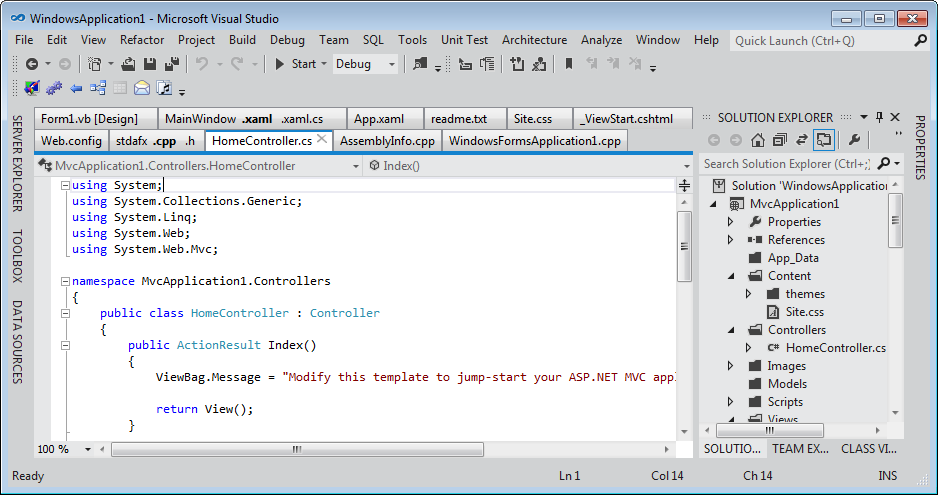
Plus you need to create a tab coloring rule for not selected tabs with transparent background:
<SolidColorBrush Color="Transparent"/>
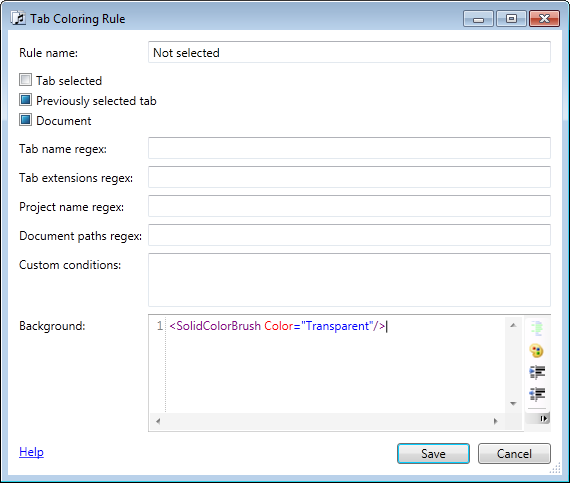
Transparent background for not selected tabs

Dark tabs theme in Visual Studio 2010

Project tab coloring rule with transparency
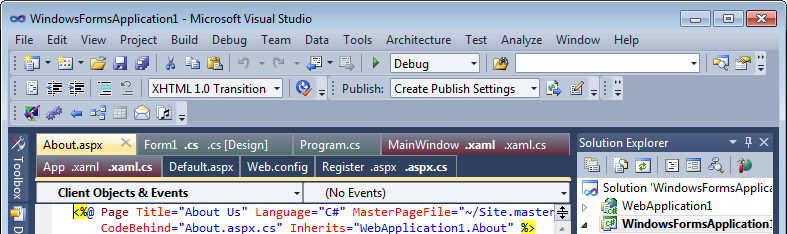
Dark theme with custom transparent colors for two projects
<Condition Binding="{Binding Path=IsGroupFocused, RelativeSource={RelativeSource Self}}" Value="False"/>
<Condition Binding="{Binding Path=IsGroupWithLastActiveDocument, RelativeSource={RelativeSource Self}}" Value="True"/>
<LinearGradientBrush StartPoint="0,0" EndPoint="0,1">
  <GradientStop Color="#FFFDFDFD" Offset="0"/>
  <GradientStop Color="#FFD5DAE3" Offset="0.49"/>
  <GradientStop Color="#FFCED4DF" Offset="0.5"/>
  <GradientStop Color="#FFCED4DF" Offset="1"/>
</LinearGradientBrush>

Gray color rule for selected but unfocused tab

Gray selected tab when Solution Explorer is active
Update: Added white color to modification markers in the style.

 Tabs Studio Blog (organizing Visual Studio document tabs)