Tabs Studio v1.6.5 is released – redesigned close tab button, added Quick Style builder, added Help link to Options and Add-in Manager, added automatic registration with SSMS, conducted general UI cleanup.
October 19, 2009
October 14, 2009
Automatic SSMS registration
I’ve added Tabs Studio registration with SQL Server Management Studio 2008 to the Tabs Studio installer. There will be no need to manually setup and run the .reg file any more.
Comments Off on Automatic SSMS registration
Settings help
I’ve added the Online help button to the Tabs Studio Settings dialog. Clicking this button opens documentation for the selected tab:

Online help button in Tabs Studio settings
Comments Off on Settings help
October 13, 2009
Quick style
I’ve combined common style templates into the Quick Style dialog:
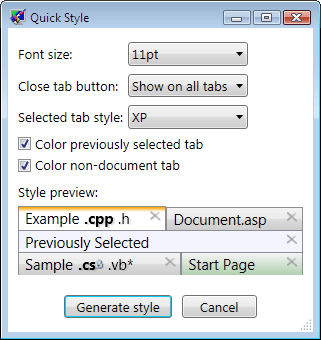
Quick Style dialog
You can select preferred options and automatically generate corresponding XAML style. This dialog will be available from the Style tab:

Quick style button on Style tab
The Quick Style dialog can’t modify existing style and most useful when customizing Tabs Studio for the first time.
Comments Off on Quick style
October 11, 2009
Close tab button redesign
For a long time the close tab button was implemented as an image. The image had the mouse over glow effect, but no pressed state. The close tab button image also allowed accidental activation on the mouse left button up event without corresponding mouse left button down. I’ve resolved both of these shortcomings finally implementing the close tab button as System.Windows.Controls.Button:

Mouse over the new close tab button
Here is the new default close tab button style:
<Style x:Key="DefaultCloseTabButtonStyle" TargetType="TabsStudio:CloseTabButton">
    <Setter Property="Margin" Value="2,0,-4,0"/>
    <Setter Property="VerticalAlignment" Value="Top"/>
    <Setter Property="HorizontalAlignment" Value="Right"/>
    <Setter Property="Focusable" Value="False"/>
    <Setter Property="Template">
        <Setter.Value>
            <ControlTemplate TargetType="TabsStudio:CloseTabButton">
                <ControlTemplate.Resources>
                    <Style TargetType="Image">
                        <Setter Property="Stretch" Value="None"/>
                    </Style>
                </ControlTemplate.Resources>
                <Grid>
<Image Name="Normal"    Source="pack://application:,,,/TabsStudio;component/close_tab_button_normal.png"/>
<Image Name="Pressed"   Source="pack://application:,,,/TabsStudio;component/close_tab_button_pressed.png"
 Visibility="Collapsed"/>
<Image Name="MouseOver" Source="pack://application:,,,/TabsStudio;component/close_tab_button_mouse_over.png"
 Visibility="Collapsed"/>
                </Grid>
                <ControlTemplate.Triggers>
                    <Trigger Property="IsMouseOver" Value="True">
                        <Setter TargetName="Normal" Property="Visibility" Value="Collapsed"/>
                        <Setter TargetName="MouseOver" Property="Visibility" Value="Visible"/>
                    </Trigger>
                    <Trigger Property="IsPressed" Value="True">
                        <Setter TargetName="Normal" Property="Visibility" Value="Collapsed"/>
                        <Setter TargetName="Pressed" Property="Visibility" Value="Visible"/>
                        <Setter TargetName="MouseOver" Property="Visibility" Value="Collapsed"/>
                    </Trigger>
                </ControlTemplate.Triggers>
            </ControlTemplate>
        </Setter.Value>
    </Setter>
    <Style.Triggers>
        <Trigger Property="IsTabSelected" Value="False">
            <Setter Property="Visibility" Value="Collapsed"/>
        </Trigger>
    </Style.Triggers>
</Style>
Comments Off on Close tab button redesign
October 8, 2009
Tabs Studio v1.6.4 is released
Tabs Studio v1.6.4 is released – improved floating tab group support and added experimental support for Microsoft SQL Server Management Studio.
Comments Off on Tabs Studio v1.6.4 is released
Tabs Studio for Microsoft SQL Server Management Studio
“SQL Server Management Studio is an integrated environment for accessing, configuring, managing, administering, and developing all components of SQL Server.” It uses the same Visual Studio shell as Visual Studio and after making some small changes I was able to use Tabs Studio tabs in SSMS IDE. I verified that Tabs Studio integration with SSMS works on the computer with SQL Server 2008 Enterprise or Developer edition:
1. Install Tabs Studio v1.6.4
If Tabs Studio installer fails to find Visual Studio, create the Visual Studio 2008 folder in your Documents folder.
2. Register Tabs Studio for SSMS
- Download the TabsStudioSSMS_100.reg file.
- Modify path to TabsStudio.dll in this file in two places according to your settings. E.g. change C:\\Documents and Settings\\Administrator\\My Documents\\Visual Studio 2008\\Addins\\TabsStudio.dll to C:\\Users\\me\\Documents\\Visual Studio 2008\\Addins\\TabsStudio.dll.
- Run modified TabsStudioSSMS_100.reg (admin rights are not required, all settings are for the current user).
3. Run SQL Server Management Studio

Tabs Studio tabs in Microsoft SQL Server Management Studio
To disable Tabs Studio in SSMS change LoadBehavior to 0 in the reg file or directly in the registry.
I’m not a regular SSMS user. Please let me know if Tabs Studio behaves not as expected in SSMS IDE.
October 7, 2009
Improved floating tab group support
I’ve resolved main problems with the floating tab group found in v1.6.3 – the main Visual Studio window can be resized just fine now and different number of toolbars doesn’t corrupt window size. Closing the floating tab group window now correctly closes all tabs in the detached tab group.
Performing an action in the main Visual Studio window from the floating tab group window often requires two mouse clicks (one click to activate main Visual Studio window and one click to perform an action). Menu and toolbar commands don’t work on documents in floating tab group. Floating tab group is supported only if you have exactly two tab groups opened. Floating tab group is not currently supported for Visual Studio 2010 Beta 1.
Comments Off on Improved floating tab group support
September 21, 2009
Tabs Studio v1.6.3 is released
Tabs Studio v1.6.3 is released – added highly experimental version of floating tab groups support.
Comments Off on Tabs Studio v1.6.3 is released
Floating tab groups support – Alpha 1
To give some impression what is possible and what is problematic supporting floating tab groups I’m releasing an early alpha showing what I have now.
Prerequisites
Visual Studio 2008 and Tabs Studio v1.6.3.
How to create a floating tab group
- Make sure exactly two tab groups (horizontal or vertical) are opened.
- Decide for yourself what tab group you want to detach.
- Resize main Visual Studio window for tab group that remains.
- Select tab group that you want to detach and invoke TabsStudio.Connect.DetachTabGroup aka Detach Tab Group command.
Floating tab group window is created that you can freely move and resize:
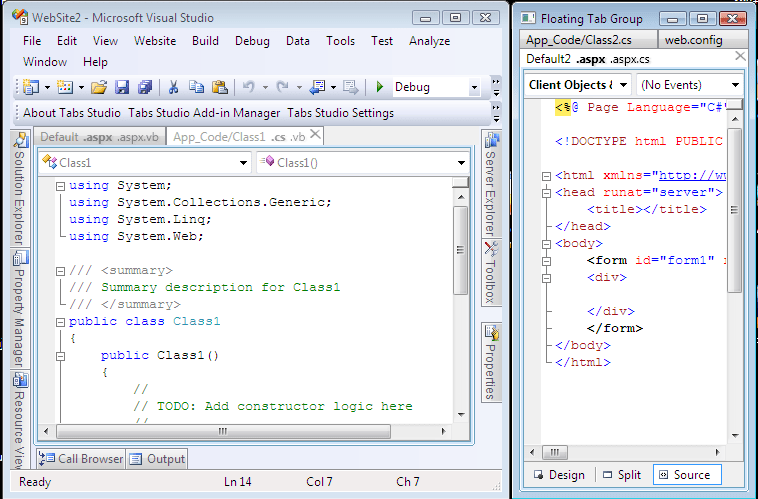
Floating tab group window and main Visual Studio window
Limitations of floating tab group window usage
- Can’t resize main Visual Studio window.
- Can’t easily switch to main Visual Studio window – in most cases you need to switch to the tab group in main Visual Studio window first.
- Can’t close floating tab group window – close whole Visual Studio instead.
- Can’t switch between windows that have different number of toolbars associated with them.
Feel free to try it for yourself.

 Tabs Studio Blog (organizing Visual Studio document tabs)