Tabs Studio Blog (organizing Visual Studio document tabs)

October 20, 2010

Limiting number of tab rows

Filed under: Uncategorized — Tags: , — Sergey Vlasov @ 8:37 am

Due to popular demand and new tabs panel customization capabilities in Tabs Studio v2.1.2, I’ve created the SingleRow add-in that allows you to limit maximum number of tab rows and show remaining tabs in a drop-down list similar to default Visual Studio behavior:

A single row of tabs and the drop-down list of hidden tabs

A single row of tabs and the drop-down list of hidden tabs


To use SingleRow you need to set tabs layout to Wrap and apply the following style changes:
The Wrap tabs layout option

The Wrap tabs layout option

<Style TargetType="TabsStudio:TabsHost" BasedOn="{StaticResource DefaultTabsHostStyle}">
  <Setter Property="Template">
    <Setter.Value>
      <ControlTemplate TargetType="{x:Type TabsStudio:TabsHost}">
        <Grid>
          <Rectangle Width="{TemplateBinding Width}"
                     Height="{TemplateBinding Height}"
                     Fill="{TemplateBinding Background}"/>
          <Grid>
            <Grid.ColumnDefinitions>
              <ColumnDefinition Width="*"/>
              <ColumnDefinition Width="Auto"/>
            </Grid.ColumnDefinitions>
            <ContentPresenter Grid.Column="0"/>
            <TabsStudioSingleRow:HiddenTabs Grid.Column="1" TabsPanel="{TemplateBinding ContentControl.Content}"/>
          </Grid>
        </Grid>
      </ControlTemplate>
    </Setter.Value>
  </Setter>
</Style>

<Style TargetType="TabsStudio:Tab" BasedOn="{StaticResource DefaultTabStyle}">
  <Style.Triggers>
    <Trigger Property="TabsStudioSingleRow:Properties.IsTabHidden" Value="True">
      <Setter Property="Visibility"  Value="Collapsed"/>
    </Trigger>
  </Style.Triggers>
</Style>

<Style TargetType="TabsStudioSingleRow:HiddenTabs">
  <Setter Property="Content" Value=">"/>
  <Setter Property="Margin" Value="2,0,2,0"/>
  <Setter Property="VerticalAlignment" Value="Center"/>
  <Style.Triggers>
    <Trigger Property="TabsStudioSingleRow:Properties.IsHiddenTabs" Value="False">
      <Setter Property="Visibility"  Value="Collapsed"/>
    </Trigger>
  </Style.Triggers>
</Style>

This style adds the TabsStudioSingleRow:HiddenTabs button to open the drop-down list and binds it to the corresponding TabsPanel. SingleRow doesn’t actually hide tabs – it only sets the IsTabHidden property for them. The style above sets tab visibility based on this property. HiddenTabs button’s appearance is also defined in this style and the button is collapsed when there are no hidden tabs.

Tabs are hidden in the least recently used order and don’t automatically reappear even when space becomes available. Hidden tabs in the drop-down list are sorted alphabetically.

Default number of tab rows is 1, but you can change it in the SingleRow add-in options dialog:

SingleRow options dialog

SingleRow options dialog


Two rows of tabs and the hidden tabs list

Two rows of tabs and the hidden tabs list


Download link: SingleRow v1.0.0.

October 2, 2010

Running Tabs Studio as a PowerBuilder .NET 12.0 add-in

Filed under: Uncategorized — Sergey Vlasov @ 12:25 pm

Bruce Armstrong wrote detailed exploration how to run most popular Visual Studio add-ins in PowerBuilder .NET 12.0. Here are two steps required to make Tabs Studio run in PowerBuilder:

1. After Tabs Studio installation, add PowerBuilder HostApplication section to the “C:\Users\username\Documents\Visual Studio 2008\Addins\TabsStudio.AddIn” file:

	<HostApplication>
		<Name>PowerBuilder .NET</Name>
		<Version>12.0</Version>
	</HostApplication>

2. Add the “C:\Users\username\Documents\Visual Studio 2008\Addins” path to Add-in File Paths in the PowerBuilder ToolsOptions window:

Path to Visual Studio 2008 addins in PowerBuilder add-in options

Path to Visual Studio 2008 addins in PowerBuilder add-in options


That’s all. After PowerBuilder restart, Tabs Studio will replace default VS 2008 like tabs with multiple rows of customizable tabs:
Tabs Studio tabs in PowerBuilder .NET 12.0 IDE

Tabs Studio tabs in PowerBuilder .NET 12.0 IDE


I will add the PowerBuilder HostApplication section to the next Tabs Studio installer.

September 27, 2010

Tabs Studio v2.1.2 released

Filed under: Releases — Sergey Vlasov @ 7:25 pm

Tabs Studio v2.1.2 released – added Disambiguator, MvcGroup, Navigator, NewGroup, Projector, Saver, Shaper, Sorter, Sync and Troubleshooter add-ins to the Tabs Studio installer, added ability to enable and disable add-ins in the Add-in Manager window, added the Write e-mail to support button to the Tabs Studio toolbar.

Preinstalled Tabs Studio add-ins

Filed under: Uncategorized — Tags: — Sergey Vlasov @ 7:10 pm

I’ve included the most popular Tabs Studio add-ins in the Tabs Studio installer, so that you don’t have to download and install them separately:

Preinstalled Tabs Studio add-ins in the new Add-in Manager window

Preinstalled Tabs Studio add-ins in the new Add-in Manager window

After installation all these add-ins are disabled. You can easily enable them checking the Startup option in the new Add-in Manager window. Restart of Visual Studio is still required to actually load or unload add-ins. Internally, an active add-in is a regular dll file in the Add-in installation folder, while a disabled add-in is the same file renamed to have the inactive extension.

For loaded add-ins that support configuration via the TabsStudioExt.IConfigurable interface, the Options button is displayed. See the Navigator add-in as an example.

Download link: Tabs Studio v2.1.2.

September 22, 2010

New group for all

Filed under: Uncategorized — Tags: — Sergey Vlasov @ 12:35 pm

I’ve found that in Visual Studio 2008 Window.TileHorizontally and Window.TileVertically commands can be called to create a new horizontal or vertical tab group. I’ve tested it in SSMS 2005, SSMS 2008 R2 and VS 2005 – it works for them too. I’ve added these commands to the NewGroup add-in (that previously supported only VS 2010 with Window.NewHorizontalTabGroup and Window.NewVerticalTabGroup commands):

New tab group context menu commands in Visual Studio 2008

New tab group context menu commands in Visual Studio 2008


Download link: NewGroup v1.0.1.

Visual Studio 2008 style explained

Filed under: Uncategorized — Tags: — Sergey Vlasov @ 8:16 am

Please, read the Overlapping sloped tabs post first for the general approach to tab shape customization. Let’s have a closer look at default tabs in Visual Studio 2008:

Tabs in Visual Studio 2008 (2x zoom)

Tabs in Visual Studio 2008 (2x zoom)


Below the tabs you can see the frame border that is overlapped by the selected tab. Tabs Studio window with tabs overlaps default tabs and two pixels of this border. In the Visual Studio 2008 style for Tabs Studio we are going to recreate overlapped top of the border:

<Border Height="2" BorderBrush="#69A1BF" BorderThickness="1,1,1,0" Background="White"/>

Selected tab needs to overlap the border. For that we increase z-index for tabs panel with background from 0 to 1 and later specify bottom margin for the selected tab as -2:

          <Grid Panel.ZIndex="1">
          ...
          <Trigger Property="IsTabSelected" Value="True">                           <!--Selected tab-->
            <Setter Property="Margin" Value="0,2,-9,-2"/>

Right margin for tabs is set to -9: it is amount of horizontal overlap between the adjacent tabs. With negative right margin the right border of tabs also overlaps the last tab in a row. To prevent overlap of the last tab in a row, we set buffering right margin of tabs to 10:

<Style TargetType="TabsStudio:Tabs" BasedOn="{StaticResource DefaultTabsStyle}">
  <Setter Property="Margin" Value="0,0,10,0"/>
</Style>

The selected tab has different shape, background and border comparing to default tabs. We create separate descriptions for these properties depending on the value of the IsTabSelected property. For the selected tab, the left side geometry is the following figure:

                <PathGeometry>
                  <PathFigure StartPoint="4 21">
                    <LineSegment Point="-16 21" IsStroked="false"/>
                    <LineSegment Point="-16 18.5" IsStroked="false"/>
                    <BezierSegment Point1="-1 1" Point2="-1 1" Point3="4 0" IsStroked="true" IsSmoothJoin="true"/>
                  </PathFigure>
                </PathGeometry>

The top bound of this figure is 0 – this is the rule for sides in Shaper. The right bound of this figure is 4 – making the slope overlap the tab contents by 4 pixels. An additional segment is automatically added by WPF from the end point to the start point to close the figure. For choosing Bezier control point values (Point1 and Point2) you can try the BezierExperimenter sample code from the “Applications = Code + Markup” book, chapter 28 (C# download, VB download).

The left bound of the right side figure is -3 – making the right side figure overlap the tab contents by 3 pixels (it doesn’t actually overlap the tab name because tab content has right margin 4):

                <PathGeometry>
                  <PathFigure StartPoint="-3 21">
                    <LineSegment Point="-1 21" IsStroked="false"/>
                    <LineSegment Point="-1 18.5" IsStroked="false"/>
                    <LineSegment Point="-1 2" IsStroked="true"/>
                    <LineSegment Point="-3 0" IsStroked="true"/>
                  </PathFigure>
                </PathGeometry>

The selected tab is 2 pixels higher than normal tabs – it has top margin 2 while normal tabs have top margin 4. Finally, selected tab font is bold and there is no close tab button:

<Style TargetType="TabsStudio:TabName" BasedOn="{StaticResource DefaultTabNameStyle}">
  <Style.Triggers>
    <Trigger Property="IsTabSelected" Value="True">
      <Setter Property="Control.FontWeight" Value="Bold"/>
    </Trigger>
  </Style.Triggers>
</Style>

<Style TargetType="TabsStudio:CloseTabButton" BasedOn="{StaticResource DefaultCloseTabButtonStyle}">
  <Setter Property="Visibility" Value="Collapsed"/>
</Style>

Here is the final Visual Studio 2008 style:

Visual Studio 2008 style in Tabs Studio (2x zoom)

Visual Studio 2008 style in Tabs Studio (2x zoom)

September 21, 2010

Tabs Studio v2.1.1 released

Filed under: Releases — Sergey Vlasov @ 9:14 pm

Tabs Studio v2.1.1 released – added the TabsHost root control for tabs panel customization.

Overlapping sloped tabs

Filed under: Uncategorized — Tags: , — Sergey Vlasov @ 7:39 pm

I’ve extended Tabs Studio and created the Shaper add-in to make it possible to create customizable sloped tabs in Tabs Studio. To test the new capabilities, I tried to emulate default tabs of Visual Studio 2008 and Google Chrome. The results look almost exactly the same:

Tabs in Visual Studio 2008

Tabs in Visual Studio 2008


Visual Studio 2008 style in Tabs Studio

Visual Studio 2008 style in Tabs Studio


Tabs in Google Chrome

Tabs in Google Chrome


Chrome style in Tabs Studio

Chrome style in Tabs Studio

I’ll describe the new Visual Studio 2008 style in the next post. For now, let’s see what was added to Tabs Studio and how Shaper works.

TabsHost in Tabs Studio

Control tree now has a new root element TabsHost. The new root of the style specification is now:

TabsHost : ContentControl
|
 - Tabs : Panel (IsGroupSelected, IsGroupFocused for VS 2010, IsGroupWithLastActiveDocument for VS 2010)
   |
   ...

Introduction of TabsHost allows a tabs panel to be shifted and makes possible addition of other visual elements and controls at the tabs panel level. The DefaultTabsHostStyle is already a template using a rectangle behind the tabs to draw a background:

<Style x:Key="DefaultTabsHostStyle" TargetType="TabsStudio:TabsHost">
  <Setter Property="Template">
    <Setter.Value>
      <ControlTemplate TargetType="{x:Type TabsStudio:TabsHost}">
        <Grid>
          <Rectangle Width="{TemplateBinding Width}"
                     Height="{TemplateBinding Height}"
                     Fill="{TemplateBinding Background}"/>
          <ContentPresenter/>
        </Grid>
      </ControlTemplate>
    </Setter.Value>
  </Setter>
</Style>

Shaper

The first function of the Shaper add-in is to manage z-order of tabs so that tab #1 overlaps tab #2, tab #2 overlaps tab #3 and so on (default z-order is inverse). Shaper also sets z-index for the selected tab to overlap all others.

The second function of Shaper is the TabShape control. It is similar to the Border control, but specialized for trapezoid tabs. TabShape has LeftSide and RightSide properties of type Geometry plus Background Brush and Border Pen properties.

TabShape draws the central rectangular part of the trapezoid scaled to the tab content, draws the top border, draws sides and places tab content in the “middle”. Specifying negative and positive coordinates for left and right sides you control how sides overlap the content. All TabShape properties can be dynamically customized in style depending for example on whether tab is selected or not. Here is an example of the LeftSide geometry for the selected tab from the Visual Studio 2008 style (IsStroked property for each segment controls whether it drawn or not):

<Setter TargetName="TabShape" Property="LeftSide">
  <Setter.Value>
    <PathGeometry>
      <PathFigure StartPoint="4 21">
        <LineSegment Point="-16 21" IsStroked="false"/>
        <LineSegment Point="-16 18.5" IsStroked="false"/>
        <BezierSegment Point1="-1 1" Point2="-1 1" Point3="4 0" IsStroked="true" IsSmoothJoin="true"/>
      </PathFigure>
    </PathGeometry>
  </Setter.Value>
</Setter>

Download links

September 19, 2010

Cycle tab when navigating

Filed under: Uncategorized — Tags: — Sergey Vlasov @ 2:21 pm

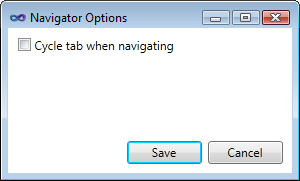
The Navigator add-in adds NavigateToNextTab and NavigateToPreviousTab commands to navigate tabs using keyboard. These commands stop when they reach the first or the last tab. This week Chee-Hung Loh posted to the Tabs Studio mail list code for NavigateToNextTab go to first tab if the selected tab is the last tab and NavigateToPreviousTab go to the last tab if the selected tab is the first tab. And then added an option to select between the default and new behavior. To access navigator options go to Add-in Manager, select Navigator and press Configure:

Navigator Options

Navigator Options

I’ve also added the NavigateToLastTab command for symmetry with NavigateToTab1:

Navigate to last tab shortcut keys assignment

Navigate to last tab shortcut keys assignment

Download link: Navigator v1.0.3.

September 15, 2010

Runtime Flow announcement

Filed under: Uncategorized — Sergey Vlasov @ 12:35 pm

I’d like to digress a little and announce my new product Runtime Flow – real time .NET function calls and function parameters monitor. It is similar to Process Monitor by Sysinternals, but shows activity for .NET code and displays function calls in a tree (it is also very similar to IntelliTrace in Visual Studio 2010 Ultimate):

Computing answer in GraphCalc

Computing answer in GraphCalc

Runtime Flow is useful to analyze your own applications and 3rd party code. For your own applications Runtime Flow integrates with Visual Studio and allows you to answer questions like “What happens when I click this button?” or “When I load a file in my program, how it is parsed?” For 3rd party .NET code Runtime Flow provides the same runtime information as source code is not required for monitoring – for example, read my troubleshooting of Visual Studio LightSwitch IDE extension installation using Runtime Flow.

I welcome you to visit the Runtime Flow site and try to monitor your applications. I’m very interested to know whether Runtime Flow is capable to solve your problems and improve your productivity.

« Newer PostsOlder Posts »

Blog at WordPress.com.