Tabs Studio Blog (organizing Visual Studio document tabs)

September 14, 2009

Customizing tab context menu from an add-in

Filed under: Uncategorized — Tags: — Sergey Vlasov @ 9:43 pm

In the next Tabs Studio version I’ve added two new events that occur just before tab context menu is opened:

namespace TabsStudioExt
{
    public interface ITabsStudioEngine
    {
        ...
        event OpeningTabContextMenuEventHandler OpeningTabContextMenu;
        event OpeningTabExtensionContextMenuEventHandler OpeningTabExtensionContextMenu;
    }
}

OpeningTabContextMenuEventArgs contains the System.Windows.Controls.ContextMenu ContextMenu property, Tab and Tabs properties. OpeningTabExtensionContextMenuEventArgs contains the ContextMenu, TabExtension, Tab and Tabs properties. An add-in can add, remove and modify menu items in the context menu based on TabExtension or Tab it was opened for. Right click on a tab with a single extension generates the OpeningTabExtensionContextMenu event.

To simplify customization from an add-in, each menu item and separator in the default context menu was given a Name. For document tab context menu the names are: Open, OpenSeparator, Save, Close, CloseAllButThis, CloseAllDocuments, FileSeparator, CopyFullPath, OpenContainingFolder, VS2010DocumentSeparator, VS2010Floating, VS2010Dockable, TabGroupsSeparator, MoveToNextTabGroup, MoveToPreviousTabGroup, TabsStudioSeparator and TabsStudio:
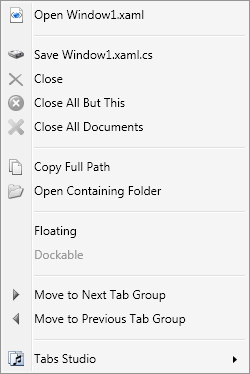
Document tab context menu

Document tab context menu


For non document tab context menu additional names are: WindowSeparator, Floating, Dockable, TabbedDocument, AutoHide and Hide:
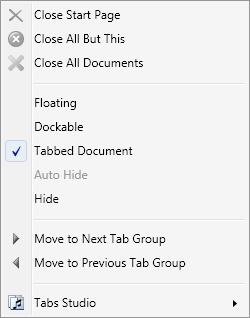
Non document tab context menu

Non document tab context menu

September 11, 2009

Opening add-ins directory

Filed under: Uncategorized — Tags: — Sergey Vlasov @ 12:20 pm

For the next Tabs Studio version I’ve added the Open add-ins directory button to the Add-in Manager dialog:

Open add-ins directory button in the Add-ins Manager dialog

Open add-ins directory button in the Add-ins Manager dialog


This button creates the TabsStudioAddins directory if it doesn’t exist and opens it in Windows Explorer:
TabsStudioAddins directory in Windows Explorer

TabsStudioAddins directory in Windows Explorer


Installing and removing add-ins should be easier now – no need to search for the TabsStudioAddins directory on the disk yourself.

September 2, 2009

Decorator add-in

Filed under: Uncategorized — Tags: , — Sergey Vlasov @ 7:14 pm

Decorator is an example of custom properties usage. It sets distinct color for tabs that belong to the project having the most opened tabs. I.e. if 2 opened tabs are for documents from Project1, 5 tabs from Project2 and 3 tabs from Project3, then tabs from Project2 will be colored blue.

TabsStudioDecorator.Properties class defines custom dependency property IsTopProjectProperty, registers it using the RegisterAttached method and provides two static set and get methods for it.

Main Decorator class recalculates the top project when a tab is created or destroyed. Then it sets IsTopProjectProperty to true for all tabs belonging to the top project (if number of tabs in the top project is greater than 3) and to false for the rest of tabs.

Main Decorator class also implements the TabsStudioExt.IStyler interface and returns definition for the TabsStudioDecorator namespace from the GetNamespacesForResourceDictionary method.

Following style is used to color top project tabs that are not currently selected to white-blue gradient:

<Style TargetType="TabsStudio:Tab" BasedOn="{StaticResource DefaultTabStyle}">
    <Style.Triggers>
        <MultiTrigger>
            <MultiTrigger.Conditions>
                <Condition Property="TabsStudioDecorator:Properties.IsTopProject" Value="True"/>
                <Condition Property="IsTabSelected" Value="False"/>
            </MultiTrigger.Conditions>
            <Setter Property="Background">
                <Setter.Value>
                     <LinearGradientBrush StartPoint="0,0" EndPoint="0,1">
                         <GradientStop Color="#F5F5F5" Offset="0"/>
                         <GradientStop Color="#B0B0F0" Offset="1"/>
                     </LinearGradientBrush>
                </Setter.Value>
            </Setter>  
        </MultiTrigger>
    </Style.Triggers>
</Style>
Four tabs belonging to WebSite2 project are colored blue

Four tabs belonging to WebSite2 project are colored blue

Download Decorator v1.0.0 for Tabs Studio v1.5.7.

Disambiguator add-in

Filed under: Uncategorized — Tags: — Sergey Vlasov @ 12:25 pm

Files in different projects and even files within a project can have the same names. In this case their tabs also have the same titles and one need to hover the mouse over the tabs to distinguish them by tooltip with the full path. Disambiguator add-in detects when two or more tabs have the same title and adds Visual Studio folder or project to titles for these tabs.

Disambiguator monitors TabCreated event, searches if tabs with the same name without extension already exist and adds TitleTransform to tabs found except if tab already has TitleTransform with the [Disambiguator] tag. The TitleTransform prefixes the title with the Visual Studio folder or project name (if document is not within a folder). A web site project has a full path as its name, so Disambiguator uses only last directory name in the title in this case.

Download Disambiguator v1.0.0 for Tabs Studio v1.5.7.

Using attached properties in an add-in for advanced styling

Filed under: Uncategorized — Tags: , — Sergey Vlasov @ 9:15 am

Currently in style triggers only predetermined in Tabs Studio (IsDocument, IsTabSelected) and in WPF (IsMouseOver) properties can be used. For the next Tabs Studio version I’ve added ability for an add-in to add and set its own custom properties to any tab element and use it in style triggers.

These custom properties are WPF Attached Properties. An add-in should define custom static DependencyProperty in a class (I recommend to use separate dedicated class for it), initialize this property using the RegisterAttached method and define two static methods to set and get the property.

After a custom property is defined and registered, an add-in can set it for any tab element when needed:

Properties.SetIsTopProject(tab.TabItem, isTopProject);

Where Properties is a class containing the property, SetIsTopProject is a static set method for the property, tab.TabItem is a tab element we set property for, isTopProject is a value for the property.

On the style side we use this new property in a trigger almost as usual:

<Trigger Property="TabsStudioDecorator:Properties.IsTopProject" Value="True">

We must additionally specify the XAML namespace and the class where the property is defined. Defining this custom XAML namespace is an add-in’s job. Main add-in class must implement the TabsStudioExt.IStyler interface – return a string from the GetNamespacesForResourceDictionary method with required namespace(s) definition(s):

public string GetNamespacesForResourceDictionary()
{
    return "xmlns:TabsStudioDecorator=\"clr-namespace:TabsStudioDecorator;assembly=Decorator\"";
}

September 1, 2009

Changing tab title from an add-in

Filed under: Uncategorized — Tags: — Sergey Vlasov @ 2:16 am

I’ve added infrastructure to control tab and tab extension title text from an add-in. It was already possible to modify tab label control directly, but direct modifications can be overridden by Tabs Studio and require special processing for underscore characters.

Now each title has the associated list of transforms applied to this title. Each transform is a pattern regex string, replacement regex string and tag ID string. An add-in can customize this list individually for each title (add, remove and change transforms).

More specifically, TabsStudioExt.Tab and TabsStudioExt.TabExtension classes have TitleManager property returning ITitleManager interface. ITitleManager interface has Title and UntransformedTitle properties (there is no need to access underlying label control to get title any more), Transforms property returning generic list of TitleTransform and ApplyTransforms method that an add-in should call when it has finished updating the transforms list. TitleTransform has PatternRegex, ReplacementRegex and Id properties.

An example of tab title customization usage can be disambiguation of tabs with the same name adding folder/project to tab title on tab creation when there is already a tab with the same name in the group (see my upcoming Disambiguator add-in). “Remove path from tab name” option is now also implemented as a transform (pattern ^(.*/)?(.*)$, replacement $2, id [Tabs Studio] Remove path).

Tab extension title customization can be used for decorations like this:

Custom extension transformation

Custom extension transformation


It was implemented by adding two transforms (.cpp$ -> .c++ and .cs$ -> .c#) on TabExtensionCreated event to each tab extension.

August 27, 2009

Saver add-in

Filed under: Uncategorized — Tags: — Sergey Vlasov @ 6:37 am

Saver restores tab positions when opening a solution to the last state. Let’s start from the design questions.

When to save tab positions?

Visual Studio has the OnBeforeCloseSolution event in the IVsSolutionEvents interface. When OnBeforeCloseSolution fires all tabs are still opened and this event seems like a perfect place to save tab positions.

When to restore tab positions?

There is the OnAfterOpenSolution event, but when it fires no solution files are opened yet. So, I did use this event to load tab positions, but implemented tab ordering in response to the ITabsStudioEngine.TabCreated events tab by tab.

Where to store tab positions?

Ideal place to store tab positions would be Solution User Options (.suo) file. Unfortunately, this storage is available only to VSPackages. Instead, I decided to store tab positions in a separate file with the tss extension in a directory along with the sln and suo files.

Implementation

In the OnConnection method Saver gets the IVsSolution Visual Studio interface and subscribes to solution events.

In the OnBeforeCloseSolution method file path of each tab extension (or title for non document windows) in appropriate order are stored in a tss file. Information is stored in human readable xml format.

In the OnAfterOpenSolution method tab positions are loaded from a tss file and stored in the tabsOrderList instance variable.

OnTabCreated event handler gets file path of created tab extension (or title for non document windows) as the tabCreatedID string, finds appropriate tab group in tabsOrderList, scans TabPanel from the beginning looking for a tab that is greater (based on saved order index) than the just created one and if greater tab is found moves the just created tab before it.

OnTabCreated processing should work only while solution is opening. UpdateTabsToGo method is called after loading tab positions from a tss file and calculates the number of tabs that are going to be opened. OnTabCreated event handler each time checks that there are tabsToGo and decrements this counter, thus preventing OnTabCreated to work in Saver add-in after solution is completely loaded.

Download Saver v1.0.0 for Tabs Studio v1.5.5.

Navigator add-in

Filed under: Uncategorized — Tags: — Sergey Vlasov @ 4:18 am

Navigator allows you to switch tabs using keyboard. It provides two new Visual Studio commands to activate tabs on the left and on the right of the currently selected one.

Navigator is a good example of Visual Studio commands creation in Tabs Studio’s add-in. Main Navigator class implements the EnvDTE.IDTCommandTarget interface. Commands class registers two new commands, reports their status as always enabled and checks when it is time to execute them.

Actual navigation is implemented in CommandsImpl class. Uisng the ITabsStudioEngine.GetTabs method it gets information about all tabs, determines selected tab group, determines selected tab, finds adjacent tab in TabPanel, finds active extension in adjacent tab and activates corresponding Visual Studio window using Activate method.

Assigning keyboard shortcuts to these commands in Visual Studio keyboard options I noticed that assigning, for example, Ctrl+2 in Global scope to TabsStudio.Connect.NavigateToNextTab works, but to assign Ctrl+Shift+Right Arrow it is needed to be in Text Editor scope or default Text Editor command overrides it.

Download Navigator v1.0.0 for Tabs Studio v1.5.5.

Tracer add-in

Filed under: Uncategorized — Tags: — Sergey Vlasov @ 3:41 am

Tracer should be useful for add-ins development. Using System.Diagnostics.Trace.WriteLine method it traces when
ITabsStudioEngine events occur. I use DebugView to view these traces.

Tracer also demonstrates use of the TabsStudioExt.IConfigurable interface showing settings dialog when Configure… selected in Add-in Manager. These settings are not preserved after closing Visual Studio.

Download Tracer v1.0.0 for Tabs Studio v1.5.5.

August 26, 2009

Sorter add-in v1.0.1

Filed under: Uncategorized — Tags: — Sergey Vlasov @ 8:17 am

Sorter v1.0.1 for Tabs Studio v1.5.5 is released – added support for tab renaming, added support for latest Tabs Studio SDK.

« Newer PostsOlder Posts »

Blog at WordPress.com.

