I’ve added the Online help button to the Tabs Studio Settings dialog. Clicking this button opens documentation for the selected tab:

Online help button in Tabs Studio settings
I’ve added the Online help button to the Tabs Studio Settings dialog. Clicking this button opens documentation for the selected tab:
Online help button in Tabs Studio settings
I’ve combined common style templates into the Quick Style dialog:
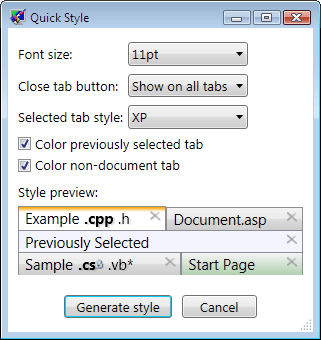
Quick Style dialog

Quick style button on Style tab
For a long time the close tab button was implemented as an image. The image had the mouse over glow effect, but no pressed state. The close tab button image also allowed accidental activation on the mouse left button up event without corresponding mouse left button down. I’ve resolved both of these shortcomings finally implementing the close tab button as System.Windows.Controls.Button:

Mouse over the new close tab button
<Style x:Key="DefaultCloseTabButtonStyle" TargetType="TabsStudio:CloseTabButton">
    <Setter Property="Margin" Value="2,0,-4,0"/>
    <Setter Property="VerticalAlignment" Value="Top"/>
    <Setter Property="HorizontalAlignment" Value="Right"/>
    <Setter Property="Focusable" Value="False"/>
    <Setter Property="Template">
        <Setter.Value>
            <ControlTemplate TargetType="TabsStudio:CloseTabButton">
                <ControlTemplate.Resources>
                    <Style TargetType="Image">
                        <Setter Property="Stretch" Value="None"/>
                    </Style>
                </ControlTemplate.Resources>
                <Grid>
<Image Name="Normal"    Source="pack://application:,,,/TabsStudio;component/close_tab_button_normal.png"/>
<Image Name="Pressed"   Source="pack://application:,,,/TabsStudio;component/close_tab_button_pressed.png"
 Visibility="Collapsed"/>
<Image Name="MouseOver" Source="pack://application:,,,/TabsStudio;component/close_tab_button_mouse_over.png"
 Visibility="Collapsed"/>
                </Grid>
                <ControlTemplate.Triggers>
                    <Trigger Property="IsMouseOver" Value="True">
                        <Setter TargetName="Normal" Property="Visibility" Value="Collapsed"/>
                        <Setter TargetName="MouseOver" Property="Visibility" Value="Visible"/>
                    </Trigger>
                    <Trigger Property="IsPressed" Value="True">
                        <Setter TargetName="Normal" Property="Visibility" Value="Collapsed"/>
                        <Setter TargetName="Pressed" Property="Visibility" Value="Visible"/>
                        <Setter TargetName="MouseOver" Property="Visibility" Value="Collapsed"/>
                    </Trigger>
                </ControlTemplate.Triggers>
            </ControlTemplate>
        </Setter.Value>
    </Setter>
    <Style.Triggers>
        <Trigger Property="IsTabSelected" Value="False">
            <Setter Property="Visibility" Value="Collapsed"/>
        </Trigger>
    </Style.Triggers>
</Style>
Tabs Studio v1.6.4 is released – improved floating tab group support and added experimental support for Microsoft SQL Server Management Studio.
“SQL Server Management Studio is an integrated environment for accessing, configuring, managing, administering, and developing all components of SQL Server.” It uses the same Visual Studio shell as Visual Studio and after making some small changes I was able to use Tabs Studio tabs in SSMS IDE. I verified that Tabs Studio integration with SSMS works on the computer with SQL Server 2008 Enterprise or Developer edition:
If Tabs Studio installer fails to find Visual Studio, create the Visual Studio 2008 folder in your Documents folder.

Tabs Studio tabs in Microsoft SQL Server Management Studio
I’m not a regular SSMS user. Please let me know if Tabs Studio behaves not as expected in SSMS IDE.
I’ve resolved main problems with the floating tab group found in v1.6.3 – the main Visual Studio window can be resized just fine now and different number of toolbars doesn’t corrupt window size. Closing the floating tab group window now correctly closes all tabs in the detached tab group.
Performing an action in the main Visual Studio window from the floating tab group window often requires two mouse clicks (one click to activate main Visual Studio window and one click to perform an action). Menu and toolbar commands don’t work on documents in floating tab group. Floating tab group is supported only if you have exactly two tab groups opened. Floating tab group is not currently supported for Visual Studio 2010 Beta 1.
To give some impression what is possible and what is problematic supporting floating tab groups I’m releasing an early alpha showing what I have now.
Visual Studio 2008 and Tabs Studio v1.6.3.
Floating tab group window is created that you can freely move and resize:
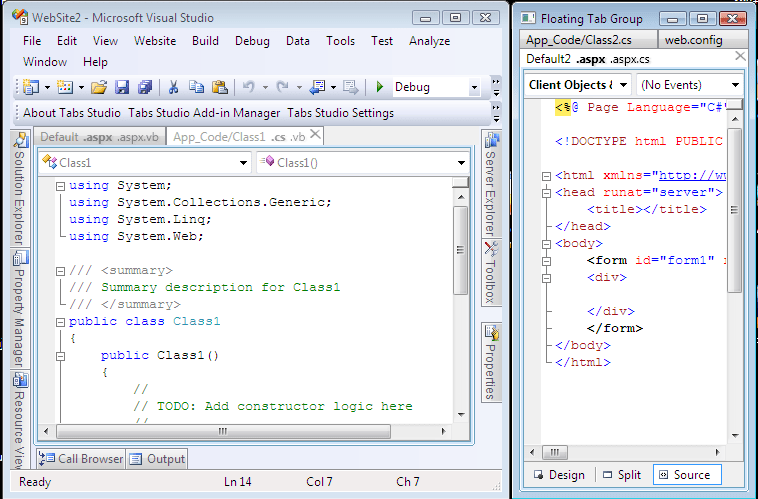
Floating tab group window and main Visual Studio window
Feel free to try it for yourself.
I’m experimenting with detachable tab groups in Tabs Studio. It’s extremely brittle and limited, but some things work:
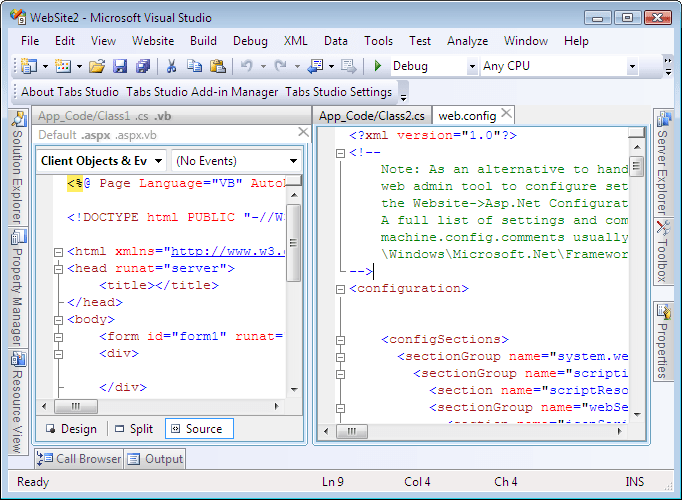
Two standard vertical tab groups in Visual Studio 2008

New floating tab group window and main Visual Studio 2008 window
What do you think about the floating tab groups in Visual Studio 2008 idea?
I use less distractive “gray theme” icons in Tabs Studio context menu. Now that context menu is completely customizable, I’ve created an alternative color icons pack:

Custom icons in tab context menu
You can also replace default close tab button image with the one from ColorIcons.dll using following style:
<Style TargetType="TabsStudio:CloseTabButton" BasedOn="{StaticResource DefaultCloseTabButtonStyle}">
    <Setter Property="Source" Value="pack://application:,,,/ColorIcons;component/icons/close_tab.png"/>
</Style>

Custom close tab button image
<Style TargetType="TabsStudio:CloseTabButton" BasedOn="{StaticResource DefaultCloseTabButtonStyle}">
    <Setter Property="Source" Value="file://c:/close.png"/>
</Style>
Download Color Icons v1.0.0 for Tabs Studio v1.6.2.
Occasionally, I need to find one of the currently opened documents in Solution Explorer. To fulfill this necessity and to demonstrate Tabs Studio context menu extensibility I’ve created Sync add-in.
Visual Studio has the Track Active Item in Solution Explorer option that constantly syncs Solution Explorer with the currently opened document:

Track Active Item Viusal Studio option
Alternatively, Sync add-in adds the new Sync with Solution Explorer command to tab and tab extension context menus. It allows locating any opened document (not only current) and activates Solution Explorer window if it is not opened:
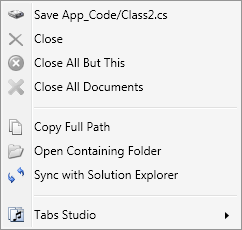
Sync with Solution Explorer tab extension context menu command
engine.OpeningTabExtensionContextMenu += OpeningTabExtensionContextMenu;
engine.OpeningTabContextMenu += OpeningTabContextMenu;
In OpeningTabExtensionContextMenu it checks that TabExtension has Document and ProjectItem associated with it (to show Sync command only for document windows), stores TabExtension for later processing (if user chooses Sync command from the menu) and places the new Sync menu item after the Open Containing Folder item:
private void OpeningTabExtensionContextMenu(object sender,
    TabsStudioExt.OpeningTabExtensionContextMenuEventArgs e)
{
    try
    {
        if (e.TabExtension.Window.Document == null || e.TabExtension.Window.Document.ProjectItem == null)
            return;
    }
    catch (System.Exception)
    {
        return;
    }
    storedTabExtension = e.TabExtension;
    PlaceMenuItem(syncTabExtensionMenuItem, e.ContextMenu);
}
To exactly place the new menu item, Sync scans all context menu items looking for the control with the OpenContainingFolder name and inserts the new item after it:
private void PlaceMenuItem(System.Windows.Controls.MenuItem menuItem,
    System.Windows.Controls.ContextMenu menu)
{
    foreach (object item in menu.Items)
    {
        if (item is System.Windows.Controls.Control)
        {
            if ((item as System.Windows.Controls.Control).Name.Equals("OpenContainingFolder"))
            {
                menu.Items.Insert(menu.Items.IndexOf(item) + 1, menuItem);
                break;
            }
        }
    }
}
When user chooses the Sync menu command, Solution Explorer window is activated, associated project item is made visible using the ExpandView method and associated element in the Solution Explorer tree is selected:
private void SyncTabExtension(object sender, System.Windows.RoutedEventArgs e)
{
    try
    {
        EnvDTE.UIHierarchy solutionExplorer = dte.ToolWindows.SolutionExplorer;
        solutionExplorer.Parent.Activate();
        EnvDTE.ProjectItem projectItem = storedTabExtension.Window.Document.ProjectItem;
        projectItem.ExpandView();

        EnvDTE.UIHierarchyItem hierarchyItem =
            FindHierarchyItem(solutionExplorer.UIHierarchyItems, projectItem);
        if (hierarchyItem != null)
            hierarchyItem.Select(EnvDTE.vsUISelectionType.vsUISelectionTypeSelect);
    }
    catch (System.Exception)
    {
    }
}
When Sync command is invoked for a tab, all extensions in this tab are selected in the Solution Explorer tree.
Download Sync v1.0.0 for Tabs Studio v1.6.2.

 Tabs Studio Blog (organizing Visual Studio document tabs)