Tabs Studio Blog (organizing Visual Studio document tabs)

May 18, 2009

Document and non document tabs

Filed under: Uncategorized — Tags: — Sergey Vlasov @ 3:43 pm

One way to differentiate tabs is by document/non document property. Document tabs are source files, designers and resources. Non document tabs are Start Page, Class View, Object Browser etc. I’ve added IsDocument property to all tab controls reflecting this dichotomy. Default style doesn’t use this property.

Custom style that sets different color for non document tabs should also take into account conditions when non document tab is selected and when non document tab was previously selected. It is possible to set different color for each case. It is also possible to use custom color for non document tab only if it is not selected and was not previously selected, as demonstrated in the following example:

<Style TargetType="TabsStudio:Tab" BasedOn="{StaticResource DefaultTabStyle}">
    <Style.Triggers>
        <MultiTrigger>
            <MultiTrigger.Conditions>
                <Condition Property="IsDocument" Value="False"/>
                <Condition Property="IsTabSelected" Value="False"/>
                <Condition Property="IsPreviouslySelectedTab" Value="False"/>
            </MultiTrigger.Conditions>
            <Setter Property="Background">
                <Setter.Value>
                     <LinearGradientBrush StartPoint="0,0" EndPoint="0,1">
                         <GradientStop Color="#F5F5F5" Offset="0"/>
                         <GradientStop Color="#B0D0B0" Offset="1"/>
                     </LinearGradientBrush>
                </Setter.Value>
            </Setter>  
        </MultiTrigger>
    </Style.Triggers>
</Style>
Custom color for non document tab

Custom color for non document tab

May 17, 2009

Previously Selected Tab

Filed under: Uncategorized — Tags: — Sergey Vlasov @ 2:09 pm

When many tabs are opened they are not used equally. Some are used more often, some have been used recently. It would be nice to highlight these more used tabs to reduce time to look for them among less used tabs. Thus, I was thinking about adding tab rating indexes for usage frequency and recent usage. These ratings would be implemented as tab control properties and would be available for styling.

On the other hand, there is a risk to create too much distracting workspace and there is uncertainty whether it would be helpful at all. So, to experiment with this idea a little I’ve added IsPreviouslySelectedTab property that is true for the previously selected tab. Default style doesn’t change color for previously selected tab, but custom styling with this property works exactly the same as with IsTabSelected property:

<Style TargetType="TabsStudio:Tab" BasedOn="{StaticResource DefaultTabStyle}">
    <Style.Triggers>
        <Trigger Property="IsPreviouslySelectedTab" Value="True">
            <Setter Property="Background" Value="#F5F5FF"/>
        </Trigger>
    </Style.Triggers>
</Style>

Different color for the previously selected tab

Different color for the previously selected tab


Oftentimes you can switch to previously selected tab using standard Ctrl+Tab shortcut. But not always, as previous Ctrl+Tab window can be an extension on the currently selected tab for example. Plus, when you close selected or previously selected tab, current implementation doesn’t show next previously selected tab.

May 14, 2009

Control template

Filed under: Uncategorized — Tags: — Sergey Vlasov @ 4:45 pm

XAML supports styles with control templates that can completely change control look. Following example changes tabs shape:

<Style TargetType="{x:Type TabsStudio:Tab}" BasedOn="{StaticResource DefaultTabStyle}">
    <Setter Property="Template">
        <Setter.Value>
            <ControlTemplate TargetType="{x:Type TabsStudio:Tab}">
                <Grid>
                    <Border Name="Border" BorderBrush="Black" BorderThickness="1,1,1,1" CornerRadius="6,6,0,0">
                        <ContentPresenter ContentSource="Header" Margin="12,2,12,2"/>
                    </Border>
                    <Polygon Points="0 22, 9 0, 0 0" Fill="{x:Static SystemColors.ControlBrush}"/>
                    <Line X1="0" Y1="22" X2="9" Y2="0" Stroke="Black" />
                </Grid>
                <ControlTemplate.Triggers>
                    <Trigger Property="IsTabSelected" Value="True">
                        <Setter TargetName="Border" Property="Background" Value="White"/>
                    </Trigger>
                    <Trigger Property="IsTabSelected" Value="False">
                        <Setter TargetName="Border" Property="Background" Value="LightGray" />
                    </Trigger>
                </ControlTemplate.Triggers>
            </ControlTemplate>
        </Setter.Value>
    </Setter>
</Style>

Custom control template

Custom control template


While extra powerful, control templates in particular require nontrivial XAML skills and persistence to produce desired result.

Style preview

Filed under: Uncategorized — Tags: — Sergey Vlasov @ 4:20 pm

I’ve added live style preview when editing it:

Style preview

Style preview

May 8, 2009

More styling examples

Filed under: Uncategorized — Tags: — Sergey Vlasov @ 5:34 am

1. Change tool tip show delay for the whole tab and extensions to 500 ms (default delay is 1500 ms):

<Style TargetType="TabsStudio:Tab" BasedOn="{StaticResource DefaultTabStyle}">
    <Setter Property="ToolTipService.InitialShowDelay" Value="500"/>
</Style>
<Style TargetType="TabsStudio:TabExtension" BasedOn="{StaticResource DefaultTabExtensionStyle}">
    <Setter Property="ToolTipService.InitialShowDelay" Value="500"/>
</Style>

2. Add XP like top orange adornment for the selected tab:

<Style TargetType="TabsStudio:Tab" BasedOn="{StaticResource DefaultTabStyle}">
    <Style.Triggers>
        <Trigger Property="IsTabSelected" Value="True">
            <Setter Property="Background">
              <Setter.Value>
                <LinearGradientBrush StartPoint="0,0" EndPoint="0,1">
                    <GradientStop Color="Orange" Offset="0"/>
                    <GradientStop Color="White" Offset="0.2"/>
                </LinearGradientBrush>
              </Setter.Value>
            </Setter>
            <Setter Property="Margin" Value="0,-1,0,0"/>
        </Trigger>
    </Style.Triggers>
</Style>
Top orange adornment for selected tab

Top orange adornment for selected tab

Updated styling examples for v1.0.6

Filed under: Uncategorized — Tags: — Sergey Vlasov @ 4:09 am

As styling syntax was changing during development, I’m updating old examples for the latest Tabs Studio version 1.0.6.

Change tabs font family to Consolas and increase tabs font size to 12 points:

<Style TargetType="TabsStudio:Tabs" BasedOn="{StaticResource DefaultTabsStyle}">
    <Setter Property="Control.FontFamily" Value="Consolas"/>
    <Setter Property="Control.FontSize" Value="12pt"/>
</Style>
Custom tabs font family and size

Custom tabs font family and size

Set Italic font style only for the selected tab name:

<Style TargetType="TabsStudio:TabName" BasedOn="{StaticResource DefaultTabNameStyle}">
    <Style.Triggers>
        <Trigger Property="IsTabSelected" Value="True">
            <Setter Property="FontStyle" Value="Italic"/>
        </Trigger>
    </Style.Triggers>
</Style>
Italic font style for selected tab name

Italic font style for selected tab name

Default custom style example

Filed under: Uncategorized — Tags: — Sergey Vlasov @ 3:15 am

I’m going to remove the commented example of how to change tabs font size from the Tabs Studio Settings dialog. It’s no good to store such information in user’s settings file after Save button is clicked. In user’s settings file it will sooner or later become outdated and I will not be able to update it.

<!-- An example of how to change tabs font size:
<Style TargetType="TabsStudio:Tabs" BasedOn="{StaticResource DefaultTabsStyle}">
    <Setter Property="Control.FontSize" Value="12pt"/>
</Style>
-->

Other ways to provide examples I’m thinking of are adding them to documentation, creating dedicated styles gallery on Tabs Studio site, creating listbox with styling examples names and Insert button that pastes markup in the style text box.

May 6, 2009

Styling documentation

Filed under: Uncategorized — Tags: — Sergey Vlasov @ 3:20 pm

Below is the visual tree of Tabs Studio controls with base types and additional properties:

Tabs : TabPanel
|
 - Tab : TabItem (IsTabSelected, IsMultiExtensions)
   |
    - TabToolTip : ToolTip (IsTabSelected)
   |
    - TabInternals : DockPanel (IsTabSelected)
      |
       - TabNameGroup : StackPanel (IsTabSelected, IsMultiExtensions, IsNameReadOnly)
      |  |
      |   - TabName : Label  (IsTabSelected, IsMultiExtensions, IsNameReadOnly)
      |  |
      |   - TabNameReadOnlyImage : Image (IsTabSelected, IsMultiExtensions, IsNameReadOnly)
      |
       - TabExtensionGroup : StackPanel (IsTabSelected, IsExtensionActive, IsExtensionReadOnly)
      |  |
      |   - TabExtension : Label (IsTabSelected, IsExtensionActive, IsExtensionReadOnly)
      |  |  |
      |  |   - TabExtensionToolTip : ToolTip (IsTabSelected, IsExtensionActive, IsExtensionReadOnly) 
      |  |
      |   - TabExtensionReadOnlyImage : Image (IsTabSelected, IsExtensionActive, IsExtensionReadOnly)
      |
       - CloseTabButton : Image (IsTabSelected)

TabToolTip, TabInternals and CloseTabButton are missing IsMultiExtensions property – I’ll fix it in the next version. IsMultiExtensions is true when tab is a group of 2 or more extensions.

You can also look at default styles definition file for more styling ideas.

May 1, 2009

Default and custom styles

Filed under: Uncategorized — Tags: — Sergey Vlasov @ 6:49 pm

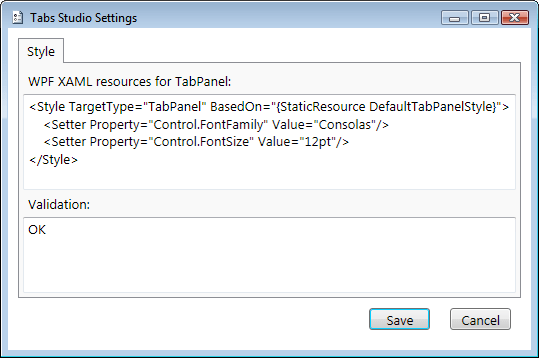
I’ve made final (I hope) changes to the styling engine to support seamless transition from default to custom style. Syntax for our usual example to change global tabs’ font family and font size is following now:

Style resources settings

Style resources settings


Custom tabs style based on default style

Custom tabs style based on default style

Let’s see how styles were applied in this example. Without any styles tabs’ font size and font family have default values and unoccupied by tabs space is black:

Tabs without style

Tabs without style

Tabs Studio has default TabPanel style that sets unoccupied by tabs space to grey on default Windows theme:

<Style x:Key="DefaultTabPanelStyle" TargetType="TabPanel">
            <Setter Property="Background" Value="{x:Static SystemColors.ControlBrush}"/>
</Style>

Default tabs style with unoccupied by tabs space

Default tabs style with unoccupied by tabs space


When custom TabPanel style is based on DefaultTabPanelStyle unoccupied by tabs space is grey. It is possible to define custom style from scratch and does not use default settings:

<Style TargetType="TabPanel">
    <Setter Property="Control.FontStyle" Value="Italic"/>
</Style>
Custom tabs style not using default settings

Custom tabs style not using default settings

Notice how unoccupied by tabs space is black again when custom TabPanel style is not based on DefaultTabPanelStyle.

Finally, explanation of what WPF XAML resources for TabPanel content means in WPF terms. It is part of ResourceDictionary after namespaces definitions, default Tabs Studio styles and before ResourceDictionary closing tag.

April 30, 2009

Dynamic style

Filed under: Uncategorized — Tags: — Sergey Vlasov @ 5:38 am

I’ve updated styling code to allow more customization. To change global tabs font family and font size you should now use the following format:

Style resources settings

Style resources settings

The result is the same as in the previous post:

Default tabs style

Default tabs style


Custom tabs style

Custom tabs style

More customization means that now you can, for example, set Italic font style only for the selected tab name:

<ResourceDictionary xmlns="http://schemas.microsoft.com/winfx/2006/xaml/presentation"
                 xmlns:TabsStudio="clr-namespace:TabsStudio;assembly=TabsStudio">
<Style TargetType="TabsStudio:TabNameLabel">
    <Style.Triggers>
        <Trigger Property="IsTabSelected" Value="True">
            <Setter Property="Control.FontStyle" Value="Italic"/>
        </Trigger>
    </Style.Triggers>
</Style>
</ResourceDictionary>

The result is:

Custom selected tab name

Custom selected tab name

Notice how the not selected tab name and extensions on the selected tab stay in the normal font style.

« Newer PostsOlder Posts »

Blog at WordPress.com.