Tabs Studio Blog (organizing Visual Studio document tabs)

May 3, 2009

Close tab button

Filed under: Uncategorized — Sergey Vlasov @ 11:40 am

I’ve added close tab button to tabs with default style that displays it only for the selected tab:

Close tab button on the selected tab

Close tab button on the selected tab

You can customize it with style to show close tab button on all tabs:

<Style TargetType="TabsStudio:CloseTabButton" BasedOn="{StaticResource DefaultCloseTabButtonStyle}">
    <Style.Triggers>
        <Trigger Property="IsTabSelected" Value="False">
            <Setter Property="Visibility" Value="Visible"/>
        </Trigger>
    </Style.Triggers>
</Style>
Close tab button on all tabs

Close tab button on all tabs

Of course, you can hide close tab button from all tabs if you like:

<Style TargetType="TabsStudio:CloseTabButton" BasedOn="{StaticResource DefaultCloseTabButtonStyle}">
    <Setter Property="Visibility" Value="Collapsed"/>
</Style>

Another interesting customization is ability to increase close tab button size. For example, if you use larger font size for tabs:

<Style TargetType="TabPanel" BasedOn="{StaticResource DefaultTabPanelStyle}">
    <Setter Property="Control.FontSize" Value="12pt"/>
</Style>
<Style TargetType="TabsStudio:CloseTabButton" BasedOn="{StaticResource DefaultCloseTabButtonStyle}">
    <Setter Property="LayoutTransform">
        <Setter.Value>
            <ScaleTransform ScaleX="1.00" ScaleY="1.00" />
        </Setter.Value>
    </Setter>
</Style>

Larger font size and larger close tab button

Larger font size and larger close tab button


(Default ScaleX and ScaleY for close tab button is 0.75)
May 1, 2009

Default and custom styles

Filed under: Uncategorized — Tags: — Sergey Vlasov @ 6:49 pm

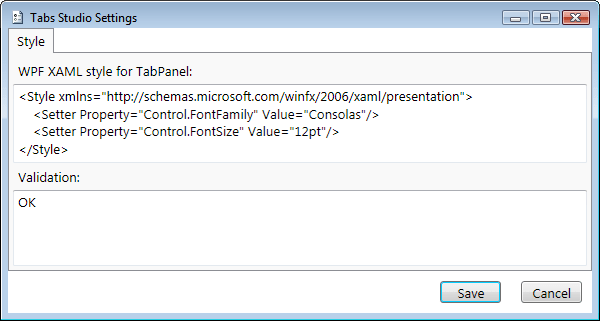
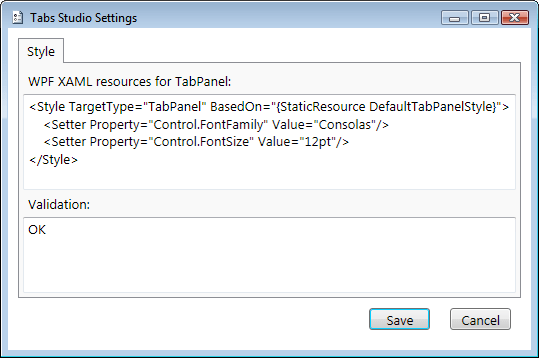
I’ve made final (I hope) changes to the styling engine to support seamless transition from default to custom style. Syntax for our usual example to change global tabs’ font family and font size is following now:

Style resources settings

Style resources settings


Custom tabs style based on default style

Custom tabs style based on default style

Let’s see how styles were applied in this example. Without any styles tabs’ font size and font family have default values and unoccupied by tabs space is black:

Tabs without style

Tabs without style

Tabs Studio has default TabPanel style that sets unoccupied by tabs space to grey on default Windows theme:

<Style x:Key="DefaultTabPanelStyle" TargetType="TabPanel">
            <Setter Property="Background" Value="{x:Static SystemColors.ControlBrush}"/>
</Style>

Default tabs style with unoccupied by tabs space

Default tabs style with unoccupied by tabs space


When custom TabPanel style is based on DefaultTabPanelStyle unoccupied by tabs space is grey. It is possible to define custom style from scratch and does not use default settings:

<Style TargetType="TabPanel">
    <Setter Property="Control.FontStyle" Value="Italic"/>
</Style>
Custom tabs style not using default settings

Custom tabs style not using default settings

Notice how unoccupied by tabs space is black again when custom TabPanel style is not based on DefaultTabPanelStyle.

Finally, explanation of what WPF XAML resources for TabPanel content means in WPF terms. It is part of ResourceDictionary after namespaces definitions, default Tabs Studio styles and before ResourceDictionary closing tag.

April 30, 2009

Dynamic style

Filed under: Uncategorized — Tags: — Sergey Vlasov @ 5:38 am

I’ve updated styling code to allow more customization. To change global tabs font family and font size you should now use the following format:

Style resources settings

Style resources settings

The result is the same as in the previous post:

Default tabs style

Default tabs style


Custom tabs style

Custom tabs style

More customization means that now you can, for example, set Italic font style only for the selected tab name:

<ResourceDictionary xmlns="http://schemas.microsoft.com/winfx/2006/xaml/presentation"
                 xmlns:TabsStudio="clr-namespace:TabsStudio;assembly=TabsStudio">
<Style TargetType="TabsStudio:TabNameLabel">
    <Style.Triggers>
        <Trigger Property="IsTabSelected" Value="True">
            <Setter Property="Control.FontStyle" Value="Italic"/>
        </Trigger>
    </Style.Triggers>
</Style>
</ResourceDictionary>

The result is:

Custom selected tab name

Custom selected tab name

Notice how the not selected tab name and extensions on the selected tab stay in the normal font style.

April 28, 2009

Style

Filed under: Uncategorized — Tags: — Sergey Vlasov @ 5:03 am

I’m working on enabling visual tabs customization. The idea is to use powerful XAML for it. For example, to change tabs font family and font size the following style can be used:

Tabs Studio Style Settings

Tabs Studio Style Settings

The result is:

Default tabs style

Default tabs style


Custom tabs style

Custom tabs style

Validation box checks for errors in markup. For example, if we enter invalid value 12ptx instead of 12pt, the following error is displayed:

Style validation error

Style validation error

The next step is to allow individual elements customization. For example, a shadow effect for extensions or a font color for the selected tab.

April 26, 2009

Keyboard windows navigation in Visual Studio

Filed under: Uncategorized — Sergey Vlasov @ 10:39 am

Ctrl+Tab is usually used to switch windows using keyboard in Visual Studio IDE:

IDE Navigator

IDE Navigator

IDE Navigator has two columns: Active Files column for tabbed windows and Active Tool Windows for tool windows. Selected by default window (stdafx.hpp in the example above) is in Active Files column as Ctrl+Tab corresponds to the Window.NextDocumentWindowNav command. Similar Window.NextToolWindowNav command (without default shortcut) starts with default window selected in Active Tool Windows column. IDE Navigator supports arrow keys (left, right, up, down) and mouse for window selection.

Another command Window.ShowEzMDIFileList with default shortcut Ctrl+Alt+Down Arrow shows alphabetically sorted list of tabbed windows:

Tabbed windows list

Tabbed windows list

In this pop-up window you can navigate using up and down arrow keys, mouse and by typing first letter(s) of window name. For example, typing as selects AssemblyInfo.cpp.

Alternative Visual Studio tabs add-ins

Filed under: Uncategorized — Sergey Vlasov @ 2:49 am

Besides Tabs Studio there are other Visual Studio tabs add-ins, though none of it is in active development now:

  • WndTabs by Oz Solomon. Supports Visual C++ 6. I was a happy WndTabs user myself until Visual Studio .NET came out. Source code is available.
  • VSTabs by Jonathan Payne. Supports Visual Studio 2003. Very small feature set. Source code is available.
  • EasyTabs by Sven Ritter. EasyTabs for Visual Studio 2005/2008 original announcement in German, English translation. Supports Visual Studio 2005/2008. Developed on the basis of WndTabs. Source code is not available, but download is free.

April 25, 2009

Tabs Studio v1.0.1 is released

Filed under: Releases — Sergey Vlasov @ 2:33 pm

Tabs Studio v1.0.1 micro update is released – added grouping for .ascx, .ascx.cs, .master, .master.cs extensions.

« Newer Posts

Blog at WordPress.com.