Tabs Studio v2.0.5 released – added Visual Studio 2010 Pro Power Tools support, added tab floating on double click in VS 2010, improved compatibility with other add-ins’ toolbars in VS 2010.
June 9, 2010
Floating double click in Visual Studio 2010
By default in Visual Studio 2010 double clicking a tab or the title of a docked tool window creates a floating window. I’ve added this feature to Tabs Studio too – now double clicking a tab or an extension in a tab in VS 2010 creates a floating window. Of course, the Floating menu item is still available in the tab and extension context menus.
Comments Off on Floating double click in Visual Studio 2010
Visual Studio 2010 Pro Power Tools support
I’ve updated Tabs Studio to replace Power Tools’ tabs as well. I recommend selecting the Visual Studio 2010 preset in the Document Tab Well options:

Recommended Document Tab Well Options for Tabs Studio
Or you can uncheck the Enable scrolling option (to prevent scroller artifacts) and uncheck the Color tabs by project option (to use default colors for the line under the tabs) in the default Scrollable Tab Well preset.
Comments Off on Visual Studio 2010 Pro Power Tools support
June 8, 2010
Visual Studio 2010 Pro Power Tools add new Document Tab Well options
Microsoft has released Visual Studio 2010 Pro Power Tools today adding lots of new tab options:

General Document Tab Well Options

Color Coding Document Tab Well Options

The Start Page tab after Power Tools installation
First things first – you can have multiple rows of pinned tabs now:

Multiple rows of pinned tabs
I.e. after you pin some tabs, they will take multiple rows if needed. “Normal” tabs are still form single row. Pinned tabs can’t be reordered by mouse.
Tabs can be arranged vertically, to the left of the code window. When needed pinned tabs take several columns:

Vertical tabs

Two columns of vertical tabs
In addition to the standard tab list drop down for hidden tabs, “Visual Studio 2003 tab scrollers” can be enabled:

The standard drop down and Visual Studio 2003 tab scrollers
I couldn’t make Remove tabs by usage order to remove tabs. All other options, I think, are self explanatory.
Tabs Studio is not currently compatible with this extension (generates null reference exception at startup). I will see whether it can be fixed.
Update: Tabs Studio v2.0.5 released with Visual Studio 2010 Pro Power Tools support (read more about how it is supported).

May 9, 2010
Troubleshooter add-in
Troubleshooter doesn’t extend Tabs Studio with new features, it just logs as much as possible about Visual Studio execution.
The following information is logged: OS version, VS version, loaded dlls (updated every 10 seconds), VS command/document/solution/window events, Tabs Studio events, WPF warnings. I try to collect as little personal data as possible. For example, instead of file names only extensions are logged and instead of project names only project types are logged.
Each Visual Studio session is logged in a separate file. Log file names look like “Troubleshooter January 24, 21_20_01 Part 0.txt” where “January 24, 21_20_01” is the time of Visual Studio start. If log file size exceeds 50 MB, a file for the next log part is created. Log files are created in the “LocalApplicationData\Sergey Vlasov\Tabs Studio” folder.
Troubleshooter installer installs the add-in for VS 2008 and creates a desktop shortcut to the logs folder.
Troubleshooter v1.0.1 and source code (including WiX based installer) are available. I think Visual Studio events subscription is the most interesting part of the source code for those interested in extending Visual Studio functionality.
May 8, 2010
Styling tabs in a separate window
In Visual Studio 2010 default style for tabs uses left and right margins of 1 pixel:
<Style x:Key="DefaultTabsStyle" TargetType="TabsStudio:Tabs">
  <Setter Property="Margin" Value="1,0,1,0"/>
</Style>
It makes transition between Tabs Studio tabs and Visual Studio border under the tabs in the left and right corners smooth:

Left tab margin
When tabs are in a separate window, default margins create white lines to the left and to the right of the tabs:
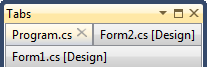
White lines to the left and to the right of the tabs
Setting margins to 0 removes these lines:
<Style TargetType="TabsStudio:Tabs" BasedOn="{StaticResource DefaultTabsStyle}">
  <Setter Property="Margin" Value="0,0,0,0"/>
</Style>
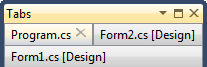
Excessive tabs margins removed
<Style TargetType="TabsStudio:Tabs" BasedOn="{StaticResource DefaultTabsStyle}">
  <Setter Property="Background" Value="#293955"/>
</Style>
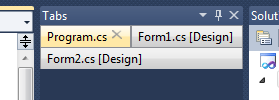
Dark blue tabs background
A similar style can be used to customize tabs background in VS 2008, which is by default grey control brush.
May 7, 2010
Tabs Studio v2.0.1 released
Tabs Studio v2.0.1 released – fixed tabs reordering when entering the debug mode in Visual Studio 2010.
Comments Off on Tabs Studio v2.0.1 released
April 20, 2010
Missing stdole.dll with a custom Visual Studio 2010 installation
If you perform a custom Visual Studio 2010 installation selecting only C++ development tools on a clean Windows 7 x64 machine, running Tabs Studio v2.0 generates “System.IO.FileNotFoundException: Could not load file or assembly ‘stdole, Version=7.0.3300.0, Culture=neutral, PublicKeyToken=b03f5f7f11d50a3a’ or one of its dependencies. The system cannot find the file specified.”

stdole FileNotFoundException
A workaround is to manually install stdole.dll in the GAC. For example, running the following single line command from an elevated command prompt:
"C:\Program Files (x86)\Microsoft SDKs\Windows\v7.0A\Bin\gacutil.exe" -i "C:\Program Files (x86)\Common Files\microsoft shared\MSEnv\PublicAssemblies\stdole.dll"
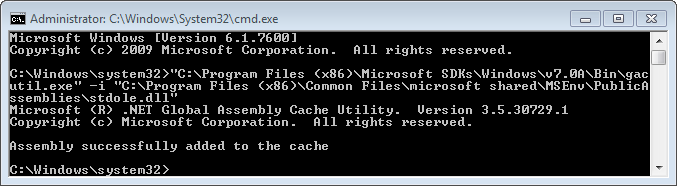
Installing stdole.dll in the GAC
Another workaround is to add Visual C# development tools in the Visual Studio 2010 installer:

The Visual C# installation option
Comments Off on Missing stdole.dll with a custom Visual Studio 2010 installation
April 18, 2010
Tabs Studio v2.0 is released
Tabs Studio v2.0.0 public is released – comparing to v1.9.5 added a yellow tone to the selected unfocused tab background in VS 2010.
April 15, 2010
Tabs Studio v1.9.5 is released
Tabs Studio v1.9.5 is released:
- Added the Tabs Studio toolbar to VS 2010.
- Added the “Show tabs in a separate window” option to VS 2010.
- Added close file buttons.
- Changed selected tab colors to match the default VS 2010 theme.
- Removed the XP quick style option in VS 2010.
- Removed the fixed expiration date for VS 2010.
- Fixed the rare unhandled exception when creating the Tabs Studio toolbar.

 Tabs Studio Blog (organizing Visual Studio document tabs)