Tabs Studio Blog (organizing Visual Studio document tabs)

September 12, 2010

Switching to a specific tab number

Filed under: Uncategorized — Tags: — Sergey Vlasov @ 3:11 pm

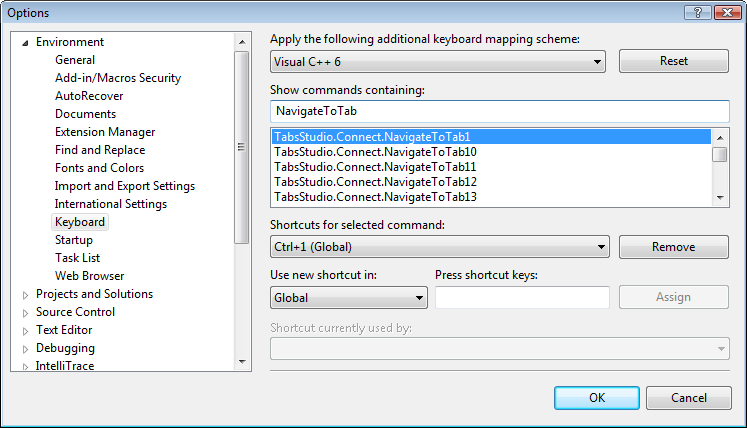
Popular browsers such as IE, Firefox and Chrome have CTRL+n keyboard shortcuts to switch to a specific tab number. I’ve added similar functionality to Navigator. You can assign any shortcut keys to TabsStudio.Connect.NavigateToTabXX commands and quickly navigate to the first 20 tabs in Tabs Studio:

Keyboard shortcut options in Visual Studio

Keyboard shortcut options in Visual Studio

Download link: Navigator v1.0.2.

August 26, 2010

ASP.NET MVC tabs grouping and coloring

Filed under: Uncategorized — Tags: , — Sergey Vlasov @ 1:29 pm

I’ve created the MvcGroup add-in that groups ASP.NET MVC controller and view tabs near each other (a controller is placed before views). This add-in also adds IsController, IsView and GroupName properties that can be used to color MVC tabs by type and/or by group name. See the following two examples:

<Style TargetType="TabsStudio:Tab" BasedOn="{StaticResource DefaultTabStyle}">
  <Style.Triggers>
    <MultiTrigger>
      <MultiTrigger.Conditions>
        <Condition Property="TabsStudioMvcGroup:Properties.IsController" Value="True"/>
        <Condition Property="IsTabSelected" Value="False"/>
      </MultiTrigger.Conditions>
      <Setter Property="Background">
        <Setter.Value>
          <LinearGradientBrush StartPoint="0,0" EndPoint="0,1">
            <GradientStop Color="#F5F5F5" Offset="0"/>
            <GradientStop Color="#B0D0B0" Offset="1"/>
          </LinearGradientBrush>
        </Setter.Value>
      </Setter>
    </MultiTrigger>
    <MultiTrigger>
      <MultiTrigger.Conditions>
        <Condition Property="TabsStudioMvcGroup:Properties.IsView" Value="True"/>
        <Condition Property="IsTabSelected" Value="False"/>
      </MultiTrigger.Conditions>
      <Setter Property="Background">
        <Setter.Value>
          <LinearGradientBrush StartPoint="0,0" EndPoint="0,1">
            <GradientStop Color="#F5F5F5" Offset="0"/>
            <GradientStop Color="#B0B0D0" Offset="1"/>
          </LinearGradientBrush>
        </Setter.Value>
      </Setter>
    </MultiTrigger>
  </Style.Triggers>
</Style>
ASP.NET MVC tabs grouping and coloring by type

ASP.NET MVC tabs grouping and coloring by type

<Style TargetType="TabsStudio:Tab" BasedOn="{StaticResource DefaultTabStyle}">
  <Style.Triggers>
    <MultiTrigger>
      <MultiTrigger.Conditions>
        <Condition Property="TabsStudioMvcGroup:Properties.GroupName" Value="Account"/>
        <Condition Property="IsTabSelected" Value="False"/>
      </MultiTrigger.Conditions>
      <Setter Property="Background">
        <Setter.Value>
          <LinearGradientBrush StartPoint="0,0" EndPoint="0,1">
            <GradientStop Color="#F5F5F5" Offset="0"/>
            <GradientStop Color="#B0D0B0" Offset="1"/>
          </LinearGradientBrush>
        </Setter.Value>
      </Setter>
    </MultiTrigger>
    <MultiTrigger>
      <MultiTrigger.Conditions>
        <Condition Property="TabsStudioMvcGroup:Properties.GroupName" Value="Home"/>
        <Condition Property="IsTabSelected" Value="False"/>
      </MultiTrigger.Conditions>
      <Setter Property="Background">
        <Setter.Value>
          <LinearGradientBrush StartPoint="0,0" EndPoint="0,1">
            <GradientStop Color="#F5F5F5" Offset="0"/>
            <GradientStop Color="#B0B0D0" Offset="1"/>
          </LinearGradientBrush>
        </Setter.Value>
      </Setter>
    </MultiTrigger>
  </Style.Triggers>
</Style>
ASP.NET MVC tabs grouping and coloring by group name

ASP.NET MVC tabs grouping and coloring by group name

Download link: MvcGroup v1.0.0.

August 24, 2010

Visual Studio LightSwitch Beta 1 support

Filed under: Uncategorized — Sergey Vlasov @ 11:04 am

Microsoft released LightSwitch Beta1 yesterday. If you already have Visual Studio 2010 installed, then LightSwitch package is added to the main IDE. If you install LightSwitch on a clean machine, customized VS IDE is created for development:

Visual Studio LightSwitch Beta

Visual Studio LightSwitch Beta

To run Tabs Studio in a standalone LightSwitch IDE, first install stdole.dll in the GAC. Other than that, Tabs Studio works in LightSwitch IDE as usual:

Tabs Studio in Visual Studio LightSwitch Beta 1

Tabs Studio in Visual Studio LightSwitch Beta 1

August 20, 2010

Per project tab coloring

Filed under: Uncategorized — Tags: , — Sergey Vlasov @ 8:52 am

As the Decorator add-in demonstrated, it is easy to add project properties to tabs and use it for coloring. I decided to write the separate Projector add-in that explicitly adds the project name property to tabs.

With the Projector installed, to color tabs for the ClassLibrary2 project with purple you can use the following style:

<Style TargetType="TabsStudio:Tab" BasedOn="{StaticResource DefaultTabStyle}">
    <Style.Triggers>
        <MultiTrigger>
            <MultiTrigger.Conditions>
                <Condition Property="TabsStudioProjector:Properties.ProjectName" Value="ClassLibrary2"/>
                <Condition Property="IsTabSelected" Value="False"/>
            </MultiTrigger.Conditions>
            <Setter Property="Background">
                <Setter.Value>
                     <LinearGradientBrush StartPoint="0,0" EndPoint="0,1">
                         <GradientStop Color="#F5F5F5" Offset="0"/>
                         <GradientStop Color="#B0B0F0" Offset="1"/>
                     </LinearGradientBrush>
                </Setter.Value>
            </Setter>
        </MultiTrigger>
    </Style.Triggers>
</Style>
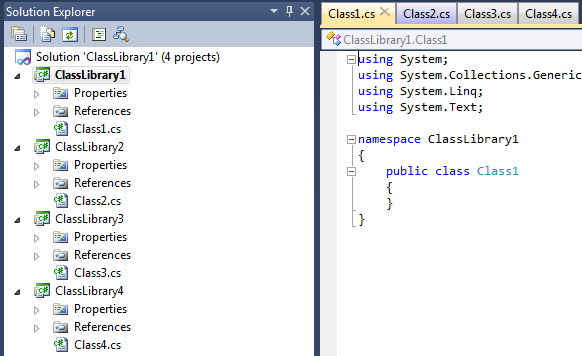
Purple tab from the ClassLibrary2 project

Purple tab from the ClassLibrary2 project

Finding and assigning a distinct color for each project in a solution could be hard. Assigning a single color to a group of projects is more practical, except WPF doesn’t have direct capability to trigger match between a project name and a list of names. Projector adds custom IsAnyOfConverter inherited from System.Windows.Data.IValueConverter to support this scenario. The custom Convert function of the converter receives tab’s project name as the value parameter, comma separated list of project names for a color as the parameter parameter and returns true if tab’s project name is in the list:

public object Convert(object value, System.Type targetType,
    object parameter, System.Globalization.CultureInfo culture)
{
    string[] allowedValues = ((string)parameter).Split(new System.Char[] { ',' });
    return ((System.Collections.Generic.IList)allowedValues).Contains((string)value);
}

To use this converter in XAML we define it as a static resource and invoke in a data trigger:

<TabsStudioProjector:IsAnyOfConverter x:Key="IsAnyOf" />

<Style TargetType="TabsStudio:Tab" BasedOn="{StaticResource DefaultTabStyle}">
    <Style.Triggers>
        <MultiDataTrigger>
            <MultiDataTrigger.Conditions>
                <Condition Binding="{Binding Path=(TabsStudioProjector:Properties.ProjectName), 
                        RelativeSource={RelativeSource Self}, 
                        Converter={StaticResource IsAnyOf},
                        ConverterParameter='ClassLibrary3,ClassLibrary4'}" 
                        Value="True"/>
                <Condition Binding="{Binding Path=IsTabSelected, RelativeSource={RelativeSource Self}}" Value="False"/>
            </MultiDataTrigger.Conditions>
            <Setter Property="Background">
                <Setter.Value>
                     <LinearGradientBrush StartPoint="0,0" EndPoint="0,1">
                         <GradientStop Color="#F5F5F5" Offset="0"/>
                         <GradientStop Color="#A0C0A0" Offset="1"/>
                     </LinearGradientBrush>
                </Setter.Value>
            </Setter>
        </MultiDataTrigger>
    </Style.Triggers>
</Style>

Green tabs from the ClassLibrary3 and ClassLibrary4 projects

Green tabs from the ClassLibrary3 and ClassLibrary4 projects

Using the same technique it is possible, for example, to create a regex converter matching tab’s project name with a regular expression specified as the parameter.

Download link: Projector v1.0.
August 12, 2010

Extensions ordering

Filed under: Uncategorized — Tags: — Sergey Vlasov @ 11:01 pm

By default extensions in a tab are alphabetically sorted. The new OrderEx add-in allows you to specify custom order for extensions. For example, by default OrderEx places .h extension before .cpp:

Custom extensions order

Custom extensions order

In the add-in, priorityExtensions array specifies order of extensions. Extensions not found in this array are placed after specified ones:

private string[] priorityExtensions = { ".h", ".cpp" };

It is highly recommended to use Tabs Studio v2.1.0 or greater with this add-in, otherwise custom ordering may be occasionally reset to default.

Download link: OrderEx v1.0.

Tabs Studio v2.1.0 released

Filed under: Releases — Sergey Vlasov @ 7:15 pm

Tabs Studio v2.1.0 released – added ability to customize tab name content with custom controls, removed excessive tab updates on settings change/extension removal/extension modification, fixed rare AccessViolationException after closing tabs in Visual Studio 2008.

June 28, 2010

NewGroup add-in for VS 2010

Filed under: Uncategorized — Tags: , — Sergey Vlasov @ 8:29 pm

I’m often asked about the missing New horizontal/vertical tab group commands in the Tabs Studio context menu. Due to technical difficulties I can’t come up with a good overall solution for it, but now that Visual Studio 2010 introduces two new Window.NewHorizontalTabGroup and Window.NewVerticalTabGroup commands I can solve the most common case with an add-in:

New tab group commands

New tab group commands

The NewGroup add-in adds the New horizontal/vertical tab group commands to the Tabs Studio context menu for the selected tab/extension if commands are available. For example, the New horizontal tab group command is not available when vertical tab groups already created and both commands are not available when there is only one tab in a selected group. In Tabs Studio you can open a tab context menu without making the tab selected – in this case the two new commands are not shown as it is much harder to determine if they should be available in this case.

Download the NewGroup add-in for VS 2010.

June 23, 2010

Tabs Studio v2.0.6 released

Filed under: Releases — Sergey Vlasov @ 1:30 pm

Tabs Studio v2.0.6 released – added more add-ins loading error diagnostic, fixed inability to run Tabs Studio from a network share in VS 2010.

Running add-ins from a network location in Visual Studio 2010

Filed under: Uncategorized — Tags: , — Sergey Vlasov @ 11:07 am

.NET runtime traditionally has strict rules against running managed code from a network. In Visual Studio 2008 (CLR v2) to run Tabs Studio from a network share you had to add special “Code Access Security Policy”.

In Visual Studio 2010 (CLR v4) if you try to run Tabs Studio v2.0.5 from a network share you get error number 80131515:

Tabs Studio add-in failed to load with error 80131515 in VS 2010

Tabs Studio add-in failed to load with error 80131515 in VS 2010


To allow Tabs Studio to run you have to add the loadFromRemoteSources element (see the MSDN reference) to the “C:\Program Files\Microsoft Visual Studio 10.0\Common7\IDE\devenv.exe.config” (note, you need to run your editor with admin rights for correct devenv.exe.config modification):

<configuration>
   <runtime>
      <loadFromRemoteSources enabled="true"/>
   </runtime>
</configuration>

Plus you have to upgrade to Tabs Studio v2.0.6 that workarounds Assembly.Location throws ArgumentException.

Another potential problem is when you download Tabs Studio add-ins to your computer for Visual Studio 2010 from the Internet they may end up blocked by Windows (it is not a problem for Visual Studio 2008):

Saver add-in marked as a file from another computer

Saver add-in marked as a file from another computer


Loading such add-in for VS 2010 silently fails in Tabs Studio v2.0.5 and gives the following error in Tabs Studio v2.0.6:
Blocked Saver add-in loading error in VS 2010

Blocked Saver add-in loading error in VS 2010


To solve this problem you can either unblock Saver.dll in Windows Explorer or enable the loadFromRemoteSources switch in devenv.exe.config the same way as for running Tabs Studio from a network share.


Organize Visual Studio tabs with Tabs Studio add-in

June 10, 2010

Document Well 2010 Plus explained by the author

Filed under: Uncategorized — Tags: — Sergey Vlasov @ 6:57 pm

Radames Cruz Moreno thoroughly describes all the new tab features that are part of the Visual Studio 2010 Pro Power Tools on the Visual Studio Blog.

« Newer PostsOlder Posts »

Blog at WordPress.com.