Tabs Studio Blog (organizing Visual Studio document tabs)

March 4, 2011

Highlight tabs with Marker

Filed under: Uncategorized — Tags: , — Sergey Vlasov @ 2:42 pm

David Peris suggested an interesting idea for Tabs Studio: “For people like me working in huge solutions, with a bunch of projects and files, sometimes we need to highlight a few tabs, temporarily, to quickly come back to them. Color rules would make the trick if the tabs share some criteria, but they can be slow to setup just for temporary highlighting. It would be great to be able to quick color some tabs, like for example Ctrl+click a tab would highlight it, and Ctrl+click again would de-highlight it. Maybe an option in the right click menu as “Remove highlights” or something like that would be the perfect complement to this option.”

I’ve created the new Marker add-in for this functionality. Ctrl+Click a tab highlights it and Ctrl+Click again removes highlighting. No additional context menu options yet, but it can be added later:
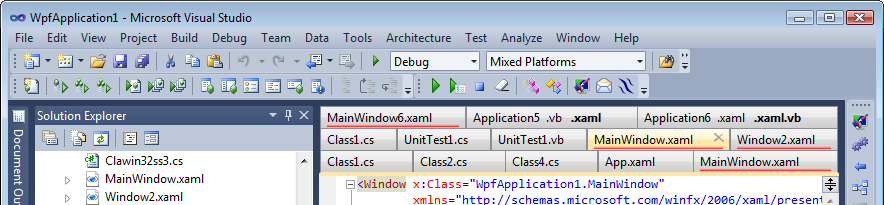
Several tabs highlighted with the default style

Several tabs highlighted with the default style

The default highlighting style provided by Marker decorates TabInternals with the red gradient background. You can choose to decorate another tab element or just change the highlighting color in a custom Tabs Studio style:

<Style TargetType="TabsStudio:TabInternals" BasedOn="{StaticResource DefaultTabInternalsStyle}">
    <Style.Triggers>
      <DataTrigger Binding="{Binding Path=(TabsStudioMarker:Properties.IsHighlighted), 
                 RelativeSource={RelativeSource AncestorType=TabsStudio:Tab}}" Value="True">
          <Setter Property="Background">
              <Setter.Value>
                   <LinearGradientBrush StartPoint="0,0" EndPoint="0,1">
                       <GradientStop Color="Transparent" Offset="0.8"/>
                       <GradientStop Color="Green" Offset="1"/>
                   </LinearGradientBrush>
              </Setter.Value>
          </Setter>
      </DataTrigger>
  </Style.Triggers>
</Style>

Tabs highlighted with the custom green color

Tabs highlighted with the custom green color

Download link: Marker v1.0.0.

Running SQL Server Management Studio as administrator

Filed under: Uncategorized — Tags: — Sergey Vlasov @ 8:29 am

If you start SSMS as administrator on a Windows 7 machine with UAC on, you get the Class not registered error number 80040154 for the TabsStudio.Connect class:

Running SQL Server Management Studio as administrator

Running SQL Server Management Studio as administrator


Class not registered error 80040154 in SSMS

Class not registered error 80040154 in SSMS

Tabs Studio installation for SSMS includes registration of the TabsStudio.Connect class for the current user. On a Windows 7 machine with UAC enabled, elevated applications (in this case SSMS running as admin) don’t see registered per-user COM classes (see Per-User COM Registrations and Elevated Processes with UAC on Windows Vista SP1 for more details). I can’t add per-machine TabsStudio.Connect registration to the installer because it runs without admin rights. A workaround is to register TabsStudio.Connect per-machine manually, double clicking a registration file I’ve prepared.

SSMS is a 32-bit application. Running on 32-bit Windows it uses per-machine COM registration from HKEY_LOCAL_MACHINE\Software\Classes\CLSID, on 64-bit Windows – HKEY_LOCAL_MACHINE\Software\Classes\WOW6432node\CLSID (see Registry changes in x64-based versions of Windows Server 2003 and in Windows XP Professional x64 Edition). I’ve prepared two registration files – one for 64-bit Windows and one for 32-bit Windows.

Note that after unsuccessful loading SSMS disables Tabs Studio and doesn’t try to load again on a next start. To enable Tabs Studio startup loading you can reinstall Tabs Studio or change HKCU\Software\Microsoft\Microsoft SQL Server\100\Tools\Shell\Addins\TabsStudio.Connect\LoadBehavior from 0 to 3.

Download links for per-machine TabsStudio.Connect class registration: SSMS on Windows 32-bit, SSMS on Windows 64-bit.

March 3, 2011

Tabs Studio v2.3.1 released

Filed under: Releases — Sergey Vlasov @ 3:48 pm

Tabs Studio v2.3.1 released: fixed occasional short appearance of original Visual Studio 2010 tabs (e.g. when starting a debug session), fixed inability to use special characters like ‘<‘ in regular expressions of the Tab Coloring Rule dialog.

Download link: Tabs Studio v2.3.1.

March 1, 2011

Tabs Studio v2.3.0 released

Filed under: Releases — Sergey Vlasov @ 4:20 pm

Tabs Studio v2.3.0 released:

  • Added special character escapes when populating the tab name and project name regular expressions in the Tab Coloring Rule dialog.
  • Added the OpenNext add-in to the installer.
  • Disabled document floating on tab double click in Visual Studio 2010.
  • Disabled default SSMS tab grouping.
  • Updated the Disambiguator add-in to ignore case differences when comparing tab titles.
  • Updated the Shaper add-in to support customizable horizontal tab alignment.
  • Fixed right close tab button alignment in Visual Studio 2010.

Download link: Tabs Studio v2.3.0.

February 28, 2011

Open all corresponding files at once

Filed under: Uncategorized — Tags: — Sergey Vlasov @ 5:20 pm

If you use large tab groups, for example with test classes, you may find the new OpenAll add-in useful. OpenAll adds the new Open all context menu command to open all available corresponding files at once:

Open all context menu command

Open all context menu command


All corresponding files opened

All corresponding files opened


Download link: OpenAll v1.0.1.

February 27, 2011

No default SSMS tab grouping

Filed under: Uncategorized — Tags: — Sergey Vlasov @ 9:17 pm

The most frequent support question I receive is how to work with tabs in SQL Server Management Studio. To improve the first impression for Tabs Studio in SSMS, I’ve decided to disable default SSMS tab grouping:

No tab grouping in SSMS by default

No tab grouping in SSMS by default


If you want tab grouping, two sample expressions equal to the default regex in previous releases are readily available:
SSMS tab grouping snippets

SSMS tab grouping snippets

Disabling document floating on tab double click in Visual Studio 2010

Filed under: Uncategorized — Tags: — Sergey Vlasov @ 1:31 pm

I was asked to “disable change float (undock) tab on mouse double click”. I added this feature the last summer, copying the default Visual Studio 2010 behavior. But accidental double click on a tab is a problem (e.g. read Turn off double-click undock in VS2010, How To Disable Floating Windows? and How to disable floating tabs in Visual Studio 2010).

I’m planning to disable floating on double click in the next Tabs Studio release. For those who find this feature useful, I can reintroduce it as a separate add-in. Please, comment if you feel pro or against this feature.

February 26, 2011

Horizontal tab alignment

Filed under: Uncategorized — Tags: , — Sergey Vlasov @ 9:07 pm

In Visual Studio 2010 horizontal tab alignment is a little off, note the close tab button is near the tab name instead of being docked to the right:

Left tab alignment in Visual Studio 2010

Left tab alignment in Visual Studio 2010


In Visual Studio 2008 and even in the Visual Studio 2010 floating tool window tab alignment is correct:
Stretch tab alignment in the floating Visual Studio 2010 tool window

Stretch tab alignment in the floating Visual Studio 2010 tool window


Turns out horizontal tab alignment is Stretch by default in TabItem‘s control template, but also inherited from the HorizontalContentAlignment property of a ItemsControl visual ancestor. Tabs Studio doesn’t use ItemsControl (this is why in Visual Studio 2008 and in the separate Visual Studio 2010 window tab alignment is correct), but there is ItemsControl with HorizontalContentAlignment=Left in Visual Studio IDE that is found when tabs are above the code editor.

I’ve added ItemsControl to Tabs Studio controls tree:

TabsHost : ContentControl
|
 - TabsItemsControl : ItemsControl
   |
    - Tabs : Panel
     |
      - Tab : TabItem

With the default style:

<Style x:Key="DefaultTabsItemsControlStyle0" TargetType="TabsStudio:TabsItemsControl">
  <Setter Property="HorizontalContentAlignment" Value="Stretch"/>
</Style>

In the next Tabs Studio release, horizontal tab alignment is Stretch by default in all scenarios:

Fixed stretch tab alignment in Visual Studio 2010

Fixed stretch tab alignment in Visual Studio 2010


If you prefer old left alignment, you will be able to set it with the following custom style:

<Style TargetType="TabsStudio:TabsItemsControl" BasedOn="{StaticResource DefaultTabsItemsControlStyle}">
  <Setter Property="HorizontalContentAlignment" Value="Left"/>
</Style>

February 25, 2011

Selected tab overlay

Filed under: Uncategorized — Tags: — Sergey Vlasov @ 3:23 pm

If you use custom colors for your tabs, for example, different colors for tabs from different projects, what do you do with the selected tab from a particular project? In the simplest setup you create a project coloring rule that excludes the selected tab and the selected tab looks the same no matter which project it belongs to:

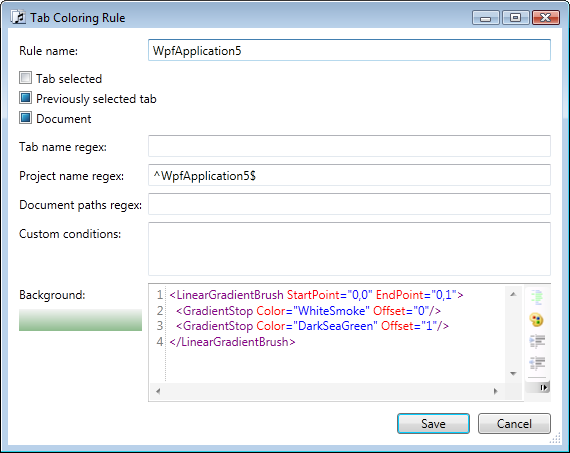
Tab coloring rule for the WpfApplication5 project

Tab coloring rule for the WpfApplication5 project


Tab coloring rule for the WpfApplication6 project

Tab coloring rule for the WpfApplication6 project


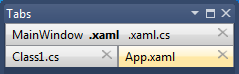
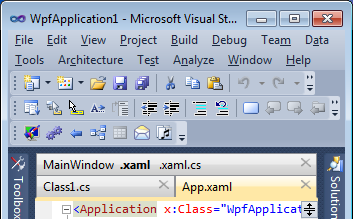
Selected tab from the WpfApplication5 project

Selected tab from the WpfApplication5 project


Selected tab from the WpfApplication6 project

Selected tab from the WpfApplication6 project

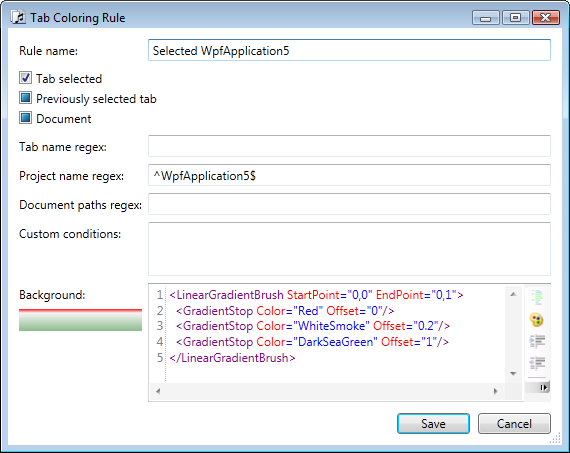
If you get used to project colors, you may want to show selected tab’s project too. You can add an additional selected tab rule for each project:
Tab coloring rule for the selected tab in the WpfApplication5 project

Tab coloring rule for the selected tab in the WpfApplication5 project


Selected tab from the WpfApplication5 project showing project's color

Selected tab from the WpfApplication5 project showing project's color


The obvious disadvantage is that now you have to provide two coloring rules for each project (three rules if you use distinct color for the previously selected tab too). It would be nice to specify a selected tab overlay only once. Tabs Studio doesn’t currently support coloring rule overlays or rule combinations, but you can use a custom style for the TabInternals element to achieve the same result. First you change the tab coloring rules for the WpfApplication5 and WpfApplication6 projects to include the tab selected state:
Tab coloring rule for the WpfApplication5 project including the tab selected state

Tab coloring rule for the WpfApplication5 project including the tab selected state


Then add the following custom style:
Simple TabInternals overlay for the selected tab

Simple TabInternals overlay for the selected tab


Now this overlay works for all projects, but the red bar has some undesired padding around it. To remove this padding we remove Tab‘s padding, add TabNameGroup‘s left padding and add CloseTabButton‘s right padding (note that you need to uncomment one of the three CloseTabButton styles depending on your close tab button presentation setting):

<Style TargetType="TabsStudio:TabInternals" BasedOn="{StaticResource DefaultTabInternalsStyle}">
  <Setter Property="Margin" Value="-1,-1,-1,0"/>
  <Style.Triggers>
    <Trigger Property="IsTabSelected" Value="True">
      <Setter Property="Background">
      <Setter.Value>
        <LinearGradientBrush StartPoint="0,0" EndPoint="0,1">
          <GradientStop Color="Red" Offset="0"/>
          <GradientStop Color="Transparent" Offset="0.3"/>
        </LinearGradientBrush>
      </Setter.Value>
      </Setter>
    </Trigger>
  </Style.Triggers>
</Style>

<Style TargetType="TabsStudio:Tab" BasedOn="{StaticResource DefaultTabStyle}">
  <Setter Property="Padding" Value="0,0,0,1"/>  
</Style>

<Style TargetType="TabsStudio:TabNameGroup" BasedOn="{StaticResource DefaultTabNameGroupStyle}">
  <Setter Property="Margin" Value="5,0,0,0"/>  
</Style>

<!--Close tab button: Show on selected tab-->
<Style TargetType="TabsStudio:CloseTabButton" BasedOn="{StaticResource DefaultCloseTabButtonStyle}">
  <Setter Property="Margin" Value="2,0,1,0"/>
  <Style.Triggers>
    <Trigger Property="IsTabSelected" Value="False">
      <Setter Property="Width" Value="4"/>
      <Setter Property="Visibility" Value="Hidden"/>
    </Trigger>
  </Style.Triggers>
</Style>

<!--Close tab button: Show on all tabs-->
<!--<Style TargetType="TabsStudio:CloseTabButton" BasedOn="{StaticResource DefaultCloseTabButtonStyle}">
  <Setter Property="Margin" Value="2,0,1,0"/>
</Style>-->

<!--Close tab button: Don't show-->
<!--<Style TargetType="TabsStudio:CloseTabButton" BasedOn="{StaticResource DefaultCloseTabButtonStyle}">
  <Setter Property="Width" Value="9"/>
  <Setter Property="Visibility" Value="Hidden"/>
  <Style.Triggers>
    <Trigger Property="IsTabSelected" Value="False">
      <Setter Property="Visibility" Value="Hidden"/>
    </Trigger>
  </Style.Triggers>
</Style>-->
Final selected tab overlay

Final selected tab overlay

February 23, 2011

Testimonials

Filed under: Uncategorized — Sergey Vlasov @ 11:18 am

I’ve created the Tabs Studio testimonials page. If you want to share your opinion about Tabs Studio with the developer community, review Tabs Studio at the Microsoft Visual Studio Gallery site or write me an e-mail!

« Newer PostsOlder Posts »

Blog at WordPress.com.