Tabs Studio Blog (organizing Visual Studio document tabs)

June 11, 2011

Vertical scrollbar for the separate tabs window

Filed under: Uncategorized — Tags: — Sergey Vlasov @ 9:53 am

When using the separate tabs window in stack mode, sometime you can open more tabs than fit in the docked window. One possible solution is to add a vertical scrollbar to scroll through the windows:

Tabs window with a vertical scrollbar

Tabs window with a vertical scrollbar


The following style adds ScrollViewer with vertical scroll bar visibility set to Auto, i.e. it is visible only when tabs don’t fit without scrolling:

<Style TargetType="TabsStudio:TabsHost" BasedOn="{StaticResource DefaultTabsHostStyle}">
  <Setter Property="Template">
    <Setter.Value>
      <ControlTemplate TargetType="{x:Type TabsStudio:TabsHost}">
        <ScrollViewer HorizontalScrollBarVisibility="Disabled"
                         VerticalScrollBarVisibility="Auto"
                         Focusable="False">
          <Grid>
            <Rectangle Width="{TemplateBinding Width}"
                       Height="{TemplateBinding Height}"
                       Fill="{TemplateBinding Background}"/>
            <ContentPresenter/>
          </Grid>
        </ScrollViewer>
      </ControlTemplate>
    </Setter.Value>
  </Setter>
</Style>

June 10, 2011

Tabs Studio v2.3.9 released

Filed under: Releases — Sergey Vlasov @ 7:02 am

Tabs Studio v2.3.9 released:

  • Reduced tab movement is the Stable tabs layout.
  • Improved tab movement animation.
  • Enabled the Animate tab movement option by default.
  • Changed the default TabsAnimationDuration property value from 0.4 s to 0.3 s.
  • Fixed VS 2010 intellisense stops working when switching tabs with a suggestions list active.

Download link: Tabs Studio v2.3.9.

May 25, 2011

Tabs Studio v2.3.7 released

Filed under: Releases — Sergey Vlasov @ 8:53 pm

Tabs Studio v2.3.7 released: added the Animate tab movement option for the Stable tabs layout, enabled the AvalonStyleEditor, Marker, NewGroup, Saver, Sync and XMenu add-ins by default, improved tab measurement and arrangement correctness in the Shaper add-in.

Download link: Tabs Studio v2.3.7.

Tab movement animation

Filed under: Uncategorized — Sergey Vlasov @ 8:10 pm

I’ve added some animation when a tab is created, destroyed, changes width or position in the Stable tabs layout. To turn it on, check the new Animate tab movement option:

Animate tab movement option

Animate tab movement option

See Tabs animation demo how it looks like.

Tabs animation duration is controlled by the TabsAnimationDuration property on the Tabs control. When you check the Animate tab movement option, the duration is set to 0.4 s. You can override this value with the following custom style:

<Style TargetType="TabsStudio:Tabs" BasedOn="{StaticResource DefaultTabsStyle}">
	<Setter Property="TabsAnimationDuration" Value="0:0:1.4"/>
</Style>

Download link: Tabs Studio v2.3.7.

May 18, 2011

Tabs Studio v2.3.6 released

Filed under: Releases — Sergey Vlasov @ 9:07 pm

Tabs Studio v2.3.6 released: added the Stable tabs layout, updated the SingleRow add-in to support the Stable layout, updated the Marker add-in to not create a settings file for a solution when no tabs are highlighted, fixed an occasional 1 pixel wide gap between tabs in Visual Studio 2010.

Download link: Tabs Studio v2.3.6.

Stable tabs layout

Filed under: Uncategorized — Sergey Vlasov @ 9:04 pm

When opening, closing and editing Visual Studio documents, tabs change positions to be always visible in minimum number or rows. And the more tabs change positions and rows, the more our workspace becomes disorganized. I’ve created the new Stable tabs layout that reduces excessive tab movements:

Stable tabs layout option

Stable tabs layout option

While previous layouts were just wrappers around standard WPF panels, the Stable layout is implemented completely in Tabs Studio and provides ample potential opportunities for customization. The most noticeable visual distinction of the new layout is not justified last row. It doesn’t add stability, but I think is more visually pleasant:

All tab rows justified except the last one

All tab rows justified except the last one

The first actual stability feature is RowBuffer. RowBuffer is space reserved on each tab row that keeps tabs on their positions when some of them slightly increase width. For example, default 30 pixels of RowBuffer can absorb additional width of a close tab button when you switch to this row and 3 document modification asterisks.

You can adjust the RowBuffer value with the following style:

<Style TargetType="TabsStudio:Tabs" BasedOn="{StaticResource DefaultTabsStyle}">
	<Setter Property="RowBuffer" Value="20"/>
</Style>

Another stability feature keeps tabs on their positions when some of them become shorter. When it is possible to reduce number of rows due to shorter tabs, a new arrangement is delayed until the next major relocation.

Events that trigger major relocation are tab creation, tab removal, window size change. Events that don’t lead to tab rearrangement (within limits of RowBuffer) are tab selection, document modification, tab extension creation or removal.

For a new Tabs Studio installation Stable is the default layout now. I’m thinking about removing Standard and Wrap layouts in the future.

Download link: Tabs Studio v2.3.6.

May 5, 2011

Tabs Studio v2.3.5 released

Filed under: Releases — Sergey Vlasov @ 4:43 pm

Tabs Studio v2.3.5 released: added the Tab extensions regex rule to the Tab Coloring Rule dialog and added the TabExtensions property to the Tab control, updated the Marker add-in to save the highlighted tabs list when you close Visual Studio and restore highlighting when the solution is opened the next time, fixed several bugs in the Saver add-in preventing it to correctly restore tabs order.

Download link: Tabs Studio v2.3.5.

Special color for designer tabs

Filed under: Uncategorized — Tags: — Sergey Vlasov @ 4:27 pm

Usually you set color for tabs using the tab name and project name regular expressions in the Tab Coloring Rule dialog. If you want to color tabs by type (for example .cs or .xaml) you can use the document paths regex. But then there are form designer [Design] tabs that can’t be matched using the existing rules.

I’ve added the Tab extensions regex rule that complements the Tab name regex rule and lets you assign tab background depending on opened extensions in a tab group:

Tab coloring rule for designer tabs

Tab coloring rule for designer tabs


Designer tabs with a special color

Designer tabs with a special color

I’ve added the TabExtensions property to the Tab control that consists of the extensions list separated by ‘$’. For example, “Form2 .cs .cs [Design]” tab has “TabName=Form2” and “TabExtensions=.cs$.cs [Design]$”. Note, that a single tab like “Class1.cs” still has the name “Class1” and the extensions “.cs$”.

Download link: Tabs Studio v2.3.5.

April 26, 2011

Grouping class and interface tabs

Filed under: Uncategorized — Tags: — Sergey Vlasov @ 11:33 am

It is a common convention to have interface file names started with ‘I’ (like IService.cs) and implementation files named the same excluding the first ‘I’ (like Service.cs). Would be nice to have them on one tab. Below is a solution copied from the recent discussion on the Tabs Studio mail list.

It is easy to group such files, the problem is how the result looks like. For example, the best title grouping regex for this task I can think
of is:

(?<Ext>I(?<Name>.+?)\.cs)|(?<Name>(.*[/\\])?.+?)(?<Ext>\..+)

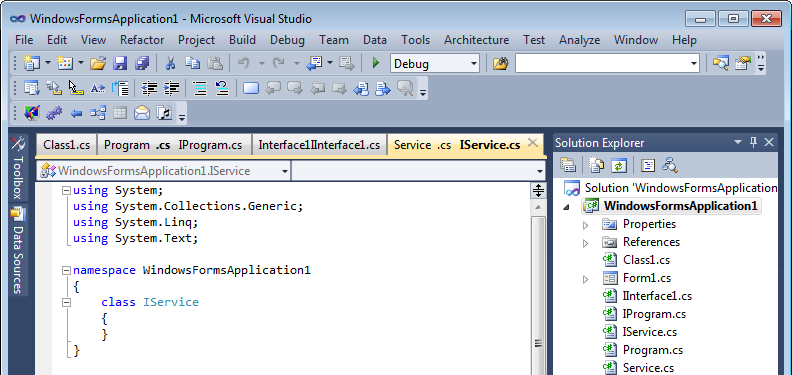
It nicely groups two files as “Service .cs IService.cs”, but when IService.cs is the single file in a tab it will be displayed as “ServiceIService.cs” (and IInterface1.cs will be displayed as “Interface1IInterface1.cs”):

Grouping class and interface tabs using only title grouping regex

Grouping class and interface tabs using only title grouping regex

To improve interface tab name representation I’ve created the additional ITransform add-in to transform interface titles after grouping. With this add-in for the IService.cs and Service.cs pair a grouped tab will be “Service .cs Interface” and a single interface tab will remain “IService.cs”:

Grouping class and interface tabs using title grouping regex and the ITransform add-in

Grouping class and interface tabs using title grouping regex and the ITransform add-in

ITransform still requires setting up the special interface grouping regex first. Add the following title grouping regex section:

I(?<Name>[A-Z].+?)\.(?<Ext>.+)

For example, if you use default title grouping settings, your combined title grouping regex will be:

I(?<Name>[A-Z].+?)\.(?<Ext>.+)|(?<Name>(.*[/\\])?.+?)(?<Ext>\..+)

Download link: ITransform v1.0.0.

Remembering highlighted tabs

Filed under: Uncategorized — Tags: — Sergey Vlasov @ 10:32 am

I’ve added saving of the highlighted tabs list when you close Visual Studio and restoring highlighting when the solution is opened the next time. This information is stored per solution in a [solution name].marker.tss file in a solution directory along with the sln and suo files.

Download link: Marker v1.0.2.

« Newer PostsOlder Posts »

Blog at WordPress.com.