Another feature from web browsers that you may be familiar with – a context menu command to close all tabs to the right of the selected tab. You can now have it in Tabs Studio with the new CloseRight add-in:
Download link: CloseRight v1.0.0.
Another feature from web browsers that you may be familiar with – a context menu command to close all tabs to the right of the selected tab. You can now have it in Tabs Studio with the new CloseRight add-in:
Download link: CloseRight v1.0.0.
Many Internet browsers give you an option to open a new tab next to the current one. If you like this behavior you can now have it in Tabs Studio with the new OpenNext add-in. OpenNext doesn’t have any options and just changes default placement for a new tab from the right end to the right of the active tab.
Download link: OpenNext v1.0.0.
When fine tuning tabs presentation options and grouping rules, it is very convenient to immediately preview results. Current preview facilities are helpful, but don’t fully show how actual document tabs will look, forcing us to save options, look at actual tabs and open the options dialog again. To provide a better experience, I’ve added real tabs preview visible from all option pages and containing a snapshot of actual tabs:
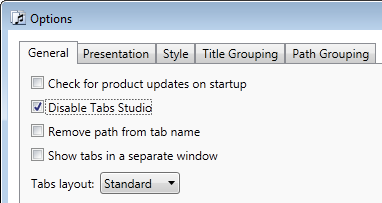
Tabs Studio supports several IDEs (VS 2010/2008/2005, SSMS 2008/2005, VS LightSwitch and PowerBuilder .NET 12.0), so you may want to revert to default tabs in some of these products. Usually you can disable Tabs Studio going to host’s Add-in Manager dialog, but not in SQL Server Management Studio. Specifically for SSMS that lacks built-in Add-in Manager, I’ve added the new option to disable Tabs Studio:
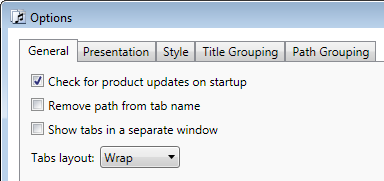
I’ve added the Check for product updates on startup option:
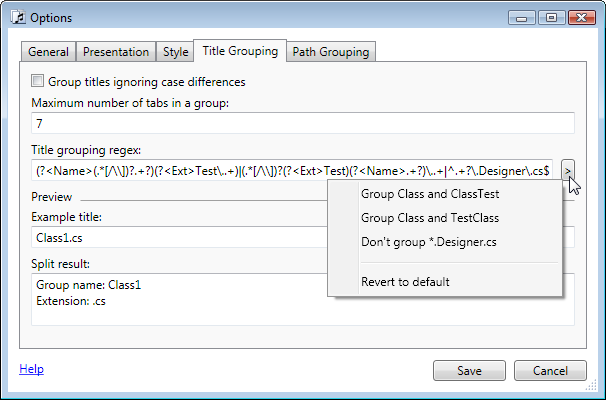
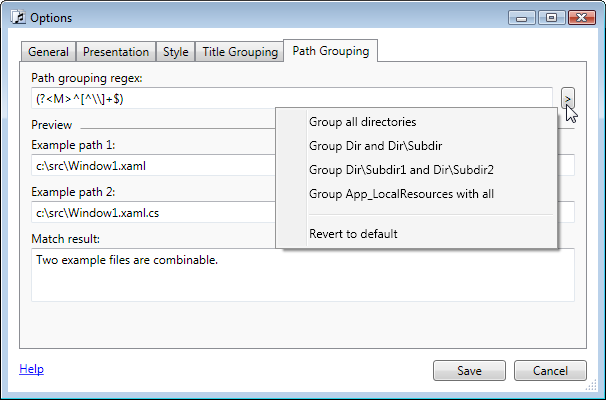
I’ve added several sample regular expressions for Title grouping regex and Path grouping regex that you can select from the new drop-down button menu:
For example, here is the effect of adding all 3 available Title grouping regex snippets on tabs grouping:
Continuing work on reducing necessity to manually craft a XAML style, I’ve added the ability to update a style from an add-in. For example, previously for SingleRow and Shaper add-ins you needed to copy sample styles from documentation and to use them together you needed to merge these styles. Newly updated SingleRow and Shaper programmatically apply default styles not cluttering the custom style:

<Style TargetType="TabsStudio:TabsHost" BasedOn="{StaticResource DefaultTabsHostStyle}">
<Setter Property="Template">
<Setter.Value>
<ControlTemplate TargetType="{x:Type TabsStudio:TabsHost}">
<StackPanel>
<Grid Panel.ZIndex="1">
<Rectangle Width="{TemplateBinding Width}"
Height="{TemplateBinding Height}"
Fill="{TemplateBinding Background}"/>
<Grid>
<Grid.ColumnDefinitions>
<ColumnDefinition Width="*"/>
<ColumnDefinition Width="Auto"/>
</Grid.ColumnDefinitions>
<ContentPresenter Grid.Column="0"/>
<TabsStudioSingleRow:HiddenTabs Grid.Column="1" TabsPanel="{TemplateBinding ContentControl.Content}"/>
</Grid>
</Grid>
<Border Height="1" Background="#93979D"/>
</StackPanel>
</ControlTemplate>
</Setter.Value>
</Setter>
</Style>

Internally, the void UpdatePresentationStyles(string key, Presentation presentation) method was added to the TabsStudioExt.ITabsStudioEngine interface. It is possible to update styles dynamically, but right now SingleRow and Shaper do it only once in the OnConnection handler.
Triggers and setters for default Tabs Studio controls are added to the Styles property. For new controls (like TabsStudioSingleRow:HiddenTabs) a style resource and a default style usage are provided in the Presentation constructor:
private void UpdatePresentationStyle()
{
TabsStudioExt.Presentation presentation = new TabsStudioExt.Presentation(
LoadString("HiddenTabsStyle.xml"), LoadString("HiddenTabsUsage.xml"));
{
TabsStudioExt.PresentationStyle style = new TabsStudioExt.PresentationStyle();
style.Triggers.Add(LoadString("TabTriggers.xml"));
presentation.Styles.Add("TabsStudio:Tab", style);
}
{
TabsStudioExt.PresentationStyle style = new TabsStudioExt.PresentationStyle();
style.Setters.Add(LoadString("TabsHostTemplate.xml"));
presentation.Styles.Add("TabsStudio:TabsHost", style);
}
engine.UpdatePresentationStyles("SingleRow", presentation);
}
The style parameter in the Presentation constructor can also add static resources for use in tab coloring rules. Theoretically it may be a custom brush or a generated color. These changes are included in the upcoming Tabs Studio release.
I’ve added Document paths regex and Custom conditions options to the Tab Coloring Rule dialog:
Document paths regex uses the newly added Paths tab item property consisting of document paths ending with ‘$’. For a tab “App .xaml .xaml.cs” Paths is something like “c:\Projects\WpfApplication1\app.xaml$c:\Projects\WpfApplication1\app.xaml.cs$”. If you want to set a color for all xaml and xaml.cs tabs, Document paths regex could be the following expression:
\.(xaml|xaml\.cs)\$
The Custom conditions option allows you to switch on tab item properties not listed in this dialog. For example, the MVCGroup add-in adds IsController and IsView attached tab properties. To color controller tabs you can use the following custom condition:
<Condition Binding="{Binding Path=(TabsStudioMvcGroup:Properties.IsController),
RelativeSource={RelativeSource Self}}" Value="True"/>
Another example is for the case when you want to change the color of a tab in Visual Studio 2010 when tabs are not focused:
<Condition Binding="{Binding Path=IsGroupFocused, RelativeSource={RelativeSource Self}}" Value="False"/>
Download link: TabsStudio v2.1.7.
I’ve added the ColorComb based color picker to the AvalonStyleEditor add-in:
I’ve also added the toolbar to the style editor that is present both on the Style page and in the Tab Coloring Rule dialog:
I selected a color picker for a style editor in Tabs Studio and here is a list of most interesting open source WPF dialog based color pickers that I found (not commercial and not drop-down color picker controls).
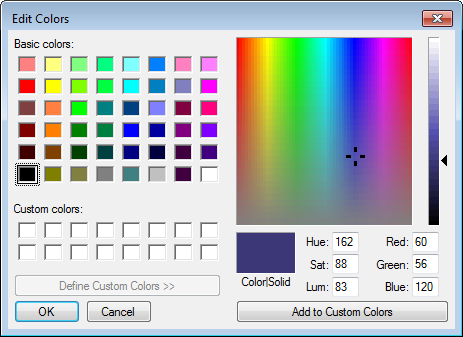
First of all there is the common Windows color dialog. Providing consistent user experience since 1990:
Sacha Barber wrote the CodeProject article about his WPF color picker and later Mark Treadwell did various enhancements on this code. Still color position is not preserved when switching swatches, colors range on swatches is limited and there are no additional controls to tune color other than transparency.
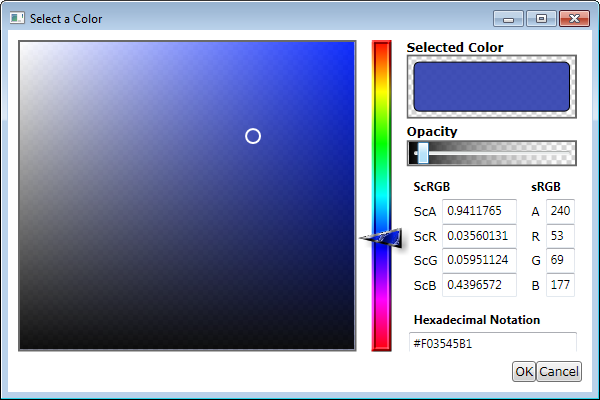
You can find it in the “c:\Program Files\Microsoft SDKs\Windows\v7.0\Samples\WPFSamples.zip” archive on your machine and read about it in the Uncommon Dialogs: Font Chooser & Color Picker Dialogs blog post. Functional, but requires more polishing for practical use.
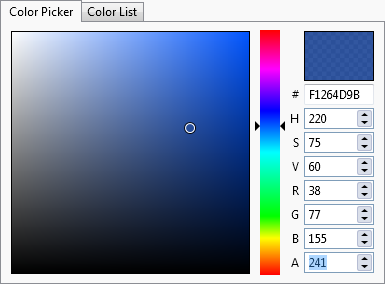
Open source SharpDevelop IDE contains a color picker with a nice conventional design.
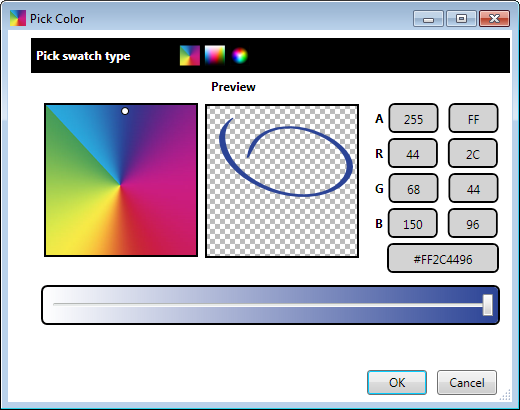
Shawn A. Van Ness developed the ColorComb color-picker dialog with the ability to adjust stylus stroke properties. It is very easy to select a color you have in mind looking at the comb and use the brightness slider for fine tuning. Cells in the comb provide palette like qualities allowing to choose a distinctive collection of colors. Lack of HSV and RGB controls ensures less distraction when selecting a color.
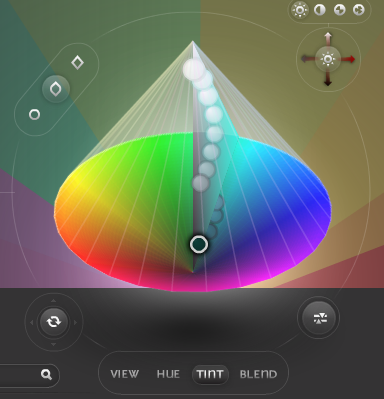
ColoRotate is an online service allowing you to select colors in 3D. It positions itself as the most intuitive way to work with colors “in a way that matches how our minds process color.” The site has an interactive demonstration showing how “our visual nerves register color in terms of the attributes of color: the amount of green-or-red; the amount of blue-or-yellow; and the brightness.”
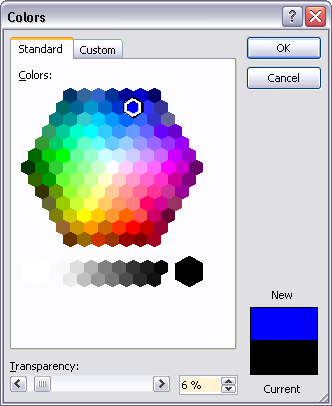
Colors dialog in Office 2007 has a design very similar to ColorComb plus it has comparison between a new and the current colors.
To be a part of a XAML editor in Tabs Studio, I liked ColorComb most. I removed ink-specific settings from the dialog and added the current color for comparison.