Tabs Studio Blog (organizing Visual Studio document tabs)

November 17, 2011

Sorting by full tab name

Filed under: Uncategorized — Tags: — Sergey Vlasov @ 8:12 am

Depending on the project type you are working on, Tabs Studio settings and add-ins enabled, tabs may have a path in the tab name. The Sorter add-in compares tab names without path, so for an ASP.NET website project, tabs are sorted like this:

Sorting without path

Sorting without path


I’ve added the option to sort by full tab name. You can enable it in Tabs Studio – Add-in manager – Sorter options:
Sorter Options

Sorter Options


With this option enabled the same tabs are now sorted like this:
Sorting with path

Sorting with path


The updated Sorter add-in is included in Tabs Studio v2.5.6.

October 18, 2011

Less rows priority

Filed under: Uncategorized — Tags: — Sergey Vlasov @ 8:50 am

Sometimes you get tabs arranged in more rows than necessary:

Tabs in 4 rows

Tabs in 4 rows


The same tabs in 3 rows

The same tabs in 3 rows

This is because the current tab layout algorithm first of all tries to minimize distracting tab movement between rows (keeping tab in the last position, reserving a row buffer for new tabs and changes in tab width).

I’ve added the new LessRowsPriority property to let you customize this behavior. (Remember also the RowBuffer property.) The larger LessRowsPriority value the more actively Tabs Studio will try to minimize number of rows. It is a double with default value of 1. Value of 10 is kind of high priority and value of 100 – very high priority. You can set it in a custom style like this:

<Style TargetType="TabsStudio:Tabs" BasedOn="{StaticResource DefaultTabsStyle}">
  <Setter Property="LessRowsPriority" Value="10"/>
</Style>

October 17, 2011

Priority group

Filed under: Uncategorized — Tags: — Sergey Vlasov @ 10:32 pm

If you have a frequently accessed tab that is open for a long time, you may want to position it at the beginning of the list for easier access and better tabs organization. The new PriorityGroup add-in lets you add such tab to the priority group and will keep it at the beginning when this tab is open:

Adding a tab to the priority group

Adding a tab to the priority group

Priority tabs are identified by tab name and work globally across all solutions. To remove a tab from the priority group, right click on the tab and select Remove from priority group.

You can color priority tabs using the new TabsStudioPriorityGroup:Properties.Top property. For example, in the standard Tab Coloring Rule dialog, add the following custom condition:

<Condition Binding="{Binding Path=(TabsStudioPriorityGroup:Properties.Top),
  RelativeSource={RelativeSource Self}}" Value="True"/>
A tab coloring rule for priority tabs

A tab coloring rule for priority tabs

The Sorter add-in now recognizes if PriorityGroup is running and sorts priority tabs first:

Sorter and PriorityGroup sort and prioritize tabs

Sorter and PriorityGroup sort and prioritize tabs

PriorityGroup will be included in the next Tabs Studio release.

September 27, 2011

Visual Studio 11 Developer Preview support

Filed under: Uncategorized — Tags: — Sergey Vlasov @ 7:27 pm

I’ve added basic support for Visual Studio 11 Developer Preview – all tabs functionality that was available in VS 2010 is now available in VS 11.

The new preview tab is displayed as a normal tab, but you can see the blue under line when it is selected. To manually promote this tab you can use the Window menu and the keyboard shortcut (btw this screenshot was made on Windows 8):
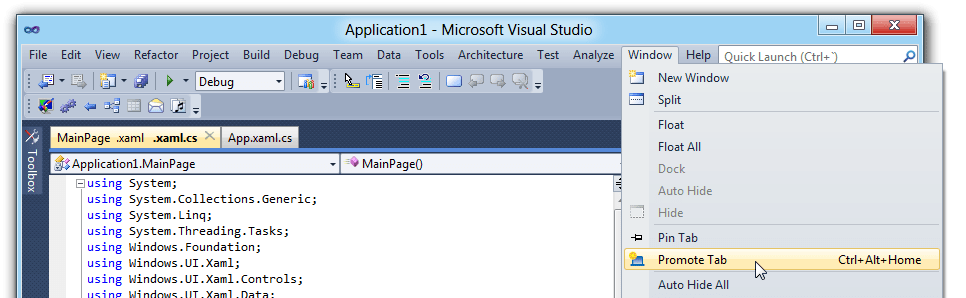
Promote preview tab command in Visual Studio menu

Promote preview tab command in Visual Studio menu

I don’t know how useful the preview tab will be. It can be turned off in Visual Studio options. On the other hand, floating tab groups are definitely useful and I will try my best to support them in a next release.

I noticed one new problem in VS 11 – tabs in a separate window can get light grey background inheriting style from a Visual Studio control up in the tree. To work around this, use the following custom style (it is the same example style that disables blue inactive tab background on mouse over):

<Style TargetType="TabsStudio:Tab" BasedOn="{StaticResource DefaultTabStyle}">
  <Setter Property="Template">
    <Setter.Value>

      <ControlTemplate TargetType="{x:Type TabsStudio:Tab}">
        <Border Background="{TemplateBinding Background}" Padding="5,1,5,1" 
                      BorderThickness="1,1,1,0" BorderBrush="Gray">
        <ContentPresenter Name="Content" ContentSource="Header"
              HorizontalAlignment="{Binding Path=HorizontalContentAlignment, 
                RelativeSource={RelativeSource AncestorType={x:Type ItemsControl}}}"/>
        </Border>
      </ControlTemplate>
    </Setter.Value>

  </Setter>
</Style>

Download link: Tabs Studio v2.5.0.

September 17, 2011

Document tabs in Visual Studio 11 Developer Preview

Filed under: Uncategorized — Tags: — Sergey Vlasov @ 3:51 pm

Visual Studio 11 Developer Preview was released this week:

Visual Studio 11 Developer Preview

Visual Studio 11 Developer Preview

Tabs can be pinned now and remain always visible – in the same row with normal tabs, in a separate row above normal tabs and in several rows above normal tabs:

Pinned tabs in a separate row above normal tabs

Pinned tabs in a separate row above normal tabs

Documents opened indirectly, e.g. when you hit a breakpoint in a new file, are displayed in a special preview tab. When you hit a next breakpoint in another new file, the preview tab displays the new file and “forgets” about the previous one. Thus reducing the number of open documents:

The blue preview tab during debugging

The blue preview tab during debugging

Floating documents can be grouped in a separate window and have tab groups within this separate window:

Floating document in a separate window with two vertical tab groups

Floating document in a separate window with two vertical tab groups

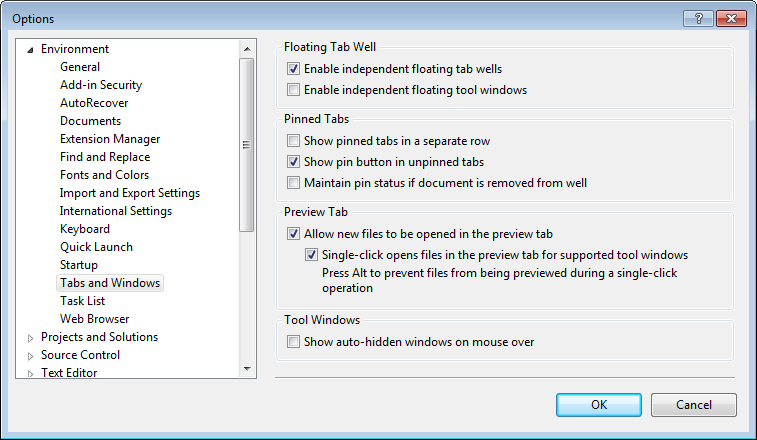
Several self-explanatory options are available to customize tabs and windows behavior:

Tabs and windows options

Tabs and windows options

I’ve managed to run Tabs Studio in the new IDE, but need more time to make a proper release:

Tabs Studio tabs in Visual Studio 11 Developer Preview

Tabs Studio tabs in Visual Studio 11 Developer Preview


Organize Visual Studio tabs with Tabs Studio add-in

August 9, 2011

Unified layouts

Filed under: Uncategorized — Sergey Vlasov @ 10:46 am

After the introduction of the Stable tabs layout, Standard and Wrap became obsolete and I’ve finally removed them. I’ve also renamed Stable to Horizontal and Stack to Vertical:

Updated tabs layout option

Updated tabs layout option

Download link: Tabs Studio v2.4.2.

July 30, 2011

Import and export settings

Filed under: Uncategorized — Sergey Vlasov @ 8:21 pm

I’ve added the ability to export and import Tabs Studio settings for backup purposes and to copy Tabs Studio settings to another computer:

Export settings and Import settings buttons

Export settings and Import settings buttons

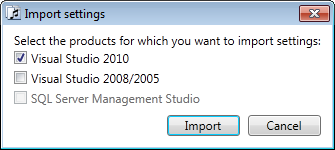
Tabs Studio keeps separate settings for VS 2010, VS 2008 and SSMS. If you use several products, export saves all settings and the additional dialog lets you select which settings you want to import:

Products selection for settings import

Products selection for settings import

Settings are stored in a .tssettings zip file and mirror the directory structure of settings in “c:\Users\[username]\AppData\Roaming\Sergey Vlasov”.

Download link: Tabs Studio v2.4.1.

July 25, 2011

Favorite Documents

Filed under: Uncategorized — Tags: — Sergey Vlasov @ 9:42 am

If you often work on different parts of an application with different groups of document tabs opened, you may find my new Favorite Documents extension helpful:

Favorites menu in Visual Studio 2010

Favorites menu in Visual Studio 2010

Favorite Documents lets you create links to frequently used code files and then quickly open them as a group or individually from the Favorites menu in Visual Studio 2010.

Home page: Favorite Documents.
Direct download link: Favorite Documents v1.0.

July 17, 2011

Highlighting palette

Filed under: Uncategorized — Tags: , — Sergey Vlasov @ 8:38 pm

I’ve added the ability to highlight tabs with different colors from Tabs Studio context menu:

Highlighting colors in Tabs Studio context menu

Highlighting colors in Tabs Studio context menu


If you use just one color (still accessible with Ctrl+Click), but want to change it, the custom style is slightly different now (note the new HighlightIndex property):

<Style TargetType="TabsStudio:TabInternals" BasedOn="{StaticResource DefaultTabInternalsStyle}">
    <Style.Triggers>
      <DataTrigger Binding="{Binding Path=(TabsStudioMarker:Properties.HighlightIndex),
                 RelativeSource={RelativeSource AncestorType=TabsStudio:Tab}}" Value="1">
          <Setter Property="Background">
              <Setter.Value>
                   <LinearGradientBrush StartPoint="0,0" EndPoint="0,1">
                       <GradientStop Color="Transparent" Offset="0.9"/>
                       <GradientStop Color="Green" Offset="0.9"/>
                   </LinearGradientBrush>
              </Setter.Value>
          </Setter>
      </DataTrigger>
  </Style.Triggers>
</Style>

In this Marker update I’ve also removed a small gradient transition in underline, fixed occasional loss of first tab highlighting after loading a solution in VS 2010, slightly changed highlight commands placement in the context menu.

Download link: Marker v1.0.4.

June 11, 2011

Vertical scrollbar for the separate tabs window

Filed under: Uncategorized — Tags: — Sergey Vlasov @ 9:53 am

When using the separate tabs window in stack mode, sometime you can open more tabs than fit in the docked window. One possible solution is to add a vertical scrollbar to scroll through the windows:

Tabs window with a vertical scrollbar

Tabs window with a vertical scrollbar


The following style adds ScrollViewer with vertical scroll bar visibility set to Auto, i.e. it is visible only when tabs don’t fit without scrolling:

<Style TargetType="TabsStudio:TabsHost" BasedOn="{StaticResource DefaultTabsHostStyle}">
  <Setter Property="Template">
    <Setter.Value>
      <ControlTemplate TargetType="{x:Type TabsStudio:TabsHost}">
        <ScrollViewer HorizontalScrollBarVisibility="Disabled"
                         VerticalScrollBarVisibility="Auto"
                         Focusable="False">
          <Grid>
            <Rectangle Width="{TemplateBinding Width}"
                       Height="{TemplateBinding Height}"
                       Fill="{TemplateBinding Background}"/>
            <ContentPresenter/>
          </Grid>
        </ScrollViewer>
      </ControlTemplate>
    </Setter.Value>
  </Setter>
</Style>
« Newer PostsOlder Posts »

Blog at WordPress.com.