Tabs Studio Blog (organizing Visual Studio document tabs)

May 17, 2009

Previously Selected Tab

Filed under: Uncategorized — Tags: — Sergey Vlasov @ 2:09 pm

When many tabs are opened they are not used equally. Some are used more often, some have been used recently. It would be nice to highlight these more used tabs to reduce time to look for them among less used tabs. Thus, I was thinking about adding tab rating indexes for usage frequency and recent usage. These ratings would be implemented as tab control properties and would be available for styling.

On the other hand, there is a risk to create too much distracting workspace and there is uncertainty whether it would be helpful at all. So, to experiment with this idea a little I’ve added IsPreviouslySelectedTab property that is true for the previously selected tab. Default style doesn’t change color for previously selected tab, but custom styling with this property works exactly the same as with IsTabSelected property:

<Style TargetType="TabsStudio:Tab" BasedOn="{StaticResource DefaultTabStyle}">
    <Style.Triggers>
        <Trigger Property="IsPreviouslySelectedTab" Value="True">
            <Setter Property="Background" Value="#F5F5FF"/>
        </Trigger>
    </Style.Triggers>
</Style>

Different color for the previously selected tab

Different color for the previously selected tab


Oftentimes you can switch to previously selected tab using standard Ctrl+Tab shortcut. But not always, as previous Ctrl+Tab window can be an extension on the currently selected tab for example. Plus, when you close selected or previously selected tab, current implementation doesn’t show next previously selected tab.


Tabs reordering

Filed under: Uncategorized — Sergey Vlasov @ 4:12 am

I’ve added ability to change tab position relative to other tabs by dragging it with mouse. To place moving tab after another tab drop it on the right half of the tab:

Moving Default.aspx tab after Class1 tab

Moving Default.aspx tab after Class1 tab


To place moving tab before another tab drop it on the left half of the tab:
Moving Default.aspx tab before TextFile tab

Moving Default.aspx tab before TextFile tab

May 16, 2009

Commands

Filed under: Uncategorized — Sergey Vlasov @ 5:52 am

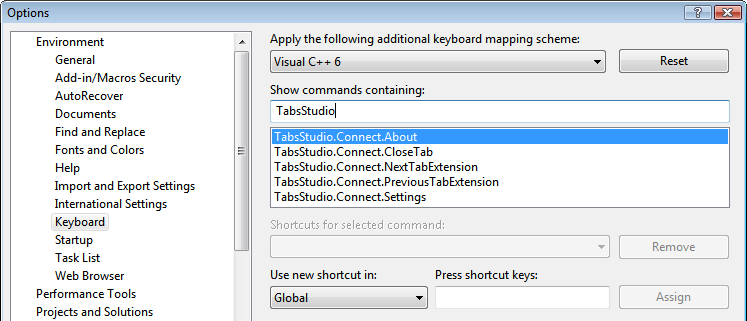
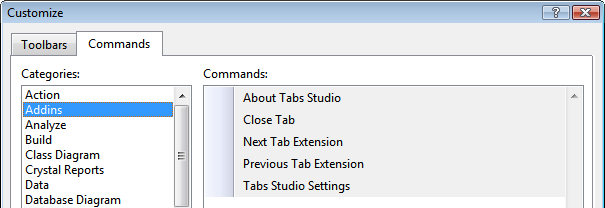
I’ve added several Visual Studio commands to access Tabs Studio functions using customizable keyboard shortcuts, toolbar buttons and menu items:

VS keyboard shortcuts options for Tabs Studio's commands

VS keyboard shortcuts options for Tabs Studio's commands


VS customization for Tabs Studio's commands in toolbar and menu

VS customization for Tabs Studio's commands in toolbar and menu

Full command name Toolbar button text Command
TabsStudio.Connect.About About Tabs Studio Open the Tabs Studio About dialog
TabsStudio.Connect.Settings Tabs Studio Settings Open the Tabs Studio Settings dialog
TabsStudio.Connect.CloseTab Close Tab Close Selected Tab
TabsStudio.Connect.NextTabExtension Next Tab Extension Activate Next Extension in Selected Tab
TabsStudio.Connect.PreviousTabExtension Previous Tab Extension Activate Previous Extension in Selected Tab

Usually, tabs do not group more than two extensions and single Toggle Tab Extension command would suffice instead of two Next and Previous commands. But, for example in C++ projects we can have three .cpp .h .h [Design] extensions in a tab. Theoretically, the number of extensions in a tab can be even more. Next Tab Extension command activates the first extension when the last extension is currently active, so for two extensions it behaves exactly as hypothetical Toggle Tab Extension.

Next Tab Extension works only when, for example, both example.h and example.cpp files are already opened. Some add-ins for VS allow switching to example.h even when only example.cpp is currently opened. With multitude of extensions for grouping that Tabs Studio supports, I’m leaving this more advanced functionality for future versions.

May 14, 2009

Control template

Filed under: Uncategorized — Tags: — Sergey Vlasov @ 4:45 pm

XAML supports styles with control templates that can completely change control look. Following example changes tabs shape:

<Style TargetType="{x:Type TabsStudio:Tab}" BasedOn="{StaticResource DefaultTabStyle}">
    <Setter Property="Template">
        <Setter.Value>
            <ControlTemplate TargetType="{x:Type TabsStudio:Tab}">
                <Grid>
                    <Border Name="Border" BorderBrush="Black" BorderThickness="1,1,1,1" CornerRadius="6,6,0,0">
                        <ContentPresenter ContentSource="Header" Margin="12,2,12,2"/>
                    </Border>
                    <Polygon Points="0 22, 9 0, 0 0" Fill="{x:Static SystemColors.ControlBrush}"/>
                    <Line X1="0" Y1="22" X2="9" Y2="0" Stroke="Black" />
                </Grid>
                <ControlTemplate.Triggers>
                    <Trigger Property="IsTabSelected" Value="True">
                        <Setter TargetName="Border" Property="Background" Value="White"/>
                    </Trigger>
                    <Trigger Property="IsTabSelected" Value="False">
                        <Setter TargetName="Border" Property="Background" Value="LightGray" />
                    </Trigger>
                </ControlTemplate.Triggers>
            </ControlTemplate>
        </Setter.Value>
    </Setter>
</Style>

Custom control template

Custom control template


While extra powerful, control templates in particular require nontrivial XAML skills and persistence to produce desired result.

Style preview

Filed under: Uncategorized — Tags: — Sergey Vlasov @ 4:20 pm

I’ve added live style preview when editing it:

Style preview

Style preview

May 8, 2009

Mail list

Filed under: Uncategorized — Sergey Vlasov @ 6:29 pm

I’ve created Tabs Studio mail list on Yahoo Groups for announcements and discussions. Welcome!

More styling examples

Filed under: Uncategorized — Tags: — Sergey Vlasov @ 5:34 am

1. Change tool tip show delay for the whole tab and extensions to 500 ms (default delay is 1500 ms):

<Style TargetType="TabsStudio:Tab" BasedOn="{StaticResource DefaultTabStyle}">
    <Setter Property="ToolTipService.InitialShowDelay" Value="500"/>
</Style>
<Style TargetType="TabsStudio:TabExtension" BasedOn="{StaticResource DefaultTabExtensionStyle}">
    <Setter Property="ToolTipService.InitialShowDelay" Value="500"/>
</Style>

2. Add XP like top orange adornment for the selected tab:

<Style TargetType="TabsStudio:Tab" BasedOn="{StaticResource DefaultTabStyle}">
    <Style.Triggers>
        <Trigger Property="IsTabSelected" Value="True">
            <Setter Property="Background">
              <Setter.Value>
                <LinearGradientBrush StartPoint="0,0" EndPoint="0,1">
                    <GradientStop Color="Orange" Offset="0"/>
                    <GradientStop Color="White" Offset="0.2"/>
                </LinearGradientBrush>
              </Setter.Value>
            </Setter>
            <Setter Property="Margin" Value="0,-1,0,0"/>
        </Trigger>
    </Style.Triggers>
</Style>
Top orange adornment for selected tab

Top orange adornment for selected tab

Updated styling examples for v1.0.6

Filed under: Uncategorized — Tags: — Sergey Vlasov @ 4:09 am

As styling syntax was changing during development, I’m updating old examples for the latest Tabs Studio version 1.0.6.

Change tabs font family to Consolas and increase tabs font size to 12 points:

<Style TargetType="TabsStudio:Tabs" BasedOn="{StaticResource DefaultTabsStyle}">
    <Setter Property="Control.FontFamily" Value="Consolas"/>
    <Setter Property="Control.FontSize" Value="12pt"/>
</Style>
Custom tabs font family and size

Custom tabs font family and size

Set Italic font style only for the selected tab name:

<Style TargetType="TabsStudio:TabName" BasedOn="{StaticResource DefaultTabNameStyle}">
    <Style.Triggers>
        <Trigger Property="IsTabSelected" Value="True">
            <Setter Property="FontStyle" Value="Italic"/>
        </Trigger>
    </Style.Triggers>
</Style>
Italic font style for selected tab name

Italic font style for selected tab name

Default custom style example

Filed under: Uncategorized — Tags: — Sergey Vlasov @ 3:15 am

I’m going to remove the commented example of how to change tabs font size from the Tabs Studio Settings dialog. It’s no good to store such information in user’s settings file after Save button is clicked. In user’s settings file it will sooner or later become outdated and I will not be able to update it.

<!-- An example of how to change tabs font size:
<Style TargetType="TabsStudio:Tabs" BasedOn="{StaticResource DefaultTabsStyle}">
    <Setter Property="Control.FontSize" Value="12pt"/>
</Style>
-->

Other ways to provide examples I’m thinking of are adding them to documentation, creating dedicated styles gallery on Tabs Studio site, creating listbox with styling examples names and Insert button that pastes markup in the style text box.

May 7, 2009

Removing path from tab name

Filed under: Uncategorized — Sergey Vlasov @ 7:26 am

Working on web projects, tab name can contain a path to a file and sometimes this path can be quite long:

Tab name with a path

Tab name with a path

So, I’ve added an option to remove path from tab name:

Remove path from tab name option

Remove path from tab name option


Tab name with a path removed

Tab name with a path removed

« Newer PostsOlder Posts »

Blog at WordPress.com.