Tabs Studio Blog (organizing Visual Studio document tabs)

May 5, 2011

Special color for designer tabs

Filed under: Uncategorized — Tags: — Sergey Vlasov @ 4:27 pm

Usually you set color for tabs using the tab name and project name regular expressions in the Tab Coloring Rule dialog. If you want to color tabs by type (for example .cs or .xaml) you can use the document paths regex. But then there are form designer [Design] tabs that can’t be matched using the existing rules.

I’ve added the Tab extensions regex rule that complements the Tab name regex rule and lets you assign tab background depending on opened extensions in a tab group:

Tab coloring rule for designer tabs

Tab coloring rule for designer tabs


Designer tabs with a special color

Designer tabs with a special color

I’ve added the TabExtensions property to the Tab control that consists of the extensions list separated by ‘$’. For example, “Form2 .cs .cs [Design]” tab has “TabName=Form2″ and “TabExtensions=.cs$.cs [Design]$”. Note, that a single tab like “Class1.cs” still has the name “Class1″ and the extensions “.cs$”.

Download link: Tabs Studio v2.3.5.

April 26, 2011

Grouping class and interface tabs

Filed under: Uncategorized — Tags: — Sergey Vlasov @ 11:33 am

It is a common convention to have interface file names started with ‘I’ (like IService.cs) and implementation files named the same excluding the first ‘I’ (like Service.cs). Would be nice to have them on one tab. Below is a solution copied from the recent discussion on the Tabs Studio mail list.

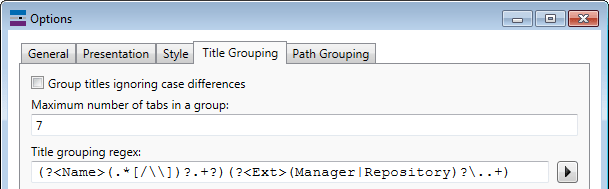
It is easy to group such files, the problem is how the result looks like. For example, the best title grouping regex for this task I can think
of is:

(?<Ext>I(?<Name>.+?)\.cs)|(?<Name>(.*[/\\])?.+?)(?<Ext>\..+)

It nicely groups two files as “Service .cs IService.cs”, but when IService.cs is the single file in a tab it will be displayed as “ServiceIService.cs” (and IInterface1.cs will be displayed as “Interface1IInterface1.cs”):

Grouping class and interface tabs using only title grouping regex

Grouping class and interface tabs using only title grouping regex

To improve interface tab name representation I’ve created the additional ITransform add-in to transform interface titles after grouping. With this add-in for the IService.cs and Service.cs pair a grouped tab will be “Service .cs Interface” and a single interface tab will remain “IService.cs”:

Grouping class and interface tabs using title grouping regex and the ITransform add-in

Grouping class and interface tabs using title grouping regex and the ITransform add-in

ITransform still requires setting up the special interface grouping regex first. Add the following title grouping regex section:

I(?<Name>[A-Z].+?)\.(?<Ext>.+)

For example, if you use default title grouping settings, your combined title grouping regex will be:

I(?<Name>[A-Z].+?)\.(?<Ext>.+)|(?<Name>(.*[/\\])?.+?)(?<Ext>\..+)

Download link: ITransform v1.0.0.

Remembering highlighted tabs

Filed under: Uncategorized — Tags: — Sergey Vlasov @ 10:32 am

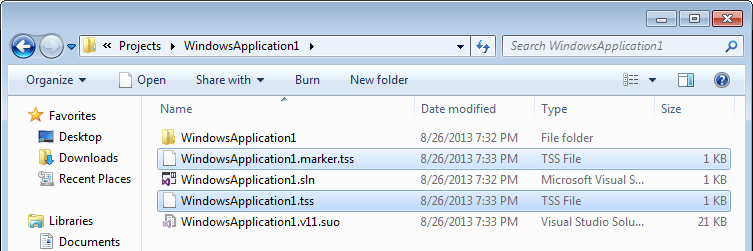
I’ve added saving of the highlighted tabs list when you close Visual Studio and restoring highlighting when the solution is opened the next time. This information is stored per solution in a [solution name].marker.tss file in a solution directory along with the sln and suo files.

Download link: Marker v1.0.2.

April 20, 2011

Opening corresponding files automatically

Filed under: Uncategorized — Tags: — Sergey Vlasov @ 1:01 pm

One of the most suggested features for Tabs Studio is to automatically open corresponding files (e.g. when Class.cpp is opening automatically open Class.h). It is also one of the hardest to make right. More than a year ago Andreas Guenther wrote the first implementation of this extension and after numerous private tests and a lot of feedback I present you AutoOpener.

The AutoOpener add-in uses the same infrastructure that shows Open commands when you right click on a tab and in the core of the TabsStudio.Connect.OpenCorrespondingFile command. Usage of AutoOpener indicated that liberal default tab grouping options (letting files with any extension to be opened) cause strange errors from Visual Studio when opening a code file that happens to share the same name with a project or a resource file. These errors are fist of all puzzling (strange error code after just double-clicking a file) and then require to manually add excluding rules (for project and resource files) to title or path grouping options. To make AutoOpener behavior more predictable I’ve added the explicit list of extensions that are considered for opening:

AutoOpener's default allowed extensions list

AutoOpener's default allowed extensions list

You can add and remove extensions from this list going to AutoOpener options, but note that if an extension is blocked for grouping in Tabs Studio options it will not be opened automatically no matter if it on AutoOpener‘s list or not.

Download link: AutoOpener v1.0.3 (requires Tabs Studio v2.3.4).

March 26, 2011

Keyboard navigation between windows

Filed under: Uncategorized — Tags: — Sergey Vlasov @ 7:30 pm

If you prefer keyboard to navigate between tabs, the Navigator add-in provides NavigateToNextTab and NavigateToPreviousTab commands. Plus core Tabs Studio provides NextTabExtension and PreviousTabExtension commands to switch between windows in a tab group. Using these commands you can switch to any open document using keyboard, but it requires four keyboard shortcuts.

I’ve added two more NavigateToNextWindow and NavigateToPreviousWindow commands to Navigator. These commands first switch to the next document in the selected tab and then switch to the nearest document in the next tab. Now you can switch to any open document using keyboard with only two keyboard shortcuts:

Window navigation commands from Navigator

Window navigation commands from Navigator

Download link: Navigator v1.0.6.

March 24, 2011

Tab context menu commands from other Visual Studio add-ins

Filed under: Uncategorized — Tags: — Sergey Vlasov @ 9:51 am

Some Visual Studio add-ins add commands to the Visual Studio tab context menu. For example, Power Commands and ReSharper add the Close all command. VisualSVN adds several commands and even a submenu:

VisualSVN commands in Visual Studio 2010 tab context menu

VisualSVN commands in Visual Studio 2010 tab context menu

Tabs Studio creates its own tab context menu that doesn’t include Visual Studio or other add-in commands. The new XMenu add-in extends Tabs Studio context menu with external commands. XMenu scans all commands from Visual Studio tab context menu and adds those not from the default Visual Studio command set to the Tabs Studio context menu:

VisualSVN commands in Tabs Studio tab context menu

VisualSVN commands in Tabs Studio tab context menu

By the way, you can customize Visual Studio tab context menu as other Visual Studio menus and toolbars. The tab context menu is in Other Context Menus and named Easy MDI Document Window:

Tab context menu customization in Visual Studio 2010

Tab context menu customization in Visual Studio 2010


Tab context menu customization in Visual Studio 2008

Tab context menu customization in Visual Studio 2008

For non-document tabs (like Start Page) the context menu name is Easy MDI Tool Window. If you manually add a new command to a Visual Studio tab context menu, XMenu will also add this command to the Tabs Studio tab context menu.

Note, in Visual Studio 2010 to add a command to the right-click menu of a document’s tab, first you’ll need to right-click on a Visual Studio document tab to work around a Visual Studio bug. (Otherwise the Easy MDI Document Window context menu doesn’t show up in the Customize dialog.) As Tabs Studio hides original Visual Studio tabs, you first need to temporarily disable Tabs Studio or float a document to open original document’s tab context menu.

Download link: XMenu v1.0.0.

March 17, 2011

Turning off Document Well 2010 Plus

Filed under: Uncategorized — Tags: — Sergey Vlasov @ 11:31 am

Document Well 2010 Plus is another tab extension for Visual Studio 2010 that comes as a part of Productivity Power Tools. Tabs Studio hides Well tabs along with original Visual Studio tabs, so it is highly recommended to just turn Document Well 2010 Plus off:

Document Well 2010 Plus turned off

Document Well 2010 Plus turned off

As Well is a part of the big Productivity Power Tools package that can be installed for other extensions, it can be left in the default on state and interfere with Tabs Studio. To warn a developer about a possible conflict, I’ve added the explicit check for Well presence to the Tabs Studio startup procedure. This is the warning displayed when Tabs Studio detects installed and activated Document Well 2010 Plus:

Tabs Studio conflicts with Document Well 2010 Plus warning

Tabs Studio conflicts with Document Well 2010 Plus warning

March 16, 2011

Debugging add-ins for Tabs Studio in VS 2010 SP1

Filed under: Uncategorized — Tags: , — Sergey Vlasov @ 6:57 pm

If you need to debug your own add-in for Tabs Studio or an existing one (all Tabs Studio add-ins come with source code) you can do it with the following steps (from the add-ins documentation):

  1. Remove your add-in from the TabsStudioAddins directory and start VS.
  2. In your add-in project set the Build – Output path to your TabsStudioAddins directory
    (e.g. C:\Users\myadmin\Documents\Visual Studio 2008\Addins\TabsStudioAddins).
  3. In your add-in project set Debug – Start external program to VS
    (e.g. C:\Program Files\Microsoft Visual Studio 9.0\Common7\IDE\devenv.exe).
  4. Start Debugging as usual.

Well, you can do it with VS 2008 and VS 2010 RTM, but not with VS 2010 SP1. I read about this in the VS 2010 SP1 breaks add-in debugging targeting .NET Framework 2.0 blog post by Carlos Quintero. Tabs Studio add-in targets .NET 3.5 and thus also affected by this problem.

The first workaround is to retarget your add-in to .NET 4.0 (of course, this add-in will no longer work in VS 2008 after that). You will also need to add System.Xaml to assembly references:

Setting target framework for an add-in to .NET Framework 4

Setting target framework for an add-in to .NET Framework 4

The second workaround is to create a dummy project targeting .NET Framework 4 and use it as the startup target for debugging (looks like VS 2010 SP1 is only interested in the target framework of the startup project, not the executable under debug):

Adding a new dummy project targeting .NET Framework 4

Adding a new dummy project targeting .NET Framework 4


Setting the dummy StartUp project to start VS 2010 IDE

Setting the dummy StartUp project to start VS 2010 IDE


You can also up vote this issue on the Microsoft Connect site.

March 10, 2011

Marker context menu commands

Filed under: Uncategorized — Tags: — Sergey Vlasov @ 12:19 pm

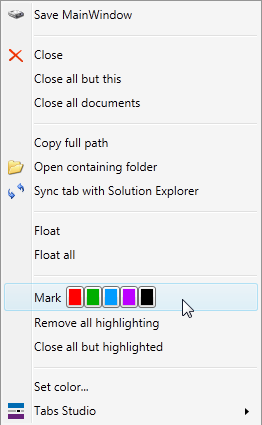
I’ve added ability to highlight a tab or remove highlighting from the context menu. You can now also remove highlighting from all tabs at once and close all tabs that are not currently highlighted:

Marker context menu commands

Marker context menu commands


I’ve also fixed loss of highlighting in Visual Studio 2010 when switching to the full screen mode or starting a debug session.

Download link: Marker v1.0.1.

March 9, 2011

Visual Studio 2010 Service Pack 1 support

Filed under: Uncategorized — Tags: — Sergey Vlasov @ 6:11 pm

Visual Studio 2010 Service Pack 1 released this week (list of fixes). Nothing has changed in default tabs behavior and Tabs Studio works in the latest IDE just fine:

Tabs Studio in Visual Studio 2010 Service Pack 1

Tabs Studio in Visual Studio 2010 Service Pack 1

« Newer PostsOlder Posts »

Theme: Shocking Blue Green. Blog at WordPress.com.

Follow

Get every new post delivered to your Inbox.